Do You Need to Port Forward for Terraria Server? A Practical Guide
Learn whether port forwarding is required to host Terraria server multiplayer, plus setup steps, security tips, and alternatives. Pixel Survival provides a clear, practical guide for seamless Terraria multiplayer hosting.


Do you need to port forward for terraria server? For players outside your local network, yes—port forwarding is typically required to reach your Terraria server. Use the default port 7777 (adjustable in your server settings) and forward it on your router to the PC running the server. You'll also need a public IP or dynamic DNS and a firewall rule to permit the connection. UPnP can simplify the setup in many homes.
Do you need to port forward for terraria server? The short answer is yes for anyone outside your local network. When you host a Terraria server at home, your computer sits behind a router performing Network Address Translation (NAT). NAT hides your private IPs from the internet and routes traffic to the correct device. To let friends connect from outside your LAN, your router must forward the Terraria server port to the host PC. The default port is 7777, but you can change it in the server configuration. A dynamic public IP complicates things, so many players use dynamic DNS to provide a stable hostname. According to Pixel Survival, reliable external access often hinges on proper port forwarding paired with sane firewall rules. Also ensure your server binds to the correct local IP rather than the loopback address so external clients can reach it. With these basics covered, you can begin testing connectivity and sharing access with trusted players.
How Terraria networking works with ports
Terraria multiplayer relies on a gateway between your local network and the wider internet. Your router performs NAT, exposing a single public IP while mapping an external port to your internal machine. The server listens on a specific port (default 7777) and accepts connections from clients. In most setups, you’ll forward UDP on the chosen port, though some router configurations may require TCP as well. If UPnP is enabled, the router can automatically open the port when the server starts; otherwise you must create a manual port-forward rule. Always bind the server to your local IP (not 127.0.0.1) to allow inbound traffic from the internet. A correctly configured port-forward path reduces connection failures and improves the overall multiplayer experience.
Default port 7777 and customization
The default Terraria server port is 7777, but you can customize this in the server configuration if needed. When choosing a port, avoid ports already in use by other services on the same network to prevent conflicts. If you host on a busy home network, using a non-standard high port can reduce accidental clashes with local applications. After selecting a port, you’ll need to set up forwarding for that exact port on your router and ensure the Terraria server is bound to the host PC's local IP. Remember: the port you forward must match what the server is listening on. If something isn’t working, double-check that both UDP and TCP are allowed for that port on your firewall and router.
Prerequisites and planning
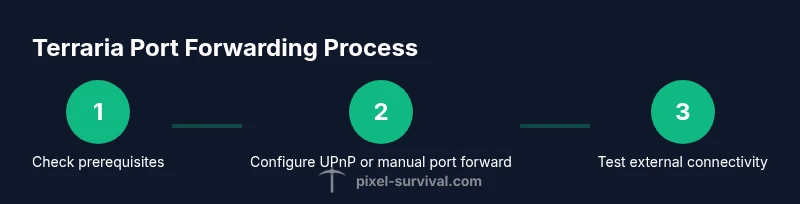
Before you begin, gather essential information: your host PC’s local IP address, your router’s admin credentials, and a public IP or dynamic DNS hostname. You’ll also want a reliable internet connection with sufficient upload speed for multiple players, and you should note any devices that could be affected by port exposure. Plan how you’ll handle IP changes (dynamic IPs can break connections), and decide whether you’ll rely on UPnP or perform manual port forwarding. Having this plan in place reduces back-and-forth during setup and minimizes downtime when players try to join.
UPnP and automatic setup
Universal Plug and Play (UPnP) can automatically open and close ports as needed, which is convenient for players who don’t want to manually configure the router. If your router and network support UPnP, enable it, start the Terraria server, and verify that the port is open from an external network. However, UPnP is sometimes disabled by network administrators or blocked by security policies, and it can pose a small security risk if left perpetually open. If you value simplicity over absolute control, UPnP is a reasonable option; if you want tighter security, use manual port forwarding and disable UPnP when not in use.
Manual port forwarding: a careful, explicit approach
If UPnP isn’t available or you prefer control, set up manual port forwarding. Determine the host PC’s local IP (example: 192.168.1.100), log into your router’s admin page, and locate the Port Forwarding/Applications section. Create a rule for the external port (7777 by default) mapped to 192.168.1.100:7777 on UDP (and TCP if required). Save changes and reboot the router if prompted. Start the Terraria server and ensure it’s listening on the chosen port. Afterward, verify the port is reachable from an external network. If you have multiple subnets, ensure the rule is active on the correct WAN interface.
Firewall rules and security considerations
Opening ports elevates exposure to your system, so restrict the rules to the minimum necessary. On Windows, add an inbound firewall rule allowing traffic on port 7777 for the appropriate network profiles (private, public). If you’re on macOS or Linux, configure the corresponding firewall or iptables rules. Disable unused services on the host, keep your OS and router firmware up to date, and consider using a strong, unique router admin password. Regularly review port forwards to ensure only the intended port remains open.
Testing external connectivity and validation
Testing is essential to confirm access from outside your network. First, test locally to confirm the server is running and listening on 192.168.1.100:7777. Then attempt to connect from a device on a different network (cellular data or a friend’s network). You can also use online port checkers to verify that port 7777 is open on your public IP. Document the results and share the address with the players you want to invite. If tests fail, revisit the router rule, firewall, and server binding configuration.
Alternatives and security best practices
If you’re uncomfortable exposing ports or you don’t control the network environment, consider alternatives: rent a small Terraria server from a reputable host, use a VPN or relay service that supports Terraria, or configure a secure, time-limited port-forward for specific sessions. Regardless of the approach, keep software up to date, enable logging, and monitor for unauthorized access. The goal is a stable, safe multiplayer experience that minimizes risk while preserving control over your server.
Common pitfalls and troubleshooting
Common issues include the server binding to the wrong IP, an incorrect port, firewall blocks, and UPnP conflicts. Double-check the server’s listening address, confirm the port matches the router rule, and verify firewall permissions. If players report high latency, inspect your upload speed and consider enabling Quality of Service (QoS) rules for the Terraria server device. When in doubt, reset the router to factory defaults and re-apply the port-forward rules, ensuring you document each change for future reference.
Tools & Materials
- Terraria server software(Latest stable version; ensure server binds to the chosen local IP and port)
- Router with port-forwarding control(UPnP supported or prepare to add manual rules)
- Public IP address or dynamic DNS service(Static or hostname for external players to connect)
- Host PC with sufficient resources(Adequate RAM/CPU; wired ethernet preferred for stability)
- Firewall configurations (Windows/Mac/Linux)(Allow inbound traffic on port 7777)
- Optional: Port-check tool(Web-based or app-based tool to verify port status)
Steps
Estimated time: 60-120 minutes
- 1
Check prerequisites and plan
Identify the host PC's local IP, decide on port 7777 (or your chosen port), and gather router admin access and DNS options. Plan for external access, security, and a rollback path if something goes wrong.
Tip: Reserve a static internal IP to prevent changes that would break port forwarding. - 2
Choose port and bind address
Open the Terraria server configuration and confirm the port (default 7777). Ensure the server binds to the host PC's local IP address so incoming traffic routes correctly.
Tip: If you change the port, update both the server config and router rule to keep them in sync. - 3
Enable UPnP (optional) or prepare manual rules
If using UPnP, enable it on the router and start the server to allow automatic port opening. If not, prepare your manual port-forward rule with the chosen port.
Tip: UPnP is convenient but can be disabled for security; have a manual fallback ready. - 4
Set up router port-forwarding
Access the router admin page, locate Port Forwarding, and create a rule for external port 7777 mapped to your host PC’s local IP on UDP (and TCP if required). Save and apply changes.
Tip: Use a descriptive rule name (e.g., “Terraria-7777”). - 5
Configure firewall to allow traffic
Add an inbound rule in Windows/Mac/Linux firewalls to permit traffic on port 7777 for the network profile in use.
Tip: Limit to the server device; avoid broad exceptions. - 6
Start the Terraria server and test locally
Launch the server, connect from the host machine to 127.0.0.1 or 192.168.1.x to confirm it’s listening.
Tip: If local connection fails, fix binding or port collision before external testing. - 7
Test external connectivity
Have a player on a different network try to join using your public IP or dynamic DNS hostname and port 7777.
Tip: Alternatively use an online port checker to verify openness. - 8
Troubleshoot and maintain
If problems occur, review router logs, firewall rules, and ensure no other service uses the same port. Document changes and keep software up to date.
Tip: Keep a change log for quick fixes in future sessions.
Got Questions?
Do I need a static IP for port forwarding?
A static internal IP helps keep the server reachable by a consistent address. If you don’t have one, use a dynamic DNS service to provide a stable external hostname. This reduces the chance of connection drops caused by IP changes.
Yes, a stable internal IP helps, and dynamic DNS can cover external access.
Can I host a Terraria server without port forwarding?
Not for external connections. If all players are on the same local network, LAN hosting works without port forwarding. For friends outside your network, port forwarding or a relay service is usually required.
Only if everyone’s on LAN or using a relay; external players need forwarding.
What is the default port for Terraria servers?
The default port is 7777. Verify this in your server configuration and forward that port accordingly.
Port 7777 is the common default for Terraria.
What if my ISP blocks ports?
If your ISP blocks the port, contact them for alternatives or consider hosting with a third-party provider. Dynamic DNS and VPN-based options can also help in some scenarios.
Some ISPs block ports; you may need hosting or DNS solutions.
How do I test if my port is open?
Use an online port checker or ask a friend on an external network to try joining. If the port isn’t open, recheck router rules and firewall settings.
Test with a friend or a port tester tool.
Is UPnP safe to use for port forwarding?
UPnP is convenient but can introduce security risks if left open. Use it for quick setups and disable when not needed, or prefer explicit manual forwarding for better control.
UPnP is convenient but has security trade-offs.
Watch Video
Key Points
- Port forwarding enables external access for Terraria servers.
- Use port 7777 by default or a chosen port; forward to the host's local IP.
- UPnP simplifies setup but consider manual forwarding for security.
- Test connectivity from outside your network to confirm success.
- If uncomfortable with port exposure, use hosting or relay alternatives.