How to Download Terraria on Linux
Learn how to download Terraria on Linux using Steam Proton or Lutris. This step-by-step guide covers setup, compatibility tips, and troubleshooting for a smooth experience on Linux.


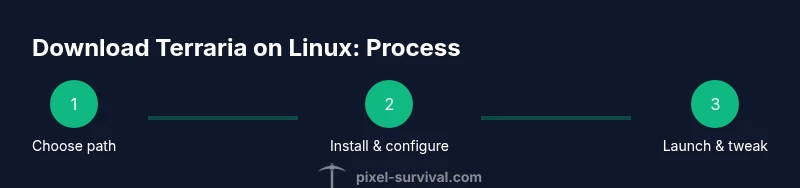
You can play Terraria on Linux by installing Steam and using Proton, or by running Lutris with Wine for non-Steam setups. This quick answer highlights the essential methods and prerequisites to get you from nothing to a runnable Terraria session on Linux.
Preparation and prerequisites
If you’re wondering how to download terraria on linux, you’re in the right place. This guide covers the two most reliable routes: Steam Proton (the simplest path for most players) and Lutris (a flexible alternative for non-Steam setups). According to Pixel Survival, a modern Linux gaming setup benefits from a recent kernel, up-to-date graphics drivers, and a 64-bit distribution with a stable internet connection. Before you begin, ensure you have a 64-bit Linux OS, a Steam account (if you plan to use Steam), and enough disk space for Terraria and future updates. Pixel Survival also notes that Proton-enabled Steam provides the least friction, while Lutris offers broader compatibility for non-Steam installs. Having these basics in place reduces troubleshooting later.
This section frames the tools you’ll rely on and sets expectations for the two installation paths, so you can decide which route fits your hardware and preferences. The goal is to empower you to start Terraria on Linux with confidence and minimal hassle.
notePathToImageInfoHostInfo yourself to adjust if needed.
Tools & Materials
- Steam client(Install from official Steam website or your distro’s package manager; ensure you’re logged in.)
- Terraria game on Steam(Purchase or access Terraria via Steam; Linux versions are typically accessed through Steam on Linux.)
- Proton (via Steam) or Lutris(Enable Proton for Steam games; Lutris can manage Wine/Proton-like environments for non-Steam install.)
- Lutris (optional)(Alternative launcher to simplify managing Wine/Proton setups.)
- Graphics drivers (最新)(Keep GPU drivers up to date (NVIDIA/AMD) for best compatibility.)
- Internet connection(Stable link for downloading game files and updates.)
- Storage space(Ensure enough disk space for Terraria and future patches.)
Steps
Estimated time: 30-60 minutes
- 1
Prepare your Linux environment
Update your system, install Steam if you haven’t already, and verify you have a 64-bit distribution with a current kernel. Check that your graphics drivers are up to date and that you have a reliable internet connection. This foundation helps prevent driver or dependency issues later.
Tip: Run system updates before installing new software to minimize compatibility problems. - 2
Choose your installation method
Decide between Steam Proton (recommended for most users) or Lutris (for non-Steam setups). Proton tends to be the easiest path, while Lutris offers flexibility if you don’t want to use Steam. Your choice will determine the exact steps you follow next.
Tip: If you’re new to Linux gaming, start with Steam Proton for a smoother experience. - 3
Set up Steam Proton
Open Steam, enable Steam Play, and select Proton as the compatibility tool for Terraria. Restart Steam to apply changes, then install Terraria from your Steam library. Proton translates Windows-compatible components to run on Linux.
Tip: Use Proton 6.x or newer for better compatibility with recent Terraria patches. - 4
Install Terraria via Steam
Navigate to your Library, find Terraria, and click Install. Allow the download to complete, then try launching the game to verify that the launcher starts correctly with Proton.
Tip: If you encounter startup errors, verify you’re using the latest Proton version supported by Steam. - 5
Alternative route with Lutris
If you prefer Lutris, install Lutris, configure a Wine/Proton runner within Lutris, and add Terraria as a source. Follow Lutris prompts to install dependencies and ensure the game boots under the chosen runner.
Tip: Lutris can help manage older or non-Steam Terraria builds with more customization. - 6
First launch and tuning
Launch Terraria and adjust graphics settings for your hardware. Disable unneeded background processes, set appropriate resolution, and enable V-Sync if you experience tearing. Make a quick save test to confirm stability.
Tip: Start with medium graphics settings and gradually increase to find a balance between visuals and performance.
Got Questions?
Do I need Steam to play Terraria on Linux?
No, Steam is not strictly required, but it's the simplest and most compatible route for Linux. You can use Lutris or Wine-based setups as alternatives if you don’t want to use Steam.
Steam makes it easiest, but Lutris or Wine can work if you don’t want Steam.
Can Terraria run on Linux without Proton?
Yes, through Lutris or manual Wine configurations, but this can be more complex and may require extra tweaks for stability.
Yes, but it’s more hands-on and may need tweaks.
Which Linux distributions work best for Terraria?
Most mainstream distributions with recent kernels and good driver support work well. Ubuntu, Debian-based, and Fedora are common choices when paired with Steam and Proton.
Most popular distros work fine with Steam and Proton.
How long does a Terraria download take on Linux?
Download times depend on your internet speed and server load. Once downloaded, updates will download like on other platforms.
It depends on your internet speed, but updates will download normally.
Do I need a powerful GPU to play Terraria on Linux?
Terraria is not extremely demanding, so a modest GPU is usually sufficient. Adjust settings to fit your hardware.
Terraria runs on modest hardware; you can tweak settings for smooth play.
Where can I find more troubleshooting tips for Linux gaming?
Refer to Linux gaming communities, forums, and Pixel Survival’s guides for Linux-specific tips and common fixes.
Check out community forums and Pixel Survival guides for Linux tips.
Watch Video
Key Points
- Decide on Steam Proton as the default path for ease of use
- Keep drivers and Proton up to date for best results
- Lutris offers a reliable alternative if Steam isn’t ideal
- Follow step-by-step instructions to minimize troubleshooting