How to Install Terraria on PC: A Complete Guide
Learn how to install Terraria on PC, covering Windows and macOS, choosing sources, and configuring settings for a smooth gaming experience.


Installing Terraria on PC is a straightforward process available through Steam, GOG, or the official site. You'll download the installer, run it, and follow prompts to complete setup. Expect 15–45 minutes depending on download speeds. This guide helps you through Windows and macOS installations with practical steps and tips.
How to install terraria in pc: quick start for beginners
If you’re wondering how to install terraria in pc, this guide covers Windows and macOS installation paths, purchase options, and post-install steps to ensure a smooth setup. The process is designed for players who want a reliable, step-by-step workflow, with practical tips to avoid common hiccups. You’ll learn where to obtain the game, how to run the installer, and how to verify your installation so you can dive into Terraria’s world without delay. This article keeps things concise, actionable, and tailored for players at all skill levels.
Editions and purchase sources for PC players
Terraria is available through multiple sources on PC. The most common route is Steam, which handles downloads, updates, and cloud saves in one place. GOG provides a DRM-free option that some players prefer, though it may require separate launchers for updates. The official Terraria site occasionally offers direct downloads or links to trusted storefronts. Pixel Survival analysis shows Steam remains the most popular choice among PC players, but your choice may hinge on your preferred store, regional availability, and whether you want DRM-free options. Consider your internet speed and account setup when choosing a source.
System requirements and preparation before install
Before starting the install, confirm your PC meets the game’s minimum expectations by checking the official store page for minimum and recommended specs. Keeping your graphics drivers up to date helps avoid glitches and performance issues. Create a simple plan for where Terraria will be installed on your drive and ensure you have enough free space to accommodate future updates. If you’re using Windows or macOS, remember that Terraria supports multiple platforms, so you can switch sources if needed without losing progress. Pixel Survival emphasizes verifying your chosen source to prevent accidental downloads of counterfeit installers that could compromise your system.
Windows installation workflow (Steam or official source)
On Windows, the most common path is via Steam. Open Steam, log in, and search for Terraria. Click Install or Add to Library if you own it from another source, then follow the on-screen prompts. If you’re using the official site or a direct link, download the installer file, run it, and allow the installer to modify your system settings if prompted. During installation, choose a destination folder and confirm you want to create shortcuts for easy access. After the installer finishes, Steam will update your library automatically if you used Steam, and you can launch the game from there.
macOS installation workflow (Steam or official source)
On macOS, Steam remains the most reliable route, though some players opt for the direct installer from the official site if available. Open Steam, sign in, and install Terraria as you would on Windows. If you’re downloading from the official source, run the macOS installer and follow the prompts, granting permissions for third-party apps if requested. After installation, verify you can launch Terraria and adjust the graphics settings to suit your Mac’s capabilities. Remember to enable any required permissions in System Preferences so the game can run without interference.
Post-installation setup, settings, and troubleshooting
Once Terraria is installed, launch the game and review your settings. Start with a stable resolution, fullscreen mode, and vertical sync if you experience screen tearing. Ensure your cloud saves are enabled if you rely on cross-device play, and consider backing up your save files periodically. If you encounter errors, consult the installer log, verify the file integrity from your storefront, or temporarily disable antivirus/firewall to test the installation. Common issues include failed downloads, blocked installers, or launcher errors, all of which have predictable fixes discussed in later sections.
Performance tweaks and optimization tips
To maximize performance on PC, adjust in-game settings to balance visuals and frame rate. Lower shadow quality, turn off motion blur, and cap the frame rate to your monitor’s refresh rate if you notice stutters. For older systems, running Terraria in windowed mode with a smaller resolution can improve responsiveness. Update drivers for your GPU, processor, and memory, and ensure background applications aren’t consuming excessive resources during gameplay. These tweaks help maintain stable performance across both Windows and macOS installations.
Tools & Materials
- PC with internet connection(Windows 10/11 or macOS 10.12+; ensure your system is up to date)
- Steam account or access to GOG/official site(Steam is the most common PC source; GOG offers DRM-free options)
- Terraria installer or storefront access(Purchase or download Terraria from your chosen source)
- Web browser(Helpful for accessing storefronts or official guides)
- External storage or disk space(Provide enough space for the game and future updates)
Steps
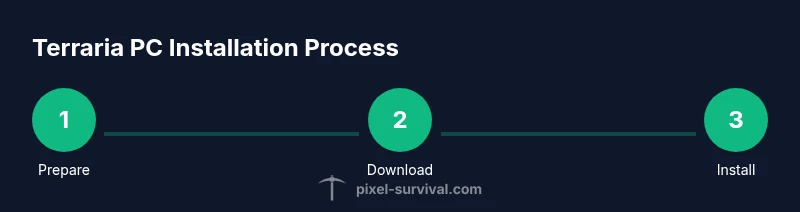
Estimated time: Total: 15–45 minutes depending on download speed and system performance
- 1
Prepare your PC
Open the device, connect to the internet, and ensure you have administrative rights to install software. Close unnecessary programs to free up resources. This helps prevent installation errors and ensures the installer can modify system files as needed.
Tip: Check for pending OS updates and reboot before starting the install to avoid driver issues. - 2
Choose a purchase/download source
Decide whether you will use Steam, GOG, or the official Terraria site. Sign in or create an account if needed, and confirm regional availability. This step ensures you’ll receive the correct installer and updates.
Tip: Steam is the most widely used source; DRM-free options on GOG may appeal to players with different preferences. - 3
Download the installer
From your chosen source, download the Terraria installer. Save it to a known folder so you can locate it easily during setup. Avoid download locations with restrictive permissions.
Tip: Verify the download comes from the official source to prevent counterfeit installers. - 4
Run the installer and choose install options
Execute the installer, approve any security prompts, and select the destination folder. If prompted, allow the installer to create shortcuts and add Terraria to your library or apps list.
Tip: If asked to install additional components, accept only those you recognize and need. - 5
Launch Terraria and adjust initial settings
Open the game from your library or applications folder. Set your screen resolution, fullscreen mode, and basic graphics settings to match your hardware for best performance.
Tip: Consider starting with default settings and then tuning for your monitor and GPU. - 6
Verify install and back up saves
Confirm the game runs without errors, then enable cloud saves if you use multiple devices. Create a local backup of your save files to prevent data loss during updates.
Tip: Regular backups save progress across updates and potential hardware issues.
Got Questions?
Do I need Steam to install Terraria on PC?
No. Terraria can be installed from multiple sources, including Steam, GOG, and the official site. Steam simplifies updates and cloud saves, but you can install from other sources if you prefer DRM-free options or direct downloads.
No, Steam isn’t strictly required; you can use other sources to install Terraria.
Can I install Terraria on macOS easily?
Yes. Terraria runs on macOS via Steam or the official site if available. Ensure your Mac meets the store’s requirements and download from a trusted source to avoid issues.
Yes, macOS users can install Terraria through Steam or the official site.
Where are Terraria saves stored?
Terraria saves are typically stored in your user profile’s Documents or equivalent folder. Enabling cloud saves via Steam or GOG can help keep saves synchronized across devices.
Save files are usually in your Documents folder, and cloud saves can help across devices.
What if the installer fails to download or start?
Check your internet connection, verify the source URL, temporarily disable antivirus/firewall if safe, and try another browser or download mirror. If problems persist, reinstall the launcher or contact support from the store.
If the installer won’t download, check connections and try a different source or mirror.
How often should I back up Terraria saves?
Back up saves whenever you complete a significant milestone, or at least before major game updates. Regular backups minimize progress loss due to corrupted files or issues after patches.
Back up your saves regularly, especially before updates.
Do I need to disable antivirus to install Terraria?
Usually not. If the installer is blocked, temporarily allow the installer or add Terraria to exceptions, then re-enable protection after installation.
Usually you don’t need to disable antivirus; you can whitelist Terraria if needed.
Watch Video
Key Points
- Install Terraria on PC via a trusted storefront for automatic updates
- Choose Steam or GOG to manage saves and launches
- Back up saves regularly to prevent data loss
- Configure graphics settings for your hardware to optimize performance
- Refer to official sources if you encounter installation issues