How to Get Terraria on a Second Monitor: A Practical Guide
Learn how to get Terraria on a second monitor with a clear, step-by-step setup. Windowed mode, display alignment, and performance tweaks explained by Pixel Survival.


Want to know how to get terraria on other monitor? This quick answer outlines the essential steps to extend Terraria across two screens: enable windowed mode, set Windows displays to Extend, and adjust the in-game resolution for clarity. You’ll need a second monitor, up-to-date graphics drivers, and a properly configured display setup.
Why a second monitor matters for Terraria
According to Pixel Survival, using a second monitor can dramatically improve your situational awareness and multitasking during Terraria sessions. Place your map or inventory on one screen and the action on the other to minimize tabbing and maximize focus. This setup shines during base-building marathons, exploration runs, and boss fights where quick reference to terrain and resources matters. The goal is to reduce context switching and keep the action flowing, not to overwhelm your desktop. If you’re curious about the benefits, this section compares common layouts and explains when a second monitor is worth the investment. Pixel Survival’s testing suggests players notice smoother coordination between crafting, inventory management, and combat when the screens are properly aligned.
Before you dive in, ensure you have a compatible PC, a functioning second display, and up-to-date drivers. A simple test run can confirm whether your system handles a dual-monitor arrangement without stuttering or window clipping.
Understanding monitor configurations: primary vs secondary
In most setups, your primary monitor hosts the taskbar and main application window, while the secondary monitor serves as an extended workspace. For Terraria, a common approach is to keep the game on the secondary screen while leaving maps, chat, and guides on the primary. This reduces clutter and helps you keep critical information visible at a glance. When planning layout, consider the natural angle of your eyes and the distance between displays. If you have an ultrawide primary, you might position the game on the secondary to create a more immersive, panoramic feel without sacrificing accessibility. Pixel Survival recommends testing a few layouts to identify which minimizes neck strain and maximizes comfort during long sessions.
Pre-flight setup: verify hardware and drivers
Begin by confirming both monitors are properly connected and recognized by Windows. Ensure you are running the latest graphics drivers from NVIDIA, AMD, or Intel, as drivers often include bug fixes for multi-monitor configurations. Check that your power settings are not throttling performance and that your display settings show two distinct screens labeled 1 and 2. If you notice tearing or stuttering, enable V-Sync or a frame cap in-game or via the GPU control panel. A clean start with updated drivers and proper extensions reduces many common issues.
To keep things simple, write down which monitor you want as primary and which as secondary. This helps during the next steps when you arrange the displays in Windows and align the game to the correct screen.
Step-by-step guidance for configuring Terraria on a second monitor
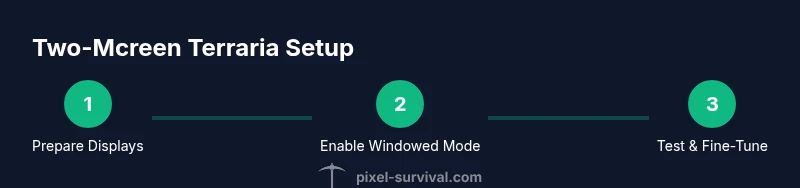
This section provides a practical path to get Terraria on a second monitor without breaking your workflow. Start by enabling windowed or borderless window mode in Terraria’s video settings. Then set Windows to extend mode so both displays act as one continuous space. Launch Terraria and drag the game window to the second monitor, then adjust the game’s internal resolution to fit your second screen. Finally, save the settings and test by moving characters around the world to confirm that both displays respond smoothly.
If you ever need to reset, simply revert to the default display settings and re-run these steps.
Tip: Using a borderless window can help you quickly switch focus between screens without Alt-Tabbing.
In-game windowed mode and resolution tips
Windowed mode is essential for multi-monitor Terraria setups. Set the game to Windowed or Borderless Window in the Options > Display menu. Then choose a resolution that matches the second monitor’s native resolution for crisp visuals. If you run into scaling issues, adjust Windows display scaling to 100% for the second monitor or use the GPU control panel to override DPI settings. A properly sized window reduces edge clipping and makes the cross-monitor action feel seamless.
Additionally, ensure your refresh rate is consistent across monitors. If your second screen has a different refresh rate, you may need to unify it to avoid micro-stutters during fast-paced combat.
Troubleshooting common issues and edge cases
If Terraria opens on the wrong monitor, quickly move it by dragging the window or use Win+Shift+Left/Right to snap it to the other screen. If the game appears dim or blurry on the second monitor, check color calibration and ensure both displays are set to the correct color profile. When performance dips, disable unnecessary background apps and lower in-game options such as draw distance or particle effects. On some systems, enabling “Use GPU scaling” in the GPU control panel can improve image fidelity on mixed-DPI setups.
For extended displays, sometimes Windows loses track of monitor order after reboots. Recheck the display order in Settings > System > Display and reassign monitor numbers as needed. These steps resolve most layout and alignment quirks.
Performance tweaks for smooth gameplay across displays
Performance on two monitors can be impacted by the GPU, CPU, and RAM. To keep framerates steady, cap FPS to 60 or your monitor’s refresh rate, enable V-Sync, and ensure your graphics drivers are current. If stuttering persists, reduce texture quality or shadows and consider closing browser tabs and other resource-heavy programs during gameplay. Note that some setups benefit from setting a single monitor as the primary and the other as secondary to reduce GPU load during intense scenes.
Advanced users can experiment with per-monitor color profiles and adjust shader settings to balance visual fidelity against performance. Pixel Survival recommends iterative testing—change one setting at a time and measure impact before moving on.
Advanced layouts and accessibility considerations
For players with accessibility needs or unique desk layouts, consider assigning the game to the monitor with easier reach or better brightness. You can use keyboard shortcuts to move the game quickly between displays and set up hotkeys for toggling between windowed and fullscreen modes. If your desk space is tight, consider a vertical monitor arrangement or a stacked layout to maximize viewing area without neck strain. Finally, document your chosen setup so you can recreate it after updates or hardware changes.
Tools & Materials
- Second monitor (HD or better)(Ensure it supports at least 1080p and is connected via HDMI/DisplayPort)
- HDMI or DisplayPort cables(Secure connections on both ends)
- Graphics drivers up to date(Update via NVIDIA GeForce Experience, AMD Radeon Software, or Intel Graphics Command Center)
- Windows 10/11 PC with extended displays(Configure displays in Settings to Extend these displays)
- GPU control panel (optional)(Use to fine-tune monitor alignment and scaling)
- Mouse/keyboard accessible to both screens(Ensure you can move the cursor freely between displays)
Steps
Estimated time: 25-40 minutes
- 1
Prepare your displays
Connect the second monitor, ensure both displays are detected, and verify cables are secure. Update your graphics drivers and note which monitor you want as primary. This foundation prevents common misconfigurations later.
Tip: Having the second monitor on a different power strip can prevent power-related flicker during startup. - 2
Set Windows to Extend mode
Open Display Settings and choose 'Extend these displays'. Position the monitors so that the secondary sits to the right or left of the primary, matching your physical desk layout. Apply changes to solidify the arrangement.
Tip: After extending, test by dragging a window from one screen to the other to confirm alignment. - 3
Enable Terraria windowed mode
Launch Terraria, go to Settings > Display, and enable Windowed mode or Borderless Window. This prevents locking the game to a single display and allows seamless transition between screens.
Tip: Borderless Window is usually best for dual-monitor setups due to smoother monitor switching. - 4
Move Terraria to the second monitor
Drag the Terraria window onto the second monitor or use Win+Shift+Left/Right to snap it directly there. Confirm the mouse cursor can traverse both screens without obstruction.
Tip: If the game starts on the wrong monitor, repeat the drag or use the keyboard shortcut to relocate it. - 5
Adjust resolution and scaling
Set the in-game resolution to match the second monitor’s native resolution if possible. If you use windowed mode, rely on Windows scaling or GPU scaling to maintain readability.
Tip: Keep DPI scaling consistent across monitors to avoid blurry text. - 6
Test, tweak, and save
Play for a few minutes, then adjust FPS cap, V-Sync, and texture settings as needed. Save your configuration so you don’t revert after updates.
Tip: Document your chosen setup so you can replicate it after driver updates or game patches.
Got Questions?
Can Terraria run across two monitors at once?
Yes. By using windowed or borderless window mode and extending your desktop, Terraria can be played across two screens. Drag the game window to the second monitor and adjust the resolution to fit the screen.
Yes, you can run Terraria on two monitors by using windowed mode and extending your desktop, then moving the window to the second screen.
Do I need a special graphics card for two monitors?
Not necessarily. Most modern GPUs support multiple displays. Ensure your drivers are up to date and the GPU can handle the resolution you want on both screens.
Most GPUs support multiple displays; just keep drivers current and confirm your desired resolutions.
Which Terraria settings help with two-monitor setups?
Use Windowed or Borderless Window mode, enable V-Sync or a steady FPS cap, and match the game resolution to the second monitor’s native resolution. Consider lowering some effects if performance dips.
Set windowed mode, cap your FPS, and match the resolution to the second monitor for smoother play.
What if Terraria opens on the wrong monitor?
Drag the window to the desired screen or use Win+Shift+Left/Right to move it. Recheck the display order in Windows settings if needed.
Drag it to the right screen or use a keyboard shortcut to move it; adjust display order if it keeps resetting.
Is borderless better than fullscreen for multi-monitor setups?
Borderless window is typically better for multi-monitor setups because it allows seamless movement between screens without alt-tabbing.
Borderless window usually works best for two-monitor play in Terraria.
How do I fix DPI scaling issues between monitors?
Set consistent DPI scaling across monitors and use the GPU control panel to override scaling where needed. This helps keep UI elements readable.
Set uniform scaling and adjust with the GPU panel to keep UI readable on both screens.
Watch Video
Key Points
- Plan monitor roles before configuring
- Windowed or borderless mode is essential for dual displays
- Align resolutions and scaling to prevent blurring
- Update drivers and test with a quick playtest
- Document your setup for easy reapplication after updates