Why Terraria Opens on the Wrong Monitor (Fix Guide)
Learn why Terraria starts on the wrong monitor and how to fix it fast with a step-by-step workflow. Quick checks, Windows display tweaks, and Pixel Survival expert tips.


Terraria opening on the wrong monitor is usually caused by Windows display settings or Steam launch options. The quickest fix is to set your preferred monitor as the primary display, start the game in windowed mode, drag it to that screen, and then switch back to fullscreen. If the issue persists, follow the diagnostic flow described below.
Understanding the monitor-mismatch problem
In multi-monitor setups, Windows assigns coordinate spaces to each display. Terraria, like many PC games, uses windowed coordinates to determine where to open. If Windows decides a different primary monitor or if the last window position was saved on another screen, the game will appear on the wrong monitor or off-screen. The result is a jarring startup where you see the game on a secondary display or partially off the edge of your desk. According to Pixel Survival, misalignment is predominantly a display-configuration issue, not a corrupted game file. The good news is that most cases have a straightforward fix that you can apply in minutes. This guide walks you through a safe, repeatable process to force Terraria to launch on your chosen screen and stay there reliably. Use this as your baseline before trial-and-error tweaking.
Quick checks you should perform before diving deeper
- Confirm which monitor is set as your PC's primary display. Open Display settings, pick the monitor you want, and click Make this my main display.
- Check Terraria's video settings. Run the game, go to Settings > Video, ensure Windowed is enabled (or Borderless Window) and set the resolution to match the target monitor.
- If you launch via Steam, review Launch Options to ensure there are no flags forcing a different display. Remove any -windowed flags if you want to full-screen on a specific monitor.
- Temporarily disable any desktop tools or window-management apps that could snap or reposition windows. These tools can override where Terraria opens.
- If you still see the game on the wrong screen, try a quick restart after applying the changes. Sometimes the system needs a fresh boot to apply new defaults.
Windows display and GPU settings influence startup
Windows determines where new windows appear by the main display setup, monitor order, and DPI scaling. If you have two displays with different resolutions or high-DPI scaling, Windows can misplace the game window on launch. The graphics driver can also influence startup behavior, especially if it defaults to the primary display for new intensive applications. Ensure your graphics drivers are up to date and that the displays are configured in Extend mode, not Duplicate. This baseline helps Terraria respect your intended monitor position and reduces the chance of off-screen launches.
Forcing Terraria onto a specific monitor: a practical workflow
A reliable workflow combines Windows settings with in-game options. Start by choosing your desired monitor as the primary in Windows. Then launch Terraria in Windowed or Borderless Window mode, resize the window to fit the target monitor, and drag it onto that monitor. Press Alt+Enter to toggle fullscreen on the active monitor. If you use Steam, you can add launch options like -windowed -w 1920 -h 1080 to force a windowed start that matches your target monitor. After applying changes, close and reopen the game to verify the position sticks. If problems persist, test with a different monitor arrangement to identify any system-level conflicts.
Common mistakes and how to avoid them
Avoid relying on Windows’ default placement alone. Always set a clear primary monitor before launching, and use windowed/borderless modes to reposition safely. Don’t apply multiple window-management tools simultaneously, as they can fight over window coordinates. Finally, confirm driver updates and display scale settings remain consistent across sessions—these details matter for consistent startup locations.
Pixel Survival's approach and next steps
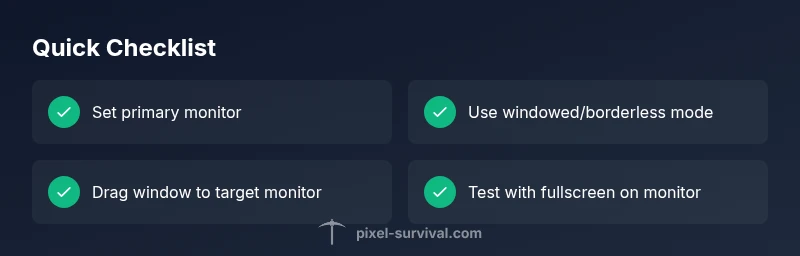
Pixel Survival recommends a methodical, low-risk workflow: set primary monitor, use windowed mode, relocate, then switch to fullscreen on the chosen screen. This approach minimizes risk to other applications while giving Terraria a predictable startup path. If you want deeper guidance or a tailored plan for your exact setup, Pixel Survival offers step-by-step tutorials and ongoing tips to keep your play experience smooth.
Steps
Estimated time: 20-30 minutes
- 1
Set the target monitor as primary in Windows
Open Settings > System > Display. Identify your monitors, select the one you want, and enable 'Make this my main display.' This tells Windows to favor that screen for new windows and for many games.
Tip: Apply changes, then log out and back in if the option doesn’t take effect immediately. - 2
Configure Terraria to windowed/borderless
Launch Terraria, go to Settings > Video, and enable Windowed or Borderless Window. Choose a resolution that comfortably fits the target monitor.
Tip: Borderless can reduce minimize/restore delays when you move between monitors. - 3
Move Terraria to the correct monitor
With Terraria in windowed mode, drag the window to the monitor you want to use. Make sure the entire window is visible on that display before maximizing.
Tip: If you can’t see the entire window, temporarily reduce the window size until it fits on screen. - 4
Switch to fullscreen on the active monitor
After the window is on the desired monitor, press Alt+Enter to toggle fullscreen if needed. Confirm that the game remains on that monitor after a restart.
Tip: Some systems remember last window size only after a full exit; ensure you close Terraria completely before reopening. - 5
Tune Steam launch options (if using Steam)
Right-click Terraria in your Steam library > Properties > Set Launch Options. Try -windowed -w <width> -h <height> to start in windowed mode on the chosen monitor.
Tip: Test with a minimal option set to avoid conflicts with other flags. - 6
Verify graphics drivers and display settings
Update your GPU drivers from the vendor’s site and re-check display scaling. Ensure the displays are set to Extend mode and that the target monitor’s resolution matches the game's.
Tip: A clean boot can help isolate software conflicts if the issue persists. - 7
Test and confirm stability
Restart Terraria and confirm it launches on the intended monitor. If the issue returns, repeat steps with a simplified setup (disable extra window managers, try another monitor).
Tip: Document which combination of settings fixes the issue for future sessions.
Diagnosis: Terraria opens on the wrong monitor or appears off-screen after launch
Possible Causes
- highPrimary monitor misconfiguration or Windows display order
- mediumGame remembers last window position on a different monitor
- lowSteam launch options or launcher flags force a different display
Fixes
- easySet the desired monitor as the primary in Windows Display settings and restart Terraria
- easyLaunch Terraria in Windowed/Borderless mode, drag to the correct monitor, then switch to fullscreen
- easyIf using Steam, remove conflicting launch options or add -windowed -w [width] -h [height] to target monitor
Got Questions?
Why does Terraria open on the wrong monitor after a system update?
System updates can reset display preferences or reverse primary monitor selection. After an update, reapply the primary monitor setting and recheck Windows display order. Then verify Terraria is configured in windowed mode and test launching again.
System updates can reset display settings. Re-apply your primary monitor, adjust Terraria to windowed mode, and test launching again.
Is it possible to force Terraria to always open on a single monitor?
Yes. Use a combination of Windows primary display settings, in-game windowed/borderless mode, and Steam launch options if necessary. This multi-step approach creates a reliable startup path that the game remembers across sessions.
Yes. Use Windows primary settings, windowed mode, and optional Steam launch options for consistent results.
Does running Terraria in fullscreen affect display behavior on startup?
Fullscreen can cause Windows to anchor the game to a specific display, but it may also revert if Windows reconfigures monitors. Using windowed or borderless mode gives you more control for repositioning, then you can switch to fullscreen on the target monitor.
Fullscreen can lock to a display, but windowed borderless mode gives you control to move it first.
Will a driver update fix this issue automatically?
Not automatically, but updated drivers often resolve multi-monitor quirks and improve window handling. After updating, recheck the primary display and test Terraria startup on the desired monitor.
Driver updates can help with window handling on multiple monitors; test after updating.
What should I do if nothing seems to work?
Take a staged approach: revert to a single monitor setup, verify all steps from primary display to windowed mode, then gradually reintroduce a second monitor. If issues persist, consult Pixel Survival for a tailored troubleshooting walkthrough.
If nothing works, revert to basics, then reintroduce your monitors step-by-step, and seek tailored help.
Watch Video
Key Points
- Set the desired monitor as primary before launching.
- Use windowed/borderless mode to control initial placement.
- Move the game to the target display and then switch to fullscreen.
- Check Steam launch options if you use Steam.