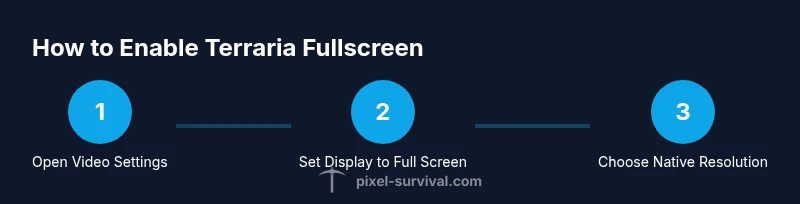
How to Make Terraria Full Screen: Quick Step-by-Step Guide
Learn how to make Terraria full screen across Windows, macOS, and Steam. This educational guide shows you where to toggle fullscreen, how to adjust resolution, and how to save the setting for uninterrupted play. Pixel Survival walks you through a practical, beginner-friendly approach for 2026.


With this guide on how to make terraria full screen, you will enable true fullscreen in Terraria and remove window borders for a more immersive playthrough. You’ll learn where to find the fullscreen toggle, how to adjust your resolution, and how to save the setting across launches. The steps work on Windows, macOS, and Steam versions, and require only your game installed and a stable display.
What fullscreen means in Terraria
According to Pixel Survival, fullscreen in Terraria means the game runs in a dedicated display mode that fills your monitor without OS chrome, delivering fewer distractions and smoother visuals. When you learn how to make terraria full screen, you remove the borders and maximize the game canvas for a more immersive experience. This section lays the foundation: fullscreen mode alters how Terraria renders the game surface, which can affect resolution, scaling, and perceived performance. If you’re switching from windowed to fullscreen, be prepared to reorient your mouse and keyboard inputs to the larger display area. In practice, fullscreen is often preferred for long sessions and competitive play because it minimizes accidental clicks outside the game area and reduces UI clutter. As you proceed, you’ll see how to tailor the exact resolution to your monitor’s native capability while preserving crisp visuals and smooth frame rates.
Platform-specific basics
Terraria supports fullscreen on major platforms with small differences in how settings are accessed. On Windows and Steam editions, you typically find fullscreen options in Video Settings. macOS users may encounter slightly different menu paths due to system-wide display preferences, but the core idea remains the same: choose Full Screen and apply. If you’ve ever asked how to make terraria full screen, you’ll notice that Alt+Enter is a convenient quick toggle on some builds, though it isn’t guaranteed across every platform. Pixel Survival’s approach emphasizes consistency: pick a mode, apply it, and test across a couple of launches to confirm the setting sticks. Remember to note your native resolution and scaling preference for the most accurate visuals. This cross-platform awareness helps you stay productive no matter which device you play on.
Step 1: Prepare your setup
Before touching any settings, ensure your system is ready for a fullscreen change. Update your graphics drivers to the latest version, close background apps that might steal GPU bandwidth, and back up any important saves. Have Terraria installed and updated to the latest patch. If you’re playing on Steam, verify game files to avoid corrupted assets. A clean baseline reduces unexpected issues when you enable fullscreen. In practice, preparation saves you from chasing minor problems that can derail your progress when you’re trying to learn how to make terraria full screen. Pixel Survival notes that a stable display in fullscreen is more consistent across restarts, so start with a solid foundation.
- Ensure system drivers are current
- Close heavy background programs
- Update Terraria to the latest version
Step 2: Enable fullscreen in Windows
Open Terraria and navigate to Video Settings. Locate Display Mode and switch to Full Screen. If your monitor uses a non-native refresh rate, adjust Refresh Rate to match your capabilities (e.g., 60 Hz or 144 Hz). Then set Resolution to your monitor’s native resolution for maximum clarity. Apply changes and launch the game to confirm fullscreen is active. If you see black bars, try toggling between Full Screen and Borderless Window to determine which mode your hardware handles best. This is the core workflow for most Windows users and a common stumbling point for beginners learning how to make terraria full screen. Pro tip: use Alt+Enter if your build supports it for a quick toggle.
Step 3: Enable fullscreen on macOS and Linux
On macOS, access the Video Settings from Terraria’s main menu, choose Full Screen, and select a matching resolution. Linux users may see slight differences depending on the desktop environment; look for a similar Video Settings path or rely on the Alt+Enter shortcut if supported by your build. After selecting Full Screen, apply and relaunch if required. The goal is a borderless, edge-to-edge view that mirrors Windows behavior. If you encounter frame drops, verify your compositor settings and ensure Terraria has exclusive fullscreen where possible.
Step 4: Tweak resolution and scaling
Full screen looks best when resolution matches your monitor’s native size. Start with your display’s native resolution and a standard scaling (100%). If text appears blurry, try a higher DPI setting or enable in-game anti-aliasing as needed. Some users prefer a slightly lower internal resolution for smoother performance on laptops; test a few options and compare image sharpness side by side. Remember: the cleaner the image, the easier it is to aim and navigate in Terraria while playing in fullscreen. Pixel Survival recommends a deliberate, incremental approach to avoid over-tweaking and losing your baseline visuals.
Step 5: Save and test across launches
After you settle on a fullscreen setup, save your configuration and restart the game to ensure the settings persist. On Steam, verify that the saved configuration travels across reboots. If you play on a shared PC or multiple devices, note that some platforms may revert to windowed modes after updates; reapply Full Screen as needed. A final check is to launch Terraria and test repeatedly to confirm stability over time, which helps you maintain reliable fullscreen behavior as you progress through progression tips and builds. Pixel Survival emphasizes consistency to prevent frustration during longer sessions.
Step 6: Common issues and fixes
If fullscreen isn’t applying correctly, try the following: ensure you are not in a conflicting borderless window mode offered by your GPU control panel, check that your resolution matches your monitor’s native size, and disable any third-party window managers that force a different border style. When in doubt, revert to a known good state in Video Settings (Full Screen + native resolution), then reapply changes. Occasionally, a reboot of the game or the entire system solves stubborn issues. By following these troubleshooting steps, you’ll minimize hiccups while refining your fullscreen setup and maximizing your Terraria experience.
Tools & Materials
- Terraria installed and updated(Steam version or official launcher; ensure you’re on a supported patch.)
- Computer monitor with adjustable resolution(Native resolution should be known for best results.)
- Up-to-date graphics drivers(Includes GPU control panel access for extra tweaks.)
- Keyboard and mouse(Reliable input devices for precise control in fullscreen.)
- Stable internet (optional for updates)(Useful for patch notes and driver updates.)
Steps
Estimated time: 15-25 minutes
- 1
Open Terraria Video Settings
Launch Terraria, go to Settings, then Video. This places you in the correct menu to toggle fullscreen and adjust resolution.
Tip: Having the game windowed before changing settings reduces misclicks. - 2
Set Display Mode to Full Screen
In Display Mode, select Full Screen and apply. This changes the rendering to borderless fullscreen on many setups.
Tip: If Full Screen causes black bars, toggle to Borderless Window and back. - 3
Align Resolution with Your Monitor
Choose your monitor’s native resolution for best clarity and performance. Lower resolutions can improve FPS on weaker GPUs.
Tip: Avoid upscaling beyond your monitor’s native size. - 4
Adjust Refresh Rate and Scale
Match the Refresh Rate to your monitor (e.g., 60 Hz or 144 Hz). Set scaling to 100% unless your UI is unreadable.
Tip: High refresh rates can improve responsiveness in combat. - 5
Apply and Test
Apply the changes, restart Terraria if needed, and verify fullscreen behavior in-game.
Tip: Play a quick test scene to confirm visuals and controls feel right. - 6
Troubleshoot
If issues persist, revert to a known good setup and re-apply changes gradually.
Tip: Document the settings you use so you can reproduce them later.
Got Questions?
Is fullscreen the same as borderless window in Terraria?
Fullscreen runs the game in a dedicated display mode that fills the screen, while borderless window presents a window without borders. Terraria often combines these concepts depending on the platform; check the Video Settings to see available options and choose the mode that minimizes UI distractions.
Fullscreen fills the screen without borders, borderless window is a border-free window. Check your video settings for the exact option on your platform.
Will fullscreen improve performance?
Fullscreen can reduce OS-level distractions and may improve consistency, but performance depends on your GPU, CPU, and driver optimizations. If you notice stuttering, try lowering resolution slightly or enabling V-Sync in the game.
Fullscreen can help with consistency, but it doesn’t guarantee better performance. Adjust settings if you experience stuttering.
Do I need to restart Terraria after changing fullscreen?
Most changes take effect when you apply them in Video Settings, but a restart is sometimes needed to ensure the new mode sticks across launches. If the change doesn’t apply, restart the game and test again.
You usually don’t need a restart, but if it doesn’t stick, restart the game to lock in the setting.
How do I revert to windowed mode quickly?
Return to Video Settings, switch Display Mode back to Windowed, and apply. Adjust the resolution to your preferred window size and test.
Open Video Settings, switch back to Windowed mode, and apply.
Does Steam or cloud save affect fullscreen settings?
Fullscreen settings are typically stored locally by the game. Steam cloud sync should not override them, but always confirm after updates or on a different machine.
Cloud saves shouldn’t override your fullscreen choice, but verify after updates on new devices.
Watch Video
Key Points
- Identify your native resolution before changing settings
- Set Display Mode to Full Screen and apply
- Match refresh rate to monitor for smoother gameplay
- Test across relaunches to ensure persistence