How to Make Terraria UI Bigger: A Step-by-Step Guide
Learn how to enlarge Terraria's user interface for easier readability with a practical, step-by-step approach. This Pixel Survival guide covers built-in UI scaling, readability tweaks, and accessibility tips to improve long-session comfort.


Goal: enlarge Terraria's user interface for easier readability. Start with the built-in UI Scale slider in Settings, then adjust windowed mode and resolution for clarity. This guide provides a clear, step-by-step path, plus accessibility tips and safe troubleshooting to avoid performance issues.
Why bigger UI matters in Terraria
For players who spend long hours exploring, fighting, and building in Terraria, a larger user interface can dramatically reduce eye strain and speed up recognition of important on-screen elements like inventory icons, health bars, and map markers. According to Pixel Survival, readability and contrast are central to sustaining focus during intense play sessions and complex builds. A bigger UI helps new players learn layouts faster and veterans maintain situational awareness in chaotic battles. In this section we explore concrete reasons to resize the UI, from reducing squinting during boss fights to improving readability on high-DPI displays. We also discuss how a clearer UI supports progression by letting you skim hotbars, tooltips, and crafting prompts more efficiently, freeing cognitive load for strategic decisions.
Pixel Survival’s experience across thousands of runs informs this guidance: readability is a practical performance enhancer, not just a cosmetic tweak. If you’ve ever tapped the wrong item in tight moments, you know what a bigger UI can fix. The goal here is to balance readability with game aesthetics so the UI remains legible without obscuring world details or cluttering the screen.
What UI scaling changes in Terraria
UI scaling affects the elements that overlay your game world, including inventory windows, toolbars, health and mana indicators, chat panels, and minimaps. It does not change the size of terrain or mobs, but it can dramatically alter how accessible those world elements feel during play. The benefit is twofold: you gain faster recognition of important UI cues, and you reduce eye fatigue when disputing minute details for extended sessions. However, the degree of scale you can achieve may vary by monitor size, resolution, and game version. In practice, increasing UI size tends to improve readability in one of three contexts: combat, inventory management, and exploration. When you scale up, aim for a balance where UI remains readily legible without covering essential portions of the screen that display the terrain or enemies.
Step 1: Open Settings and locate UI Scale
Begin by pausing the game or returning to the main menu, then navigate to Settings. In most builds, the UI Scale option sits under a dedicated Accessibility or Display subsection. If you’re playing on a high-DPI monitor or a laptop with a compact screen, locating UI Scale early helps you iterate quickly. The goal of this step is to identify your baseline and prepare for incremental adjustments rather than a single drastic change. Remember to keep track of how much you’re moving the slider so you can revert or fine-tune later.
Step 2: Move the UI Scale slider to the right
Incrementally move the UI Scale slider toward the larger end of the spectrum. After each adjustment, return to a game scene and assess readability for a few minutes in different contexts (combat, inventory, map). If the UI becomes too large for your screen, back off slightly. The rightward movement typically enlarges all on-screen UI panels, including the hotbar, health bar, and crafting interfaces. This step is about finding a comfortable middle ground where icons are crisp, tooltips are readable, and your peripheral vision still captures the game world.
Step 3: Test in combat, inventory, and navigation contexts
With a provisional scale in place, test in several contexts: switch to combat to gauge gauge readability under pressure, open your inventory to verify item icons remain distinguishable, and examine the map or minimap for legibility. Take note of any elements that look blurry or appear off-center. If certain UI components look disproportionate, you may need to adjust the scale slightly and recheck. The aim is a consistent reading experience no matter what activity you’re engaged in, not just during calm exploration.
Step 4: Adjust resolution and window mode for readability
If the scale alone isn’t delivering the desired readability, consider tweaking the game’s resolution or switching between fullscreen, windowed, or borderless window modes. Higher resolutions can make UI elements crisper on large displays, but may reduce scaling effectiveness on smaller screens. Windowed or borderless modes sometimes preserve larger UI without forcing a full-screen redraw. After changing these settings, resume testing with the same contexts as Step 3 to confirm readability gains are consistent.
Step 5: Consider font readability and color contrast tweaks
Beyond scale, font legibility matters. If Terraria offers font or text readability options, enable them to maximize clarity. If not, rely on high-contrast color schemes or ensure your monitor’s color settings support strong differentiation between UI text and background. Strong contrast helps reduce eye strain during long sessions and makes it easier to pick out critical text like tooltips, quest prompts, and vendor prices.
Step 6: Accessibility considerations and performance impact
UI scaling is a practical accessibility feature, but it can impact performance on older hardware or tightly constrained laptops. Observe framerates while you adjust the UI; if you notice a dip, test a slightly smaller scale or revert to a setting that maintains smooth gameplay. On modern rigs, you should experience minimal frame drops, especially if you are using windowed mode with a compatible resolution. Keeping a balance between readability and performance is the key to a sustainable Terraria session.
Step 7: Optional mods and tools for further scaling (advanced)
If you’ve reached the practical limit of built-in UI scaling and still want more size adjustments, you may explore mods or helper tools that provide extended UI scaling options. When considering mods, verify compatibility with your Terraria version and other installed mods, and back up your world saves before making changes. Modded solutions can offer larger scale ranges or customized UI layouts, but they carry a risk of conflicts and stability issues.
Step 8: Troubleshooting common UI scaling issues
If things don’t look right after increasing UI size, check for common culprits: overlapping windows that don’t resize correctly, tooltips appearing off-screen, or elements clipping at the screen edge. Try resetting to default UI scale, then re-applying the scale more gradually. If you’re on a laptop, ensure that scaled UI doesn’t push essential game elements out of view in fullscreen mode. Finally, confirm you’re using the latest game version and graphics driver to minimize compatibility problems.
Tools & Materials
- Terraria (latest version)(Ensure your game is up to date before changing UI settings)
- Access to Settings menu(Pause the game or use the main menu to reach Settings)
- Display with adjustable resolution(Helpful for testing UI scale across different DPI setups)
- Optional UI scaling mods (advanced)(Use only if you understand compatibility risks and backup saves)
Steps
Estimated time: 15-25 minutes
- 1
Open Settings
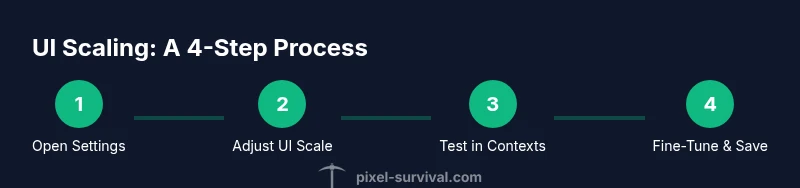
From the main menu or during play, pause and open Settings. Locate the UI Scale control in the Display or Accessibility section. This is your starting point for any readability improvement.
Tip: Label each change as you test, so you know which adjustment works best for your setup. - 2
Adjust the UI Scale slider
Move the slider toward the larger end in small increments. After each move, re-enter the game world to evaluate readability across contexts.
Tip: Tip: Make small changes (5–10%) and test before moving again. - 3
Test across combat and inventory
Enter a fight scene and open your inventory, then inspect icons, tooltips, and text density. If anything feels cramped or blurry, refine the scale accordingly.
Tip: Always test during action, not just in calm zones. - 4
Try different resolutions/window modes
If UI still isn’t comfortable, experiment with resolution changes and windowed/borderless modes. Some combinations preserve readability better than others on your display.
Tip: Document a preferred combo for future sessions. - 5
Fine-tune fonts and contrast
If available, enable font readability options or adjust display contrast to maximize legibility without washing out colors.
Tip: High contrast helps with long play sessions. - 6
Check performance impact
Monitor frame rate while applying UI scale changes. If you notice drops, revert to a slightly smaller scale or adjust graphics settings.
Tip: Prefer stable 60fps over marginal UI readability gains. - 7
Explore modular UI options (advanced)
Consider UI mods or alternative layout packs if you’re comfortable with modding. Check compatibility and always back up saves before modifying your setup.
Tip: Mods can extend scale but may require troubleshooting. - 8
Document your setup
Record your chosen UI scale, resolution, and mode for quick re-use in future playthroughs or new worlds.
Tip: A simple screenshot or note saves time later. - 9
Re-test and finalize
Play a session with your final settings to confirm long-term readability and comfort. Adjust again only if necessary.
Tip: Consistency is the goal, not constant tinkering.
Got Questions?
Is there a hard limit to how big Terraria's UI can get?
Terraria’s built-in UI scale has practical limits based on your display and game version. If you hit a ceiling where elements still feel cramped, consider resolution tweaks or mods with caution.
There’s a practical limit baked into Terraria’s UI scale; beyond that, try adjusting resolution or safe mods carefully.
Will increasing UI size hurt performance?
In most cases, UI scaling has minimal impact on performance, but very large scales or resource-heavy mods can run slower on older hardware. Test and monitor frame rates during your experiments.
In general it shouldn’t hurt performance much, but test and watch your frame rate if you push the UI big.
Can I adjust text size separately from the UI scale?
Terraria typically scales UI elements together, including text; if separate text scaling isn’t available in your version, use the UI scale and contrast tweaks to improve readability.
Text usually scales with the UI, but you can boost readability with contrast tweaks.
Does UI scaling affect console versions differently?
Console versions may have different UI scale controls or limitations. Follow the in-game settings to adjust UI and test across different game modes to ensure readability.
Consoles might have separate options; check Settings on your platform and test in-game.
What should I do if nothing changes after updating settings?
Verify you’re using the latest game version, restart Terraria, and re-enter Settings to adjust UI Scale again. If issues persist, consider verifying game files or reinstalling updates.
If it doesn’t apply, restart and recheck settings, then verify game files if needed.
Watch Video
Key Points
- Increase UI size for readability and reduced eye strain
- Use built-in UI Scale first, test across contexts
- Consider resolution/window mode adjustments for additional gains
- Moderate UI scaling is typically enough for most setups
- Backup and document your settings for easy future restoration