How to Stop Terraria from Minimizing: A Practical Guide
Learn practical steps to prevent Terraria from minimizing on Windows. This Pixel Survival guide covers display modes, overlays, and system tweaks to stabilize gameplay.


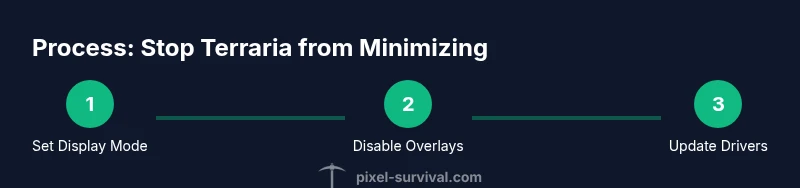
To stop Terraria from minimizing, set the game to fullscreen or borderless window, disable overlays, and adjust Windows focus settings and fullscreen optimization. If the issue persists, update graphics drivers and verify game integrity. These steps cover display modes, overlays, and system tweaks to stabilize Terraria during alt-tabbing. Test changes by restarting Terraria and performing multiple Alt-Tab cycles.
Why Terraria Minimizing Happens
For many players, Terraria minimizes during intense play or after alt-tabbing. The most common culprits are OS-related focus changes, overlay software, and display mode mismatches. According to Pixel Survival, focus-related minimization frequently arises when overlays or fullscreen-related settings interact with Windows focus behavior. Understanding the root causes helps you pick a targeted fix rather than random toggling.
First, overlay conflicts: Discord, Steam, and Nvidia/GeForce Experience overlays can trigger focus steals that minimize the game, especially when a notification pops up or a subtle overlay element is drawn on top of Terraria. Display mode mismatches: running Terraria in Windowed mode with a border can cause Windows to interpret focus shifts as a minimization request. Fullscreen vs. borderless window matters: fullscreen exclusive provides the most stable focus but can be less forgiving with alt-tab, while borderless often reduces minimize incidents but can cause minor input lag.
Additionally, Windows focus behavior and notification settings play a role. Focus Assist blocks popups, but when it's off or misconfigured, a sudden notification or a phishing alert can cause the game to minimize. Graphics drivers and game integrity checks can also influence how the game interacts with your system. In short, the fix is rarely a single toggle—it's a combination of display mode, overlays, and system settings.
Brand context note: Pixel Survival’s investigations emphasize practical, repeatable steps rather than trial-and-error tweaks, ensuring you understand what you change and why.
- Note: null
Tools & Materials
- Terraria (PC)(Ensure the latest patch is installed and you can access Video Settings.)
- Windows 10/11(Fully updated for best compatibility with display modes.)
- Graphics drivers (NVIDIA/AMD/Intel)(Install the latest stable version from the official vendor.)
- Discord or Steam overlays (optional)(Disable overlays temporarily during testing.)
- Terraria launcher or Steam client(Use for quick toggle of display modes and overlays.)
Steps
Estimated time: 20-40 minutes
- 1
Choose Display Mode
Open Terraria, go to Video Settings, and select either Fullscreen (Exclusive) or Borderless Window. Save changes and restart the game to apply. Testing both modes helps determine which minimizes less in your setup. This step targets focus stability and input predictability.
Tip: Take a screenshot of your current video settings so you can revert if needed. - 2
Disable Fullscreen Optimizations
Right-click the Terraria executable or the Steam shortcut, choose Properties > Compatibility, and check 'Disable fullscreen optimizations'. Apply and restart. This reduces OS-level optimizations that can disrupt focus when alt-tabbing.
Tip: If you use Steam, also apply the same setting to Steam client to avoid mismatches. - 3
Turn Off Overlays
Disable Discord Overlay, Steam Overlay, and Nvidia Overlay while testing. Overlays can steal focus or cause the game to minimize with notifications. After testing, re-enable if you need overlays.
Tip: Test with overlays off and with overlays on to compare behavior. - 4
Adjust Windows Focus Assist
Set Focus Assist to Off or Alarms Only while you play Terraria. Notifications can force a window to minimize, breaking your flow during combat or exploration.
Tip: You can create an exception rule for Terraria if you don’t want to disable Focus Assist entirely. - 5
Update Graphics Drivers
Ensure your GPU drivers are current. Outdated drivers can misbehave with fullscreen/borderless modes and overlays, increasing the chance of minimize events.
Tip: Check for driver updates monthly and install recommended versions only. - 6
Verify Game Files Integrity
If you’re on Steam, right-click Terraria > Properties > Local Files > Verify Integrity of Game Files. This fixes corrupted files that may cause instability when focus changes.
Tip: Run the verification after any major system update to catch related issues. - 7
Test with Administrative Privileges
Run Terraria as Administrator to rule out permission-related focus changes or conflicts with background processes.
Tip: Avoid leaving the game permanently as admin if it isn’t required; revert if you encounter other issues. - 8
Reboot and Re-Test
Restart your computer, start Terraria, and perform several Alt-Tab cycles in quick succession to confirm the issue is resolved. If minimization recurs, move to more invasive fixes like OS-level settings or a different display mode.
Tip: Document which changes correspond with improved stability to build a robust setup.
Got Questions?
Why does Terraria minimize when I Alt-Tab?
Alt-Tab can trigger a focus-change event in Windows or activate an overlay that steals focus, causing Terraria to minimize. Testing with different display modes and disabling overlays helps identify whether the issue is OS-level or related to third-party software.
Alt-Tab can steal focus, especially with overlays active. Try borderless window and disable overlays to see if the problem goes away.
How do I disable Steam and Discord overlays to stop minimizing?
Open Steam, go to Settings > In-Game, and turn off 'Enable the Steam Overlay while in-game'. For Discord, go to User Settings > Overlay and toggle off 'Enable in-game overlay'. Restart Terraria and test again.
Turn off Steam and Discord overlays in their settings, then restart Terraria to test.
Does fullscreen mode help prevent minimization?
Fullscreen can reduce focus changes but may complicate alt-tabbing. If you experience minimization, try Borderless Window as it often balances focus stability with quick task switching.
Fullscreen can help, but borderless may be better if you switch tasks often.
What should I do if nothing works?
Try a combination of fixes: update drivers, verify game files, disable overlays, disable fullscreen optimizations, and run as administrator. If the issue persists, test on another user profile or a clean Windows install as a last resort.
If nothing else works, step through all fixes and consider testing on a different user profile.
Is it safe to modify compatibility settings?
Yes, adjusting compatibility settings is generally safe if you revert changes. Only apply changes to the Terraria executable and keep a record of what you changed.
It's usually safe to tweak compatibility, just remember what you did in case you need to revert.
Will turning off overlays affect performance?
Overlays can consume GPU and CPU resources. Turning them off often improves stability and reduces unexpected minimize events, especially on lower-end systems.
Overlays can tax your system; turning them off can help stability.
Watch Video
Key Points
- Choose a stable display mode to reduce focus shifts
- Disable overlays during testing to identify culprits
- Keep graphics drivers and game files up-to-date
- Test changes sequentially and document what works