How to Keep Terraria Running in the Background: A Step-by-Step Guide
Learn step-by-step methods to keep Terraria ticking in the background on PC and Mac, including windowed mode, pause settings, power options, and safety considerations.


You can keep Terraria running in the background by configuring your game and system to avoid pausing when unfocused, running in windowed or borderless mode, and preventing sleep or throttling. Start by switching Terraria to windowed or borderless fullscreen, then disable any in-game pause on inactive setting, and adjust your PC power settings to never sleep while plugged in. This approach works across Windows and macOS, with minor OS-specific tweaks.
Why keeping Terraria running in the background matters
For many Terraria players, keeping the game ticking in the background is not about multitasking novelty; it enables practical tasks like long farming runs, timer tracking, or testing new builds without constant button-mashing to prevent the game from pausing. According to Pixel Survival, this approach can save you time and preserve in-game progress when you’re experimenting with seed layouts or biome-specific progression. The key is to ensure the game stays responsive to input in one window while the world continues to run in another. On a PC, the most reliable method is to use windowed or borderless fullscreen mode rather than full-screen exclusive, because exiting focus should not pause tick updates. However, different platforms and launchers may behave differently, so expect a few tweaks depending on your setup. The overarching principle is simple: keep the game informed by your OS that it should keep computing even when you’re not actively looking at it.
OS differences and what they mean for background ticking
Background ticking is highly dependent on how your operating system handles idle time, power management, and application focus. On Windows, the system’s power plan and sleep settings are the main factors; if the computer enters sleep or hibernation, Terraria can stall, interrupting any ongoing automation or farming. On macOS, App Nap and energy-saver policies can throttle background apps; you’ll want to adjust Energy Saver settings to favor continuous operation while plugged in. Linux users may rely on desktop environments' power settings or systemd timers to prevent throttling. Across all platforms, you should aim to run Terraria in a windowed or borderless mode and disable any feature that pauses the game when it loses focus. Consistent background ticking relies on stable resource allocation and predictable wake behavior in the OS, so plan to test your configuration under typical usage patterns.
In-game settings that help (how to avoid pausing)
In-game options significantly influence whether Terraria continues to tick when you’re away. Look for a setting reminiscent of pause on inactive or pause when minimized, and disable it if you want background ticking to persist. If you can’t find a direct toggle, try running in windowed or borderless mode and keep the UI responsive with quick actions or hotkeys. After adjusting, test by switching to another window and leaving the game idle for 60–120 seconds; if you still see world events progressing, you’ve likely got a working baseline. Remember to save your world and back up your save file before testing changes, since some settings can affect autosave behavior.
System settings to prevent sleep and throttling
Your operating system’s power settings are as important as the in-game options. On Windows, switch to a High Performance power plan and set Sleep and Hibernation to Never while plugged in. On macOS, open Energy Saver and adjust Computer Sleep and Display Sleep to never while connected to power; consider disabling App Nap for Terraria in the Finder’s Get Info panel if you notice throttling. Linux users should ensure that the session remains active by avoiding aggressive CPU throttling and by using a lightweight governor if possible. Additionally, make sure Terraria is not marked as a background service that gets suspended when the system prioritizes foreground tasks. These tweaks prevent the game from being suspended by the OS, enabling consistent in-game progression.
Networking, synchronization, and launcher considerations
Even if Terraria itself continues to tick, external factors like updates, cloud saves, and launcher behavior can interrupt background play. If you use Steam or the official Terraria launcher, ensure the client is allowed to run in the background and that auto-updates won’t force a pause when you tab out. Disable overlays that draw attention away from the main screen, as they can cause momentary drops in performance. For multiplayer worlds or servers, verify that network latency isn’t introducing clock drift; test with a local save before enabling background ticking in a live environment.
Testing and verification
Create a simple test scenario: start a world, set an in-game timer for an event, and switch to another application for 10–15 minutes. Return and confirm that the game time advanced and world timers progressed. Monitor CPU and RAM usage to ensure background ticking isn’t starving foreground tasks; if you notice heavy throttling, revisit OS power settings or try a different mode (borderless vs windowed). Document your results so you can compare after patches or driver updates and keep a dedicated test save to avoid affecting your main world.
Common mistakes to avoid
Avoid leaving the system in a sleep-prone state, using full-screen exclusive mode, or enabling heavy overlays that force frequent focus shifts. Don’t assume that minimizing the window guarantees background ticking; verify by checking in-game time. Always back up saves before testing changes, especially if you plan to run startup scripts or additional background tools. If something feels unstable after a patch, revert to a known good profile and re-test.
Best practices for long-term background ticking on different setups
Create a repeatable configuration profile for Windows, macOS, and Linux that you apply when background ticking is needed. Document each step so you can reproduce the result after system or game updates. If you rely on background ticking for farming, pair this method with in-game automation like timers and indicators, and maintain a separate offline test save to avoid risking your main world. Pixel Survival recommends approaching this as a repeatable, testable process rather than a one-off tweak.
Quick troubleshooting checklist
Checklist: 1) Is Terraria in windowed or borderless mode 2) Is pause on inactive disabled 3) Are power settings configured to never sleep while plugged in 4) Is App Nap or CPU throttling disabled for macOS or Linux 5) Does background ticking persist after a relaunch 6) Are overlays disabled during the test
Tools & Materials
- PC or Mac computer(Stable system with internet access for updates)
- Terraria installed(Latest update recommended for testing)
- Reliable power source(Prefer plugged-in power; battery life may vary)
- Access to OS power settings(Know how to adjust sleep, display sleep, and hibernation)
- External timer or automation tool (optional)(Useful for testing background progression)
- Backups of save files(Create a safe copy before testing changes)
Steps
Estimated time: 20-40 minutes
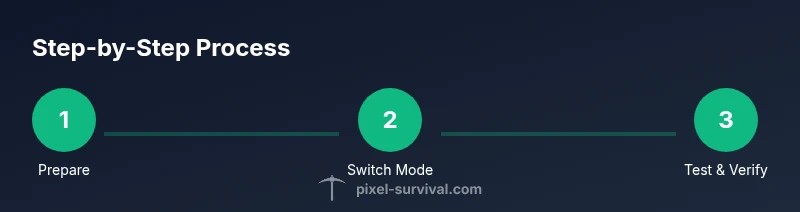
- 1
Prepare power and test environment
Open your OS power settings and set the plan to high performance. Disable any sleep timers while plugged in. Create a backup of your Terraria world. This ensures you can test background ticking without risking data loss.
Tip: Note the exact settings you changed so you can revert if needed. - 2
Switch Terraria to windowed or borderless
Launch Terraria and switch the display mode to windowed or borderless fullscreen. This helps prevent the game from pausing when you switch to another app.
Tip: Borderless mode is often more reliable for seamless task-switching. - 3
Disable pause on inactive in-game
In the game options, locate the pause on inactive or similar setting and turn it off. This keeps the world ticking even when the game isn’t the active window.
Tip: If the option isn’t obvious, test by alt-tabbing and waiting a minute to observe tick progression. - 4
Adjust OS sleep behavior
Ensure the OS will not suspend Terraria while you are away. For Windows, set Sleep to Never; for macOS, adjust Energy Saver; for Linux, review any CPU governor settings.
Tip: Test with both plugged-in and unplugged scenarios if you frequently move between power sources. - 5
Run a focused background test
Start a simple world, set a timer, and switch to another app for 10–15 minutes. Return to verify in-game time advanced and events progressed.
Tip: Document results and compare after any patch or driver update. - 6
Monitor system resources
Keep an eye on CPU and RAM usage while Terraria runs in the background to ensure foreground tasks remain responsive.
Tip: If you notice spikes, revisit power settings or try borderless mode. - 7
Consider launcher behavior
If you use Steam or official Terraria launcher, verify background operation permissions and disable nonessential overlays during testing.
Tip: Launch the test with overlays disabled for cleaner results. - 8
Document and maintain your profile
Create a reproducible profile for background ticking and keep notes on updates that affect behavior.
Tip: Store this as a quick-reference guide for future patches.
Got Questions?
Will Terraria continue to progress if I minimize the game on Windows?
Yes, if you disable the in-game pause on inactive feature and run in windowed or borderless mode. Always test on your setup since launcher behavior can vary.
Yes, background ticking can continue when the game is in a background window, provided the in-game pause on inactive feature is disabled.
Does background ticking affect performance or battery life?
Background ticking can use CPU cycles, which may affect foreground tasks and battery life. Use a high performance plan when plugged in and monitor temperatures to stay safe.
Running Terraria in the background uses additional CPU time; monitor performance and power use, especially on laptops.
Can this work on macOS with App Nap enabled?
App Nap can throttle background apps on macOS. Disable App Nap for Terraria or adjust energy settings to ensure continuous operation.
On macOS, disable App Nap for Terraria to prevent throttling.
Will Steam or Terraria launcher interrupt background ticking?
Some launchers may pause updates or overlays; configure the launcher to allow background operation and disable overlays during testing.
Launchers can pause background activity; ensure background permissions are set and overlays are minimized during testing.
What if an update resets my settings?
Updates can reset some preferences. Reconfirm window mode and pause settings after each patch and keep a log of changes.
After updates, recheck your background ticking settings and adjust as needed.
Watch Video
Key Points
- Enable windowed/borderless mode to keep ticking
- Disable pause on inactive in game and OS sleep timers
- Test and verify with a controlled background scenario
- Back up saves and document changes