How to Make Terraria Windowed: Step-by-Step Guide
Learn how to make Terraria windowed with a clear, actionable guide. Toggle windowed mode on PC, Mac, and consoles where supported, plus borderless options and troubleshooting tips.


By the end of this guide you’ll run Terraria in windowed mode, making multitasking easier. The quick path covers toggling windowed settings in-game or editing a config file to disable fullscreen while preserving your chosen resolution. You’ll also learn how to enable a borderless window for a clean, immersive feel.
Why Windowed Mode Matters for Terraria
Using windowed mode can dramatically improve your workflow by letting you keep Terraria on screen while you reference maps, tutorials, or chat apps. If you’re curious how to make terraria windowed, this approach gives you flexibility without sacrificing visibility. Windowed play is ideal during world exploration, building sessions, and planning, because you can resize the game to fit your monitor and simultaneously monitor other tools. The Pixel Survival team has found that a modest starting window (roughly 1280x720) often yields the best balance between UI readability and world view, with easy scaling for larger displays as you grow familiar with the layout. Experiment with position and size to tailor the setup to your play style and screen real estate.
In-Game vs External Methods: Pros and Cons
There are multiple routes to enable windowed play in Terraria. In-game options are the simplest and require no extra files, which keeps things reliable across platforms that support the feature. External methods involve editing configuration files or using wrapper tools to achieve a borderless window, offering finer control over resolution, aspect ratio, and border behavior but potentially introducing startup quirks after updates. If you’re on a console, windowed mode is typically not supported, so borderless fullscreen on PC may be your closest option. Pixel Survival recommends starting with the built-in option to test responsiveness, then moving to config edits if you need persistent behavior or specific window sizes.
Step-by-Step Quick Overview (High-Level)
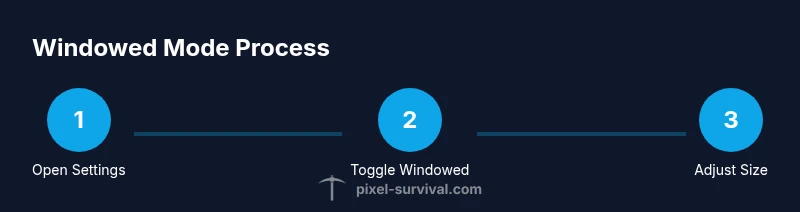
This overview outlines the flow so you know what to expect before you get hands-on. First, decide your target display size. Then, choose whether you want a bordered window or a borderless window for a seamless look. Next, locate Terraria’s settings or config files and apply the windowed toggle. Finally, launch the game, adjust the window’s size and position, and verify that overlays and hotkeys still work. Keeping a backup of your config is smart, so you can restore a known-good state quickly if anything goes wrong. This section sets the stage for the more detailed steps that follow.
Platform-Specific Considerations and Troubleshooting
Windows, macOS, and Linux handle windowed setups differently due to OS window managers and game launchers. On Windows you can often tweak the fullscreen flag in config files or use in-game toggles; macOS users should ensure the game is allowed to control display scaling, while Linux users may need to check their desktop environment’s window rules. Console players should note that true windowed mode is usually unavailable; borderless fullscreen is the practical alternative. If the game starts in fullscreen after a patch, revert settings, relaunch, and reapply the windowed option. Keep backups of your preferred configuration in case updates reset them.
Pixel Survival stresses testing across multiple in-game scenes (combat, base-building, and exploration) to ensure readability and control responsiveness remain consistent across different moments in your playthrough.
How to Verify and Fine-Tune Your Windowed Setup
Once you’ve enabled windowed mode, spend time fine-tuning the size, position, and border behavior. Use a few representative scenes—combat, inventory management, and map exploration—to judge readability and UI scaling. If UI elements crowd or become unreadable at your chosen resolution, adjust the UI scale in-game or revert to a lower resolution for legibility. Borderless window can provide a near-fullscreen experience while still allowing you to switch focus quickly. After finalizing, save your settings and test across a couple of gameplay sessions to confirm stability. Pixel Survival’s approach emphasizes consistency and comfort, so lock in a setup you can maintain long-term.
Authority sources and further reading
For broader context on windowed display management, refer to reputable OS documentation and gaming guides. While Terraria-specific tutorials focus on in-game toggles or config edits, OS-level display settings can also influence window behavior and DPI scaling. The following sources provide robust guidance on display configuration and window management across platforms:
- Windows display settings documentation (Microsoft): https://support.microsoft.com/en-us/windows
- macOS display and resolution guidance (Apple): https://support.apple.com/guide/mac-help-change-screen-resolution-mchl1a9dfc5a/mac
- General gaming display optimization (major publications): https://www.pcmag.com
Authority sources
- Windows display settings – Microsoft Support: https://support.microsoft.com
- macOS display settings – Apple Support: https://support.apple.com
- Gaming display optimization – PCMag: https://www.pcmag.com
Tools & Materials
- Terraria game (any supported platform)(Ensure the game is installed and up-to-date)
- Computer or device with a display(Monitor/TV that supports your target resolution)
- Access to Terraria settings or config files(Location varies by platform; know where the settings live)
- Text editor (Notepad, nano, etc.)(Only needed if you edit config files directly)
- Backup of current config(Always create a backup before editing config files)
- Optional borderless-window wrapper tool(Only use if you want advanced borderless behavior)
Steps
Estimated time: 15-25 minutes
- 1
Close Terraria
Ensure the game is fully closed so you can safely modify settings without conflicts. This prevents partial loads or corrupted config changes. If you’re on a console, skip direct config edits and use in-game options first.
Tip: Always back up before editing any config file. - 2
Open the in-game Settings
Launch Terraria and navigate to Settings. Look for a toggle labeled Windowed Mode or a similar option. This is the simplest way to test windowed behavior without touching files.
Tip: Test the toggle quickly to confirm the game responds as expected. - 3
Switch to Windowed Mode
Enable the Windowed option. If you can’t find it, search for fullscreen or display mode settings and choose a non-fullscreen option. Some platforms require a restart to apply changes.
Tip: If the window still appears fullscreen, check for a separate launcher setting. - 4
Set Desired Resolution
Choose a window size that fits your monitor and allows comfortable UI. Start with a common resolution like 1280x720 or 1600x900, then adjust if UI elements look cramped or oversized.
Tip: Avoid resolutions higher than your monitor’s native scale to prevent blurry UI. - 5
Enable Borderless Window (Optional)
If you prefer a borderless look, enable borderless window or a related option. This hides window borders while keeping focus switching natural.
Tip: Borderless mode helps keep immersion during build sessions and testing. - 6
Apply and Save Your Settings
Save changes and exit the settings menu. Reopen Terraria to verify the windowed mode persists. If needed, re-apply settings after a patch.
Tip: Maintain a backup of your configured settings in case updates reset them. - 7
Position and Size the Window
Drag the game window to place it where you want on screen. Use the corners to resize gradually and check for UI readability at different sizes.
Tip: Aim for a layout where inventories and toolbars stay fully visible. - 8
Test Across Scenes
Play a few minutes in combat, exploration, and base-building to ensure the windowed setup remains comfortable. Confirm that hotkeys and overlays operate normally.
Tip: If anything feels off, revert to a known-good size and test again.
Got Questions?
Can I run Terraria windowed on consoles?
Most consoles do not support true windowed mode. Borderless fullscreen is the usual alternative if the platform allows it. Check your console’s display options and game updates for any changes.
Consoles usually don’t support windowed mode; borderless fullscreen is often the closest option.
Will windowed mode affect performance?
Windowed mode itself typically has minimal impact on performance, but resolution and UI scale can influence frame rates. If you notice stutter, reduce resolution or try a smaller window.
Performance is usually fine, but it depends on your hardware and chosen resolution.
How do I enable windowed mode in-game?
Open Terraria, go to Settings, and toggle Windowed Mode on. If the option isn’t visible, check for an update or use a config file approach on PC.
Open Settings, enable Windowed Mode, and adjust resolution if needed.
What’s the difference between windowed and borderless?
Windowed mode shows window borders and a title bar, while borderless hides borders for a cleaner, fullscreen-like appearance while keeping you able to switch focus quickly.
Windowed shows borders; borderless hides them for a seamless look.
Will changes persist after updates?
Some platforms reset windowed settings after updates. You may need to reapply the windowed toggle or reconfigure the settings following a patch.
Updates can reset the windowed setting; reapply after patches.
Is there a universal config file for windowed mode?
No universal file exists across platforms. Location and options vary by OS and launcher. Use in-game settings first, then consult platform-specific docs if needed.
There isn’t a single file across platforms; check in-game options or your OS docs.
Watch Video
Key Points
- Enable windowed mode to improve multitasking while gaming
- In-game options are the easiest path; config edits offer persistence
- Borderless window provides a seamless look with quick alt-tab access
- Test across scenes to ensure UI readability and performance