Where to Install Terraria: Platform Guide for 2026
A comprehensive, step-by-step guide on where to install Terraria across PC, consoles, and mobile, with platform-specific paths, saves, and update tips.


Where to install Terraria depends on your platform, but the goal is a smooth download with reliable updates and safe saves. This quick guide outlines platform-specific install paths and what to watch for during setup. By the end, you’ll know the best install location for PC, consoles, and mobile, plus tips to keep worlds secure. Whether you bought it on Steam, the Nintendo eShop, or the mobile store, your install location affects load times, cloud saves, and updates.
Why installation location matters
Choosing where to install Terraria matters for performance, save integrity, and future updates. According to Pixel Survival, the install location sets how easily you can manage worlds, mods, and patches across platforms. On PC, Windows, macOS, and Linux differ in how the game finds its files, how path lengths affect loading, and how backups are organized. On consoles, the install path is controlled by the system, which can impact save transfers and patch timing. On mobile, app sandboxing influences where data is stored and how quickly you can transfer between devices.
Beyond convenience, the install location often determines access to cloud saves and cross-platform experiments. If you install Terraria in a location that the platform can't easily access from another device, you may face manual world transfers or restricted cloud syncing. A clear strategy is to use a default library or the platform's primary games folder, then avoid moving files manually after installation. This approach minimizes confusion when updating, installing DLC, or adding community-created content.
In practice, start by choosing the platform-specific store or installer you plan to use, then stick with that path for all future updates. This helps you keep backups intact and prevents corrupted saves.
Platform-specific install paths: PC (Windows/macOS/Linux) and Steam
On a PC, your first decision is whether you want to install Terraria from an official launcher like Steam or from another storefront such as GOG. Each option creates a default library or install location, which you should respect to avoid file confusion. When you install via Steam, the game typically resides in the SteamApps/common folder by default, but you can relocate the entire library to a different drive. If you use a direct installer from, say, the official Terraria website, you’ll choose a destination folder during setup. The key is: pick a primary location and keep it consistent across updates. This makes backing up saves easier and prevents misplaced world files.
If you’re on macOS or Linux, the installer or Steam version still follows the library concept, but paths may look different. For macOS, you’ll often find Terraria inside the Applications folder or your Steam library if you’re using Steam for Mac. On Linux, the game may live in a Steam compatibility layer or a dedicated game directory. After installation, verify that the game can read and write to your documents or saves folder, and consider creating a dedicated Terraria folder within your user directory to house worlds, screenshots, and backup copies.
Console installations: PlayStation, Xbox, Nintendo Switch
On consoles, installing Terraria is typically done through the console's storefront. Navigate to the official Terraria listing to download and install. Because consoles manage game data within their system storage, you won't have the same degree of control as PC users over the install path. However, you can still influence where to store your game data by selecting a storage drive if your console supports multiple volumes. After installation, launch the game to verify it loads correctly and that your save profile is accessible. If you plan to switch between family members or devices, consider enabling cloud saves if your platform supports cross-device progress.
Console installations are usually straightforward: confirm you have space, download, and launch. If you encounter slow patching, check your console’s network settings and ensure automatic updates are enabled for Terraria.
Mobile installations: iOS and Android
On mobile devices, Terraria is installed via the Apple App Store or Google Play Store, depending on your platform. The install location is determined by the device's app sandboxing and storage settings. Ensure you have enough free space on the primary storage partition and consider moving other apps temporarily if space is tight. After download, open the game and create or sign in to your Terraria account if the platform supports cloud saves. Regularly clearing cache, updating the OS, and applying Terraria updates keeps performance smooth on phones and tablets.
Mobile installations often benefit from a simple data management approach: keep the app on the primary drive if possible, enable cloud saves when available, and back up worlds when you can.
Managing saves and cloud backups across platforms
World files and character data are the core of your Terraria experience. Across PC and consoles, where you store these saves influences how easily you can back them up and transfer them. Use the platform's cloud save options when available and manually back up worlds to an external drive or cloud service if your account is not connected. On PC, locate your saves in your documents or AppData, and copy the Terraria folder to a backup location. On consoles, rely on the system's cloud features or local transfers between profiles to preserve progress. For mobile, enable any cloud sync provided by the device or game launcher.
A disciplined backup routine reduces frustration after a failed update or hardware change. Keep multiple restore points and test a couple of worlds after major changes to ensure data integrity.
Troubleshooting common install issues
Encountering problems during installation happens, but most issues are fixable with a systematic approach. First, verify your internet connection and make sure the download is complete. If the installer reports corrupted files, use the platform’s verify or repair tool to re-check game files. Ensure you have enough storage space, and avoid moving Terraria files while they’re being installed. If you’re migrating between platforms, use the official transfer options or cloud services rather than manual copying. Finally, consult official support channels if updates fail or if you encounter persistent issues.
Tools & Materials
- Terraria license or access(Purchased from an official store (Steam, GOG, console store, or mobile app store))
- Compatible device(PC, Mac, Linux, console, or mobile device meeting minimum requirements)
- Storage space(Sufficient free space in the chosen install location)
- Stable internet connection(Required for download, updates, and cloud saves)
- Backup storage(External drive or cloud storage for world saves)
Steps
Estimated time: 60-90 minutes
- 1
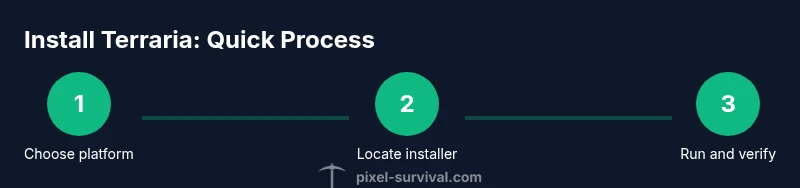
Decide platform and install location
Select the platform you will use (PC, console, or mobile) and commit to a single primary install folder. This reduces confusion during updates and saves, and simplifies backups.
Tip: Choose a default install folder you can easily access and remember. - 2
Find the Terraria installer for your platform
Navigate to the official storefront or installer for your device. If you’re on PC, decide between Steam or another store; consoles use their own storefronts; mobile uses the App Store or Google Play.
Tip: Stick to official sources to avoid malware or corrupted files. - 3
Run the installer and select destination
Launch the installer and choose your destination folder. Confirm path, then proceed with the installation.
Tip: Avoid changing the path mid-install to prevent file misplacement. - 4
Verify files and first launch
After installation, use the platform’s verify tools if available, then launch Terraria to confirm it runs correctly and creates initial saves.
Tip: Check for any patch notes or updates before starting a new world. - 5
Set up cloud saves and backups
Enable cloud save features if available and create a local backup of your Worlds and Characters.
Tip: Create a separate backup folder for Terraria worlds. - 6
Test with a new world
Create a small test world to confirm saves load properly and that you can access inventory, chests, and settings.
Tip: Verify cross-device access if you plan to play on multiple platforms.
Got Questions?
Where can I install Terraria?
Terraria is available on PC via Steam or GOG, on consoles via their stores, and on mobile through app stores. Install location depends on your device and launcher.
Terraria can be installed from Steam, console stores, or mobile app stores, depending on your device.
Is internet required to install Terraria?
Yes. You’ll need an internet connection to download the game and obtain updates or patches. Some platforms also enable cloud saves.
You’ll need internet for the download and updates, plus cloud saves on supported platforms.
Can saves transfer across platforms?
Cross-platform save transfers depend on platform support and cloud services. Check each platform’s features to know what transfers are possible.
Save transfers depend on cloud support and platform capabilities; verify before attempting cross-platform moves.
Is Steam install the same as a direct installer?
Both install Terraria, but updates and file management are governed by the respective platform. Steam handles its own library and verification.
Steam uses its own library system; a direct installer uses the platform’s standard path. Updates are managed by each platform.
What if the installer fails?
First, check your internet and free space. Use the platform’s repair or verify tool, then reattempt installation. If the problem persists, consult official support.
If it fails, verify files, check space, and try again. Seek official support if it continues.
How do I back up Terraria worlds?
Locally back up saves to an external drive or cloud service. On PC, copy the Terraria saves folder; on consoles and mobile, rely on the platform’s backup options.
Back up your worlds regularly using cloud backups when available, or copy the saves folder to a safe place.
Watch Video
Key Points
- Choose the official store for your platform.
- Keep a consistent install location across updates.
- Enable cloud saves where possible to protect progress.
- Back up worlds regularly to avoid loss.