How to mod Terraria: A practical guide for 2026
Learn how to mod Terraria safely using tModLoader. This complete guide covers prerequisites, finding reliable mods, installation, load orders, troubleshooting, and best practices for a stable, enhanced Terraria experience in 2026.


By following this guide, you will learn how to mod Terraria safely using tModLoader, install the launcher, and manage mods for a stable experience. You’ll confirm game version compatibility, locate reliable mods, and troubleshoot common issues like crashes or missing assets. This quick path helps players enhance Terraria with new content while keeping vanilla preservation intact.
What modding Terraria means for players
Modding Terraria opens doors to new weapons, enemies, biomes, and quality-of-life features. For many players, how to mod Terraria represents a pathway to tailor progression, experiment with new challenges, and extend replayability without altering the core game beyond what the community approves. This section defines modding terms, clarifies what a mod is, and explains how modding interacts with Terraria’s vanilla experience. You’ll also learn the difference between official mod support (via tModLoader) and third-party add-ons, and why staying within trusted sources protects your worlds. Throughout, we’ll emphasize preserving your base game so you can switch back to vanilla whenever you want, while still enjoying new content on a separate profile or save.
As you explore, remember that reliable modding is a balance of curiosity and caution. The goal is to expand creativity while minimizing crashes, corrupted worlds, or save-file problems. The Pixel Survival team emphasizes starting small and escalating gradually, so you can learn each mechanic with confidence. This mindset helps you execute the core question of how to mod terraria with clarity and control, ensuring a smoother journey from first mod to stable, long-term play.
Prerequisites: tModLoader and setting up backups
Before you begin modding Terraria, you need a compatible environment and a plan for protecting your worlds. This section covers the essential prerequisites: confirming your Terraria version, installing tModLoader, and creating trusted backups of your worlds and characters. We walk through choosing the correct tModLoader build for your Terraria version, ending with a test run in a clean profile to verify everything works as expected. You’ll also learn how to set up a dedicated backups folder on an external drive or cloud storage so you can roll back if a mod causes trouble. Quick tip: always back up before adding or updating mods, and keep a separate save profile for modded play to prevent accidental data loss.
Pixel Survival recommends keeping a clear separation between vanilla and modded worlds during testing to minimize cross-profile interference and to simplify troubleshooting when things go wrong.
Finding trustworthy mods and mod sources
Finding reliable mods is a cornerstone of successful modding. This section covers how to identify reputable mod sources, read mod descriptions, and check compatibility with your Terraria version. You’ll learn to assess mod maturity (updates, bug reports, and user feedback), verify checksum integrity when available, and avoid installs from sketchy sites or unofficial archives. We’ll also discuss dependencies and load-order implications so you don’t accidentally introduce a chain of conflicts. A practical approach is to start with a small, well-loved mod and verify stability before expanding your collection. Pixel Survival stresses the importance of a curated mod list to keep your game experience smooth and enjoyable.
Installing mods: step-by-step process
Installing mods is often straightforward but requires attention to detail. This block guides you through using the in-game mod browser, or manual installation when a mod isn’t on the browser. You’ll learn how to enable mods, confirm they load in the correct order, and check for missing assets after launch. We emphasize installing mods that are actively maintained and compatible with your Terraria version. A good habit is to install one mod at a time, then test, which makes it easier to pinpoint issues. The goal is a stable baseline setup that you can expand safely over time.
Managing load order and conflicts
Load order matters because some mods alter game hooks that other mods depend on. This section explains how to arrange mods to minimize conflicts, recognizes common dependency issues, and explains how to use tools to manage order of operations. You’ll learn to disable conflicting mods quickly, test each change, and keep a documented list of active mods. By understanding dependencies and load order, you’ll reduce crashes and improve compatibility across updates. Pixel Survival’s guidance here focuses on practical, repeatable steps for a robust modded setup.
Testing and validating your modded Terraria setup
Testing is essential to prevent long, frustrating sessions chasing subtle bugs. This section outlines a practical test plan: launch with a minimal mod set, explore critical features, and note any crashes, framerate drops, or graphical glitches. If problems arise, use crash logs and error messages to narrow the culprit, then either remove the problematic mod or search for patches. Regular testing after each modification keeps your system stable and your world safe. The emphasis is on methodical checks rather than guesswork.
Updating, removing, and maintaining mods
Mod updates are a normal part of long-term modded play, but they can introduce new conflicts. Here you’ll learn to update mods in a controlled manner: back up, update one or two mods at a time, and re-test. If an update breaks compatibility, you’ll know whether to roll back, remove the mod, or seek alternatives. We’ll also cover how to safely remove mods without affecting your world data, and how to preserve progression when you retire a mod from your collection. This section helps you sustain a healthy modding habit.
Safety, ethics, and preserving your worlds
Ethical modding means avoiding malware, respecting creators’ licenses, and supporting mod authors where possible. We discuss how to verify mod authenticity, the importance of reading licenses, and how to back up and archive your worlds for long-term preservation. You’ll also learn about community guidelines and how to report bugs responsibly. The focus is on maintaining a positive modding ecosystem while keeping your Terraria experiences enjoyable and safe for years to come.
Next steps: building a long-term modding plan
As you gain experience, your modding journey can scale from a few quality-of-life mods to a carefully curated suite that aligns with your goals. This final block suggests a practical progression plan: set a target mod category, outline a phased upgrade path, and schedule regular maintenance windows to review compatibility. You’ll end with a clear, actionable roadmap for evolving your Terraria modding setup while preserving a strong baseline of stability.
Tools & Materials
- PC or Mac Terraria installation (PC is recommended for modding)(Ensure you own a legitimate copy (Steam or GOG).)
- tModLoader(Install the version matching your Terraria build.)
- Backups storage (external drive or cloud storage)(Back up both worlds and characters before modding.)
- Reliable mod sources (official mod browser or trusted sites)(Verify checksums when available and avoid unknown mirrors.)
- Mod management tools (optional)(Tools like a mod organizer can simplify load order.)
Steps
Estimated time: 2-3 hours
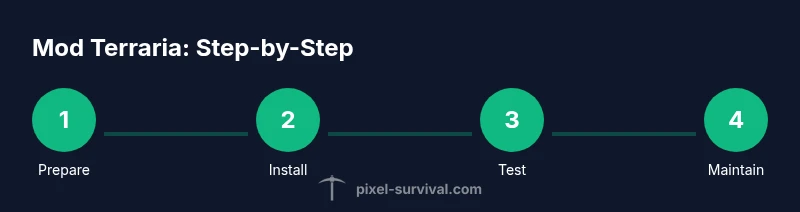
- 1
Prepare
Confirm your Terraria version, install tModLoader, and set up a dedicated modded backup profile. This ensures you can test changes without risking vanilla worlds.
Tip: Create a separate backup folder for modded profiles to keep vanilla saves pristine. - 2
Install
Install the matching tModLoader build for your Terraria version and launch to verify the baseline works with no mods active.
Tip: If the launcher reports a version mismatch, re-check your Terraria and tModLoader versions before proceeding. - 3
Backup
Back up all worlds and save files to your external drive or cloud storage, then enable the modded profile in tModLoader.
Tip: Verify backups by restoring a copy to a test folder before introducing mods. - 4
BrowseMods
Use the built-in mod browser or trusted sites to find mods with good maintenance history and community feedback.
Tip: Only install mods with recent updates and compatible Terraria versions. - 5
InstallMods
Install one mod at a time, then launch the game to confirm it loads and doesn’t crash the startup sequence.
Tip: Avoid installing multiple mods that affect core hooks simultaneously to simplify troubleshooting. - 6
ConfigureLoadOrder
Set load order to minimize conflicts; place mods that alter core mechanics earlier in the sequence where dependencies exist.
Tip: Document load order changes so you can reproduce them later if needed. - 7
TestRun
Run a quick test world to explore key features added by mods and look for any anomalies in UI, inventory, or enemies.
Tip: Keep a log of issues observed during test runs to track down conflicts later. - 8
UpdateOrRemove
Periodically update mods one by one; if issues appear after an update, roll back or remove the problematic mod.
Tip: Always re-test after updates to catch new conflicts early. - 9
Troubleshoot
If crashes occur, consult crash logs, check mod compatibility, and isolate mods causing the issue by disabling one at a time.
Tip: Keep a separate log of fixes and steps that resolve issues for future sessions. - 10
Preserve
Once stable, back up again and consider exporting a configuration file or notes describing your mod setup for future references.
Tip: Periodically refresh backups to capture progress and avoid data loss.
Got Questions?
What is tModLoader and why use it?
tModLoader is a modding framework for Terraria that enables installing and managing mods safely. It provides a stable API and version checks to help you run community-made content without corrupting your save data.
tModLoader lets you add mods to Terraria with a safe, structured system. It’s the go-to tool for most players who want new content while keeping the game stable.
Can I mod Terraria on console?
Console versions have very limited mod support compared to PC. For a full modding experience, use the PC version with tModLoader. Check platform-specific guidelines if you plan to use mods on consoles.
Modding on consoles is limited; PC with tModLoader is recommended for a fuller modding experience.
Will mods crash my game?
Yes, mods can cause crashes if incompatible or conflicting. Build a baseline, test mods one at a time, and revert changes to restore stability.
Mods can crash if they don’t play nicely together. Test individually and revert if needed.
How do I uninstall mods safely?
Use the mod browser to disable or uninstall a mod, then restart Terraria to confirm changes. If issues persist, remove the mod files manually from the Mods folder.
Disable or uninstall via the mod browser, then restart. If needed, delete the mod files from the Mods folder.
How should I back up Terraria worlds?
Copy your world files and save data to a secure location before modding. Regular backups protect your progress from crashes or corrupted saves.
Back up your worlds by copying save files to a safe location before modding.
Are all mods safe and legitimate?
Not all mods are safe. Stick to well-known, maintained mods from reputable sources and verify updates before installation.
Mods vary in safety; rely on trusted sources and recent updates.
Watch Video
Key Points
- Back up worlds before modding.
- Use trusted sources and verify compatibility.
- Test each mod individually to isolate issues.
- Document load order and maintenance steps.
- Keep vanilla and modded play separate for safety.