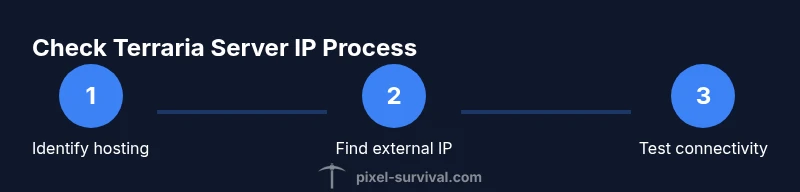
How to Check Terraria Server IP: A Step-by-Step Guide
Learn how to check Terraria server IP for home or hosted servers. This guide covers finding IPs, port forwarding, testing connectivity, and troubleshooting to keep friends joining your world.


How to check terraria server ip means discovering the address teammates use to join your game. You’ll learn how to identify the IP from your hosting panel, your router’s public IP, and your computer’s local address. This guide covers home hosting, dedicated hosts, and testing connectivity to ensure friends can join without issues.
How to check terraria server ip: why you need it and what it covers
For Terraria multiplayer, the IP address of your server is the address players use to connect. Understanding how to check terraria server ip helps you avoid confusion when friends try to join, especially after network changes or moving between home and a hosted host. The first distinction to learn is between a local IP, used on your home network for LAN play, and a public IP, used over the internet. A server address is often a combination of an IP and a port (by default, 7777). Throughout this guide you’ll see practical steps you can perform on Windows, macOS, or Linux to locate the right address, verify it’s reachable, and test connectivity from other devices. By the end, you’ll be able to share the correct IP confidently and minimize connection problems in your Terraria worlds.
Quick ways to locate the server IP
There are several reliable starting points to locate your Terraria server IP. If you rent a server from a hosting provider, log into the provider’s control panel—the IP address is usually displayed on the dashboard or under the server details page. For a home-hosted setup, you’ll need your router’s external (WAN) IP address, which many people discover by visiting a website like WhatIsMyIP, and this is the address others will use to connect from the internet. If you’re sharing access for LAN play, you’ll also need your computer’s local IP (IPv4) on the same network. In all cases, confirm that the IP you plan to share matches the port you’re using for Terraria (default is 7777). If you’re unsure, repeat the steps on a test device to confirm visibility.
Distinguishing local IP vs public IP in practical terms
Your first job is to separate the two IPs you’ll encounter. The local IP is the address assigned to your computer by your router on the LAN (for example 192.168.x.x). The public IP is the address the outside world sees and is assigned by your ISP to your home gateway. To discover the local IP on Windows, open Command Prompt and type ipconfig; look for the IPv4 Address under your active adapter. On macOS or Linux, use ifconfig or ip addr show to locate an inet entry that looks like 192.168.x.x. If you need the public IP, check your router’s status page or perform a quick lookup from a device connected to the same network. Remember to note both addresses if you’re setting up hosting at home, so you can test locally and over the internet.
Hosting at home vs a dedicated host: which address to share
Choosing between home hosting and a dedicated host determines which IP you share. A hosted provider usually gives you a fixed external IP and port; you’ll share that external IP with players. In a home network, the external IP might change (dynamic IP), so use a dynamic DNS service or check weekly; meanwhile the internal IP stays constant on your devices unless you reboot. You’ll still need to configure port forwarding to direct traffic on port 7777 to the PC running Terraria. If you use a paid host, you typically don’t need to forward anything at your router, but you should understand how their panel maps to your world.
Port forwarding and firewall basics for Terraria
Terraria uses port 7777 by default for TCP/UDP traffic, so you must forward this port from your router to the computer hosting the server. If you’re behind a double NAT, you may need to enable UPnP or place your server behind a DMZ if you trust the network; always disable public exposure when not hosting. On the host computer, ensure the firewall allows inbound connections on port 7777. Validate by testing from a device outside your local network.
Testing IPs and connectivity with simple checks
To verify that your server is reachable, start by connecting from a device on your local network using the local IP and port 7777 in Terraria. Then test from a device outside your network using the external IP. On Windows, you can use PowerShell: Test-NetConnection -ComputerName <IP> -Port 7777; on macOS or Linux, use nc -vz <IP> 7777. If the test succeeds, you should see a connection open message. If not, re-check forwarding and firewall rules. Always test with both LAN and internet connections when possible.
Troubleshooting common IP issues you’ll encounter
If players can’t connect, re-check the IPs you’re sharing to ensure you haven’t mixed local and public addresses. Verify that port forwarding is correctly configured on the right router and that the Terraria server process is running. Check your firewall logs to confirm that inbound traffic on port 7777 is allowed. If your IP changes frequently, consider dynamic DNS so friends can reconnect using a stable hostname. Remember that ISP outages or router reboots can temporarily disrupt connectivity.
Real-world walkthrough: a Pixel Survival home-hosted server example
Imagine you’re hosting a Terraria world from a home PC. Start by confirming your external IP from the router’s status page, then locate your local IP on the PC running the server. Set up port forwarding for 7777 to that PC, and ensure the firewall allows traffic on that port. Share the external IP and port with friends; have one tester connect from another network to verify. If issues arise, recheck the IPs, test with Test-NetConnection, and adjust your router settings as needed. This hands-on approach mirrors the practical guidance Pixel Survival provides for Terraria multiplayer setups.
Best practices for reliable multiplayer with Pixel Survival tips
To keep multiplayer smooth over time, document your server IP information and note any changes when you reboot routers or renew ISPs. Prefer a fixed external IP or use dynamic DNS to avoid surprises. Regularly verify your port forwarding and firewall rules after system updates. Share a clear joining guide with your friends, including the exact IP, port, and any required mods or rules. These steps align with Pixel Survival’s emphasis on practical, repeatable processes for Terraria progression.
Tools & Materials
- Computer or game PC hosting the server(Must be online and accessible on your network)
- Router with admin access(Needed to view/modify WAN IP and set port forwarding)
- Terraria server software or hosting service(Your server instance must be running)
- Admin credentials for hosting panel(Used to locate IP and configure settings)
- Two test devices on different networks(Used to validate external access)
- Text editor or note-taking app(Keep IPs, ports, and steps documented)
Steps
Estimated time: 45-90 minutes
- 1
Identify your hosting method
Determine whether you’re hosting on a home PC, a dedicated server, or a hosted service. This choice decides if you’ll use a local IP, a public IP, or a fixed host address. Gather your login credentials and any relevant admin panels.
Tip: Document the method you use for quick reference in future sessions. - 2
Find the external IP for internet joins
Access your router’s status page or your hosting dashboard to locate the external IP. This is the address friends outside your LAN will connect to, combined with port 7777.
Tip: If the IP changes, consider a dynamic DNS hostname. - 3
Find the local IP on the hosting machine
Open a command prompt or terminal on the host computer and run the appropriate command to reveal the IPv4 address (e.g., ipconfig for Windows or ip addr/show for Linux). This is the destination for port forwarding.
Tip: Note the exact interface used by the host to avoid confusion. - 4
Configure port forwarding for Terraria
Log into the router and forward port 7777 to the host computer’s local IP. Ensure both TCP and UDP are allowed if your router requires a protocol specification.
Tip: If you have multiple routers, forward on the main gateway first. - 5
Set firewall rules to allow Terraria traffic
On the host, create an inbound rule permitting traffic on port 7777. If a firewall prompts about the new rule, approve it to enable connections from other devices.
Tip: Avoid broad exceptions; limit exposure to the required port. - 6
Test local connectivity first
From another device on the same network, join the server using the local IP and port to confirm the server is reachable within LAN.
Tip: If LAN works but WAN doesn’t, recheck NAT/port forwarding. - 7
Test external connectivity
From a device outside your network, connect to the external IP and port 7777. Use tests like PowerShell's Test-NetConnection or a Terraria join from a separate network.
Tip: If it fails, verify that the external IP is current and not blocked by the ISP. - 8
Validate server status and logs
Check the Terraria server console or logs for any error messages related to binding or port, and ensure the server process remains running during tests.
Tip: Restart the server if changes were made to networking settings. - 9
Document IPs and maintain the setup
Save a concise guide with IPs, port, and steps to reproduce a working join. Revisit this after hardware changes or router updates.
Tip: Set a reminder to review IP settings after ISP changes or hardware updates.
Got Questions?
What is the difference between a Terraria server IP and a hostname?
An IP address is the numeric address devices use to connect directly. A hostname is a readable name that resolves to an IP address. In many setups you can use either, but hosting setups often rely on the IP (or a dynamic DNS hostname) to connect players.
An IP is the numbers your game looks for; a hostname is a friendly name that points to that number.
How do I test if port 7777 is open?
From Windows, use PowerShell: Test-NetConnection -ComputerName <IP> -Port 7777. On macOS or Linux, use nc -vz <IP> 7777. If the test shows a successful connection, the port is open.
Use a network test command to confirm port 7777 is reachable.
What should I do if my IP changes often?
Consider setting up a dynamic DNS hostname or using a static external IP from your hosting provider. This keeps joining addresses stable even if your ISP changes your public IP.
Use a dynamic DNS service so your friends can reconnect with a stable name.
Can I join a friend's server using a LAN IP over the internet?
No. LAN IP addresses are only routable within your local network. To allow friends over the internet, you must use the public/external IP with proper port forwarding and firewall rules.
LAN addresses don’t work outside your home network.
Do I need both IPv4 and IPv6 for Terraria connectivity?
In most Terraria setups, IPv4 addresses are sufficient. If your network uses IPv6, you can rely on it as well, but ensure port forwarding and server bindings support both protocols if needed.
IPv4 usually covers Terraria joins; IPv6 is optional if your network supports it.
Watch Video
Key Points
- Identify whether you need a local or public IP first
- Forward port 7777 and allow Terraria traffic through the firewall
- Test connectivity from LAN and WAN devices to confirm reachability
- Document IPs and use a stable address to avoid join issues