How to Reduce Terraria Multiplayer Lag: A Practical Guide
A practical, step-by-step guide to minimize lag in Terraria multiplayer. Learn network tweaks, server setup, and in-game optimizations to enjoy smoother co-op play. Pixel Survival shares tested strategies for stable latency.


You’ll learn practical steps to reduce Terraria multiplayer lag by optimizing your network, server setup, and game settings. Start with a stable wired connection, a nearby server, and updated Terraria client and drivers. Pixel Survival's guidelines emphasize test-and-compare to quantify improvements before proceeding. These steps are designed for both casual players and those coordinating larger groups. By isolating changes and measuring latency, you can tailor the approach to your network's behavior.
Why Terraria multiplayer lag matters
Lag in co-op games is more than a number on a screen; it changes how quickly your actions register, how enemies react, and whether your friends see you moving in real time. In Terraria, where world state is shared and chunks load on demand, even small delays compound into rubber-banding, missed hits, or sudden teleports. The Pixel Survival team has observed that consistent latency makes boss fights, mining runs, and base-building smoother and more enjoyable. For players trying to complete progression tasks, lag can stall encounters or break coordination during boss phases. By treating lag as a signal that something in your setup isn’t aligned, you can systematically fix the root causes—one change at a time—without guessing at what helps. In this guide, we’ll cover how to identify the biggest culprits and apply practical remedies that work across platforms.
Core causes of lag in Terraria multiplayer
Several factors contribute to lag in Terraria's multiplayer world. Network latency—the delay between a player's action and the server's response—often dominates experience when players are geographically dispersed or connected through congested routes. Server performance matters too: if the host machine or hosted server is underpowered, tile updates, entity sync, and chest transactions can backlog, causing visible stuttering. Bandwidth matters too: multiple players uploading and downloading chunk data and item spawns can saturate a connection. Finally, client-side issues—outdated graphics drivers, background apps, and high-resolution texture packs—can magnify perceived lag even when the network is solid. Understanding these pillars—latency, server load, bandwidth, and client-side strain—lets you target fixes without overhauling your entire setup. Pixel Survival’s analysis shows that most lag is addressable with a pipeline of small, deliberate optimizations rather than a single sweeping change.
Network optimization techniques
Cloud-based or local servers play differently in terms of latency. To minimize lag, start with a wired Ethernet setup instead of Wi‑Fi and place the router near your play area. Enable Quality of Service (QoS) settings on supported routers to prioritize gaming traffic. If possible, choose a server region closer to the majority of players or host a local world on a LAN server for friends in the same location. Ensure your DNS is reliable, and consider temporarily disabling DNS-over-HTTPS if it introduces jitter on long routes. For Windows users, disable background updates during play and ensure power settings are not throttling network hardware. These changes all aim to reduce the time packets take to travel and to keep the server processing steady, so the game stays synchronized across players.
In-game settings and PC performance tweaks
Within Terraria, reduce visual fidelity only if you need more CPU headroom for world ticks and NPC processing. Lower fancy lighting, disable certain post-processing effects, and adjust the frame rate cap to something your system can sustain with stable physics calculations. On the PC side, close nonessential applications that compete for CPU and memory, update network drivers, and ensure your antivirus isn’t scanning Terraria files during play. If you use a dedicated server, lock its CPU affinity to a single core or limit background tasks to minimize jitter. Finally, ensure Steam or your launcher isn’t syncing in the background during prime play times, which can spike latency for multiplayer sessions.
Server setup for smoother multiplayer
Hosting a world locally can dramatically reduce latency for nearby players. If you go with a hosted server, pick a provider with a data center near your player base and enable a stable ping target in your monitoring. Create a dedicated Terraria server profile with a fixed world seed, and keep server software up to date. Restrict mod usage to compatible packages that don’t bloat world state or cause desyncs. Regularly back up progress to avoid data corruption in case of a sudden disconnect. Finally, document your port-forwarding decisions and test connections from each client before starting a session to confirm everything performs as expected.
Common lag scenarios and solutions
During a crowded boss fight, lag spikes can occur if too many players load chunks simultaneously or if items spawn in bulk. In such cases, consider limiting the number of players in a single session, or running with smaller world sizes and fewer active NPCs. If you notice chat or item drops stuttering, inspect your router’s logs for dropped packets and adjust QoS priorities. If players in different regions experience uneven latency, reroute to a closer server or host a separate regional server to balance the load. Finally, check for background processes on the host machine that use network bandwidth, such as cloud-backup services or streaming software, and pause them during play.
Step-by-step plan to test improvements
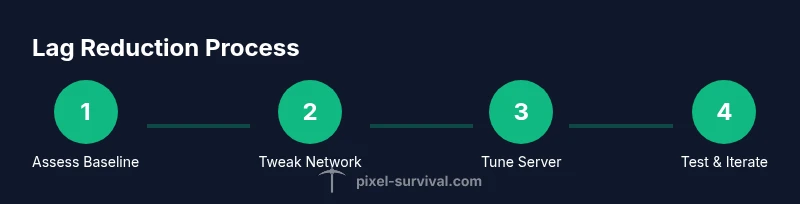
Begin with a clean slate: record your baseline latency with a simple in-game action (planting a block, breaking a block) across players. Implement one change at a time—start with a wired connection, then QoS, then server proximity. After each change, re-test the same actions and compare latency graphs or ping times. Keep a small log noting user-reported smoothness and any outliers. If latency remains high, roll back the least effective change and try a different approach. This iterative process helps identify the bottleneck and confirm that the adjustments translate to real-world improvements.
Long-term strategies for consistent latency
Develop a habit of scheduling multiplayer sessions during off-peak hours to avoid ISP congestion. Keep your game and drivers updated, and re-evaluate network equipment every few months as new firmware lands. Consider setting up a simple monitoring dashboard on the host with periodic latency checks and alerting when ping times drift beyond a threshold. Encourage players to post performance notes, which helps you anticipate and mitigate issues before they interrupt a session. Pixel Survival recommends documenting your chosen server topology and sharing the results with the community so others can replicate successful setups.
Tools & Materials
- Stable internet connection(Prefer wired; minimize wireless interference.)
- Cat6 Ethernet cable(Long enough to reach router.)
- Updated Terraria client and server software(Keep patches current on all players.)
- Dedicated or hosted Terraria server (optional)(Choose a location close to players.)
- Router with QoS or gaming features(Enable gaming traffic prioritization if available.)
- Latency monitoring tool(Use ping and trace routes to profile paths.)
- Close background apps during play(Pause cloud sync, updates, and streaming.)
Steps
Estimated time: 60-90 minutes
- 1
Prepare your environment
Verify that all players have a stable internet connection and the latest Terraria patch. Confirm your hardware meets the game’s multiplayer demands and that you’re on a clean system state before testing changes.
Tip: Ask players to run a quick ping test to the server and note the baseline response times. - 2
Switch to a wired connection
Connect your gaming PC or console with a wired Ethernet cable. If possible, place the router closer to the play area to reduce electrical interference and ensure consistent signal quality.
Tip: Avoid Powerline adapters as a primary link for gaming if you can. - 3
Choose a server near players
Select a server region that minimizes distance for the majority of players. If hosting locally, ensure the host device is dedicated to Terraria to reduce competing tasks.
Tip: Run a quick ping sweep from each client to the server region to confirm latency parity. - 4
Enable QoS and optimize router
Turn on QoS features to prioritize gaming traffic and ensure other devices aren’t consuming large bandwidth during play.
Tip: Label the Terraria entry in QoS rules to avoid accidental deprioritization. - 5
Configure game and system settings
Within Terraria, reduce nonessential visuals and limit streaming or cloud-syncing software on the host machine. Update drivers and set power options for maximum performance.
Tip: Disable V-Sync if you experience input lag paired with high frame rates. - 6
Host locally or pick a stable host
If hosting, keep the server close to your players geographically. For larger groups, choose a reputable provider with consistent uptime and reasonable latency.
Tip: Test connection from every client before starting a session. - 7
Test, measure, and iterate
Run the same actions after each change and compare latency data. Maintain a small log of perceived smoothness and note any spikes.
Tip: If a change worsens latency, revert and try the next adjustment.
Got Questions?
What causes lag in Terraria multiplayer?
Lag is typically caused by latency, server load, and bandwidth limitations, with additional impact from client-side issues like outdated drivers. Addressing these areas step-by-step yields measurable improvements.
Lag in Terraria multiplayer usually comes from latency, server load, or bandwidth limits. Fixes involve network tweaks, server setup, and client optimization.
Should I host or join a server to reduce lag?
Hosting closer to your player group or choosing a nearby server generally reduces lag. For wide regions, a reliable host provider with a nearby data center often gives more consistent results.
Host near your group or pick a nearby server for better latency.
Do background programs affect lag?
Yes. Applications running in the background can consume bandwidth and CPU resources, increasing latency. Close nonessential programs before gaming and keep your system lean.
Yes—close other programs that use bandwidth or CPU.
Can adjusting Terraria settings reduce lag?
Yes. Lowering graphics quality and disabling certain effects can free CPU/GPU headroom, helping multiplayer synchronization and frame pacing.
Adjust in-game settings to free up resources for smoother play.
Is lag different on consoles vs PC?
Yes. Console networking and NAT configurations differ from PC setups. Apply similar network optimization steps to both platforms, focusing on latency, server proximity, and stable connections.
Platform can affect lag; use similar network tweaks.
What’s a good baseline latency for Terraria MP?
There isn’t a universal target. Measure your ping to a nearby server and compare changes after applying fixes to gauge improvement.
There isn’t a single target—measure changes and look for steady improvements.
Watch Video
Key Points
- Prioritize a wired connection for latency stability
- Host or choose a nearby server to reduce travel time for packets
- Test changes one at a time to quantify impact
- Enable QoS and optimize router settings for gaming traffic
- Keep Terraria and drivers up to date for best compatibility