Art Terraria: Pixel Art Guide for Terraria Builders
Master Terraria pixel art with a clear, step-by-step method: plan the design, choose a color palette, map the grid, assemble blocks, add shading, and display your art in-world.


Learn to craft pixel art in Terraria with a step-by-step approach. You’ll plan a design, pick color blocks, map the grid, and place tiles to form recognizable art, then refine with shading and outlines. This guide covers tools, materials, a scalable process, and common mistakes. By the end you’ll create your first Terraria pixel art piece.
What is art terraria and why it matters
Art terraria refers to creating recognizable visuals in-game by arranging colored blocks on a grid. According to Pixel Survival, it blends artistic planning with practical building, turning basic materials into expressive sprites that enhance your world. This approach matters because it gives players a tangible, repeatable method to turn ideas into visible artifacts within Terraria. Whether you’re building a tribute mural, a character portrait, or a themed scene, pixel art adds personality and storytelling to your world—without needing external tools. The friendly constraints of a tile-based system often push you toward clearer silhouettes and thoughtful shading, which strengthens your overall map design. For newcomers and seasoned builders alike, art terraria offers a structured, creative outlet that scales from tiny icons to large, sweeping compositions.
Planning your pixel art project
Successful pixel art starts with a plan. Begin by selecting a design you want to recreate or invent. Break the image into a grid, decide on a scale (e.g., 1 tile per pixel), and map the outline on paper or a digital grid. Planning helps you estimate block types, reduces in-game repositioning, and saves time during the build. A well-planned piece communicates clearly, even at small sizes, and is more likely to read at a distance in your world. Start with a simple portrait or icon and gradually tackle more complex subjects as you become confident with the tile-based workflow. Documenting your palette and grid choices early will pay off when you expand to larger projects later.
Choosing colors: palettes and blocks
Color selection is the heart of pixel art. In Terraria, you’ll work with blocks that come in a variety of colors and textures. Start with a limited palette (5-8 colors) and then expand as needed. Consider light sources in your world and how they affect color perception. Aim for high contrast on key edges, and use neutral tones for shading to keep the piece readable in different lighting. It can help to create a reference swatch sheet or a small mock-up on graph paper before committing to in-game placement. A disciplined palette reduces color bleed and keeps details crisp across screens and world sizes.
Translating a sprite to Terraria grid
Take a reference image and translate it to the game’s grid. Map the silhouette first, then fill interior areas with your chosen palette. Use simple shapes to capture the character's recognizability. This translation process may require simplifying details that won’t translate well to Terraria’s tile-based medium. Regularly compare your grid to the reference to maintain proportions. When you hit tricky curves, test a few iterations on a 4x4 or 8x8 block area to study how edge pixels translate into blocks. Small previews can reveal misreads early.
Step-by-step assembly workflow
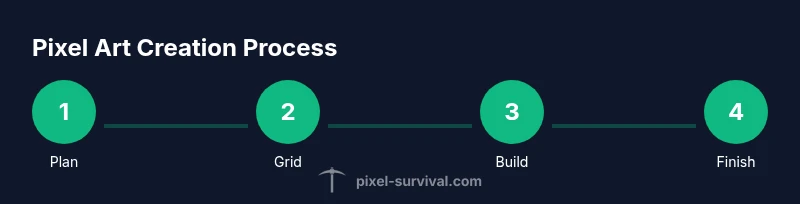
- Prepare your workspace in a flat area with clear walls behind the art. 2) Draft the outline using the outline color. 3) Fill color blocks row by row, checking alignment as you go. 4) Add shading and subtle highlights to convey depth. 5) Review edges and adjust for clean lines. 6) Place a simple background to make the art pop. As you build, confirm that every row aligns with the grid and that the silhouette remains readable from a distance. The incremental approach minimizes backtracking and helps you stay on schedule.
Finishing touches: shading and outlines
Shading gives depth and a sense of volume to your Terraria pixel art. Use darker hues along one consistent light source to simulate shadow, and apply lighter tones on opposite edges for highlights. Outline critical features with a bold, darker color to improve readability, especially when the art is small or viewed from afar. Don’t overdo highlights; subtle contrast usually reads better in Terraria’s flat lighting. After shading, step back and view the piece from several distances to ensure it reads as intended across different perspectives.
Displaying and preserving your artwork in your world
Once your pixel art is complete, consider its display environment. Place it on a flat wall or ground plane with well-lit surroundings to ensure visibility. Use a neutral backdrop behind the piece to maximize contrast and prevent color washout. If your world has dynamic weather or lighting, you may want to add a simple border or frame using blocks that complement the palette. Document the location and parameters so you can reproduce or share the design with friends in multiplayer worlds. Preserving your art means planning for future world saves and backups.
Common mistakes and how to avoid them
A common pitfall is overcomplicating the palette, which reduces legibility. Another is neglecting the silhouette; busy internal details often disappear when the art is viewed at typical distances in-game. Start with a strong, simple outline and a restrained color set. Inconsistent block blocks or misaligned rows can ruin symmetry—verify alignment after every few rows. Finally, test your design in-game by viewing it from multiple angles and distances, and adjust as needed to maintain readability in Terraria’s environment.
Tools & Materials
- Flat, unobstructed canvas in-game(Choose a section with fully flat ground and no NPCs nearby)
- Colored blocks assortment(Include at least 8 distinct hues across reds, greens, blues, neutrals)
- Background walls material(Set walls behind the art to maximize contrast)
- Pickaxe/hammer(Use to place blocks and adjust edges precisely)
- Graph grid reference(Draft your design on paper or a digital sheet before building)
- Good lighting sources(Enhances color perception while building)
Steps
Estimated time: 60-120 minutes
- 1
Prepare your workspace
Identify a large, flat area with clear walls behind your project. Clear nearby clutter and ensure NPCs are moved away to avoid interruptions. Set up lighting to show color distinctions clearly.
Tip: Double-check the chosen area has consistent light to prevent color misreads. - 2
Sketch the design on a grid
Draft the outline on graph paper or a digital grid, mapping each tile position to a pixel. Decide scale and confirm silhouette integrity before placing any blocks.
Tip: Test a small mockup area to validate proportions quickly. - 3
Gather and sort blocks by color
Collect block types that match your palette and organize them by hue on nearby shelves or ground. This reduces search time during building.
Tip: Limit to 5-8 core hues at first to maintain readability. - 4
Lay the outline and major shapes
Place blocks to form the outer edge of the design first, using a contrasting color for visibility. Focus on clean, smooth curves for organic shapes.
Tip: Keep a consistent grid alignment; a wobble in rows hurts readability. - 5
Fill color blocks row by row
Proceed horizontally or vertically, filling interior areas with the color palette. Maintain accuracy by checking against the grid reference after every few rows.
Tip: Work in segments to avoid large rerouting if something looks wrong. - 6
Add shading and highlights
Apply darker shades along one edge to create depth, and add lighter highlights sparingly to emphasize focal points. Ensure shading remains consistent with your light source.
Tip: Avoid high-contrast patches that confuse the silhouette. - 7
Finalize background and polish
Add a simple background frame or backdrop to increase contrast, then view from multiple distances for final tweaks. Save or snapshot your build to share later.
Tip: Capture a before/after comparison to track improvements. - 8
Review, test, and iterate
Take time to review the piece in-game, solicit feedback, and iterate on colors or outlines if needed. Rebuilds often improve clarity and impact.
Tip: Use community feedback to guide future designs.
Got Questions?
What is art terraria?
Art terraria is the practice of creating recognizable images in Terraria by placing colored blocks on a grid to form sprites or scenes. It blends planning with in-game building to produce shareable, decorative art within your world.
Art terraria is creating images in Terraria by placing colored blocks on a grid to form sprites. It blends planning with building to produce in-game art.
What tools do I need to start?
You need a flat build area, a varied palette of colored blocks, background walls, and basic building tools. Optional: paper or a digital grid to plan before placing blocks.
You need a flat area, colored blocks, background walls, and basic tools. Planning materials help.
How do I translate a sprite to the Terraria grid?
Start with a simple silhouette, map it onto the grid, then fill interior with your limited palette. Simplify details that won't translate well to tiles and adjust for visibility.
Begin with a simple silhouette on the grid, fill with colors, and simplify details for tile translation.
Can pixel art be created in multiplayer worlds?
Yes. Pixel art can be built collaboratively in multiplayer worlds. Coordinate grid planning, assign color roles, and document the design to keep everyone aligned.
Yes, you can build pixel art with others by planning together and keeping colors coordinated.
Will the art survive world reloads or updates?
Art tends to persist in the world as long as the map section remains intact, but world edits or updates can disrupt builds. Regular backups help.
Pixel art stays as long as the world section remains, but backups are wise before big updates.
What if my art looks off at distance?
Revisit the outline and color contrast. Test from various distances, refine edge lines, and adjust shading to improve legibility.
If it looks off from far away, rework the outline and contrast and test from different distances.
Watch Video
Key Points
- Plan before placing blocks to keep proportions correct.
- Choose a focused color palette to maximize readability.
- Outline first, then color-fill for cleaner edges.
- Test from different distances to ensure legibility.
- Polish with shading and a simple background for impact.