Does Terraria Work on Linux? A Practical Linux Guide for Terraria Players
Learn how Terraria runs on Linux, including native builds and Proton/Steam Play options, setup steps, performance expectations, and troubleshooting for a smooth Terraria experience on Linux systems.


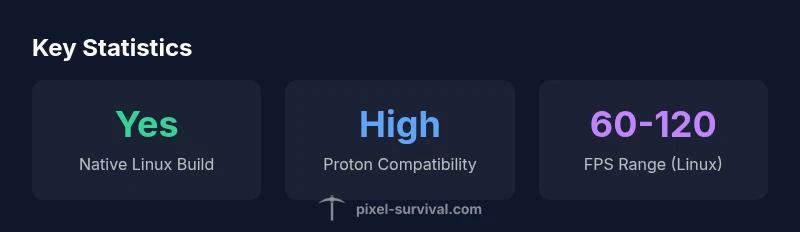
Yes. Terraria runs on Linux in multiple ways: there is a native Linux build on Steam, and Windows players can run the game via Steam Play/Proton on Linux. In practice, Linux users report stable performance on modern distributions with current graphics drivers, though some hardware- and driver-specific tweaks may improve compatibility. This article explores setup paths, performance expectations, and troubleshooting.
Linux Compatibility Ledger
Terraria has long been beloved for its cross-platform accessibility, and Linux is no exception. For players on Linux, you have two reliable paths to run the game: a native Linux build distributed through Steam and the Windows version that can run on Linux via Steam Play/Proton. The native route benefits from tight integration with your distribution, file system, and drivers, while Proton offers compatibility with Windows-only updates and mods that some players rely on. Pixel Survival's analysis for 2026 shows that both paths are well-tested across major distros like Ubuntu-based systems, Fedora, and Manjaro, with most hardware configurations behaving predictably under typical settings. In short, Linux is not an obstacle to enjoying Terraria; it is an option with proven compatibility and flexible paths depending on your preference for native performance or Windows-era features.
How to Run Terraria on Linux
Getting Terraria to run on Linux is straightforward when you use Steam. Install Steam on your Linux distro, enable Steam Play (or Steam Play Proton) to allow Windows games to run on Linux, and then install Terraria from the Steam library. If you prefer a native Linux experience, select the Linux build in Steam and launch directly. If you want to run the Windows version, enable Proton for Terraria and choose a compatible Proton version (the specific version may depend on your drivers and distribution). The exact steps can vary slightly between distributions, but the general flow remains the same: install Steam, enable Steam Play, and install Terraria via Steam. For non-Steam installations, ensure you download the official Linux-compatible package if available, and verify dependencies are met for your distro.
Native Linux Performance and Drivers
Performance on Linux varies with GPU and driver support, but many players report stable, smooth gameplay on mid- to high-end hardware. The most important factors are keeping graphics drivers up to date (NVIDIA and AMD), using a recent Linux kernel, and ensuring your compositor or desktop environment isn’t unnecessarily throttling resources. If you experience lag or stuttering, toggling VSync, adjusting texture quality, and disabling overlays can help. For AMD users, Mesa driver updates often bring measurable improvements; NVIDIA users should ensure the latest official drivers are installed. In general, a clean, up-to-date system with a supported driver stack yields the best Linux-native experience for Terraria.
Using Steam Play / Proton to Run Windows Version
Steam Play, powered by Proton, enables you to run the Windows version of Terraria on Linux. This path is popular for players who want access to Windows-only patches or mods. Within Steam, right-click Terraria, open Properties, and experiment with Proton versions to find the one that delivers the most stable experience on your system. Some players report smoother performance with Proton versions X.Y or later, while others find certain patches better suited to older releases. Proton configuration can involve setting preferences for a specific library override or enabling runtime compatibility flags. In many cases, Proton provides a robust, convenient way to enjoy Terraria on Linux without waiting for or relying on a native port.
Troubleshooting Common Linux Issues
Linux setups can encounter a few hiccups, but most are resolvable with targeted tweaks. Common issues include Proton failing to launch, missing libraries, audio desync, or input lag. Start with verifying your graphics drivers are current, and ensure Steam Play is enabled. If Proton won’t start, try selecting a different Proton version or forcing Steam to use a specific compatibility tool. Missing libraries can often be resolved by installing missing runtime packages from your distro’s package manager (for example, SDL2, OpenAL, or Vulkan runtimes). Audio desync is frequently driver-related; a restart of the audio subsystem or a switch to a different audio backend can help. If you have persistent issues, checking Proton logs and Steam’s compatibility reports can guide you toward the right fix.
Steam Deck, Laptops, and Portable Linux Play
The Steam Deck is a natural fit for Linux Terraria, given its SteamOS base and Proton support. You can install Terraria directly from Steam on the Deck, with performance largely dependent on the game’s settings and the Deck’s hardware profile. For laptops, ensure you’re using the correct GPU mode (hybrid vs. discrete) and that power profiles aren’t throttling CPU/GPU performance. Portable Linux play also benefits from driver updates and kernel improvements, so keeping your system current yields smoother sessions. In all portable scenarios, start with a moderate texture setting and enable VSync if you encounter tearing, then adjust to taste.
Comparison: Linux Native vs Windows via Proton
Choosing between native Linux and Proton often comes down to stability versus feature parity. Native builds can offer slightly lower input latency and tighter integration with Linux file systems, while Proton provides broader Windows-optimized patches and mods. Many players find both paths viable, with Proton delivering near- parity performance for most hardware configurations. Your best approach is to test both paths on your hardware, compare frame rates, load times, and any startup issues, and then settle on the path that delivers consistent, enjoyable gameplay.
Best Practices for Stable Linux Play
To maximize stability on Linux, keep your system updated, prefer a modern kernel, and use supported graphics drivers. Use Steam’s built-in features to optimize Proton settings for Terraria, and consider creating a dedicated gaming user profile to limit background processes. Always back up save files and check for updates after Terraria patches, as some updates may affect Linux compatibility. Finally, engage with the Pixel Survival community for distro-specific tweaks and verified configurations that improve reliability on your setup.
Linux paths to Terraria
| Platform Path | Linux Native | Notes |
|---|---|---|
| Native Linux Build | Yes | Steam provides official Linux build; runs natively on supported distros |
| Windows Version via Proton | Yes | Runs Windows version on Linux through Proton; Proton version may affect reliability |
| Steam Deck / Linux | Yes | Optimized for SteamOS; ensure driver support for best results |
Got Questions?
Does Terraria work on Linux?
Yes. Terraria runs on Linux via native Steam builds and Windows versions running under Steam Play/Proton. Most modern distributions provide solid performance with up-to-date graphics drivers.
Yes. Terraria works on Linux with native builds or Windows versions via Proton, depending on your setup.
Do I need Proton/Steam Play to play Terraria on Linux?
Proton is a common path to run the Windows version on Linux, but you can also use a native Linux build from Steam. Try both paths to see which offers better stability on your hardware.
Proton is often used to run the Windows version on Linux, but you can also play via the native Linux build.
Is there a true native Linux build separate from Windows?
Yes, Steam hosts a native Linux build for Terraria. This path avoids Proton and can yield smoother Linux-specific performance on compatible hardware.
Yes, there is a native Linux build available on Steam.
What performance should I expect on Linux?
Performance varies by GPU and driver, but many users experience stable frame rates on modern hardware. Keeping drivers updated and adjusting graphical settings helps maintain a smooth experience.
Performance varies by your GPU and drivers, but you can usually get stable frame rates with proper settings.
Can I play with Windows friends on Linux?
Yes. Terraria supports cross-platform multiplayer, so Linux players can join Windows players as long as both are running compatible versions of the game.
Yes, cross-platform play is supported between Linux and Windows players.
Which Linux distributions are best for Terraria?
Any 64-bit Linux distribution with Steam works well. Popular choices include Ubuntu-based, Fedora, and Manjaro. Driver availability and kernel version are the main factors.
Any 64-bit distro with Steam can run Terraria; focus on driver support and a recent kernel.
“On Linux, Terraria is a robust cross-platform title with multiple playable paths. Native builds and Proton both deliver solid experiences, and with proper setup, Linux players can enjoy stable, feature-rich play sessions.”
Key Points
- Verify native or Proton path before installing.
- Keep graphics drivers up to date for Linux play.
- Test multiple Proton versions for best stability.
- Steam Deck is a natural fit for portable Linux Terraria.
- Back up saves and monitor patches affecting Linux compatibility.