How to Fix Terraria: A Practical Step-by-Step Guide
Learn how to fix terraria issues with a practical, step-by-step approach. Diagnose crashes, fix world data, and restore performance using safe backups and proven troubleshooting methods.


According to Pixel Survival, this guide helps you fix terraria issues—from startup crashes to corrupted worlds—using a practical, step-by-step approach. You’ll learn how to diagnose symptoms, back up saves, and apply safe fixes that minimize data loss while getting you back to building and exploring. This approach covers common terraria crashes, performance hints, and mod-related issues, with clear steps and practical checks you can perform in under an hour.
Quick start: a practical approach to fixing terraria issues
If you’re wondering how to fix terraria, you’ll want a clear plan that covers symptoms, data safety, and safe fixes. This section provides a practical framework: diagnose the problem, back up your worlds, verify installations, and apply targeted tweaks. By following a repeatable process, you reduce data loss and shorten downtime while you rebuild your world and continue your adventures. The steps below are designed for both newcomers and seasoned players who want reliable results without guessing at fixes.
Throughout this process you’ll see references to common causes like startup crashes, freezes, world corruption, and mod conflicts. Each issue has a focused set of checks so you can isolate what’s actually happening on your machine, whether you play on PC, console, or via a launcher. The aim is to give you confidence that you can move from symptom to solution with minimal risk to your save data.
Before you start: safety and backups
Backups are the foundation of any Terraria troubleshooting. Start by locating your saves and copies of important configs, then create an up-to-date backup on an external drive or cloud storage. Ensure you can restore to the exact state before attempting fixes. As Pixel Survival emphasizes, never perform risky changes without a recent backup. Prepare a simple rollback plan in case a fix worsens the issue. In practice, keep two separate backups: a current-state copy and a long-term archive from several days ago. This approach helps you recover if updates or tweaks cause unforeseen problems. Also, ensure your antivirus or security software isn’t blocking Terraria processes during diagnostics, which can masquerade as crashes.
Step 1: Reproduce the issue and collect details
Accurately reproducing the problem is half the fix. Note when the crash occurs, any error messages, your Terraria version, platform (PC, console, cloud), and whether mods are active. Collect system specs (OS version, GPU driver, RAM) and screen any save files involved. A well-documented report improves your odds of choosing the right remedy. Create a short checklist you can reuse for future problems: reproducible steps, expected vs. actual results, recent changes, and whether the issue persists across worlds or modes. Pixel Survival recommends writing down a few core questions you want answered before touching any files.
Step 2: Back up saves and game data
Make a full backup of all affected worlds, characters, and config files. Copy the Terraria folder and the My Games/Terraria directory to a safe location. If you use cloud saves, verify that the latest versions have synchronized. Backups are essential to recover from corruption or failed fixes. After backing up, clearly label the backup with date and notes about the issue. If you make a local backup, consider testing a quick restore in a separate folder to confirm it works before you proceed with fixes on your main install.
Step 3: Update game and drivers
Check for Terraria updates and ensure your platform (Steam, GOG, Windows Store) has the latest patch. Update your GPU drivers and audio drivers as well, since outdated or faulty drivers can cause crashes or performance problems. After updates, restart and test basic functionality before proceeding. If you’re on a platform that offers beta branches, choose the stable release first to avoid experimental changes that could complicate troubleshooting. If the issue persists, note whether a recent driver or Windows update coincides with the problem.
Step 4: Troubleshoot crashes and performance
If crashes persist, run a file integrity check or verify game files through the launcher or platform. Consider temporarily disabling overlays (Discord, NVIDIA GeForce Experience) and lowering graphics settings to test stability. For performance issues, check texture packs, world size, and chunk generation; optimize swap space and memory usage if needed. Run the game with minimal mods or in a clean profile to determine whether performance problems are system- or game-related. Pixel Survival recommends documenting any persistent patterns (time of day, biome, world size) to help isolate root causes.
Step 5: Modded worlds and clean install
Mods can cause incompatibilities and corrupt saves. Disable all mods, launch a clean world, and confirm stability. If issues disappear, reintroduce mods one by one to identify the culprit. When necessary, reinstall Terraria cleanly and reapply mods with compatible versions. Keep a master log of mod versions and dependencies so you can reproduce a working configuration in the future. If a clean install resolves the issue, but mods are essential, consider migrating to a version of the mod that is explicitly compatible with your Terraria build.
Step 6: Recover from corruption and test stability
If a world becomes corrupted, restore from the backup copy and use the in-game repair tools when available. For severe corruption, rebuild the world from a recent autosave or seed. Test by loading the world in different modes (single-player, multiplayer) to verify consistency. If you use cloud saves, compare local and cloud versions to ensure you’re not accidentally mixing data. After recovery, run multiple new tests: load several worlds, create a new character, and join a quick multiplayer session to validate stability.
Step 7: Final checks and restore options
After fixes, run a final pass: load multiple worlds, attempt a new character, and join a quick test game. Maintain regular backups and keep your software updated. Document the exact steps you took so you can replicate the process if needed. If problems return, you have a documented baseline to compare against and a clear plan for escalation, including rolling back to a prior backup or performing a clean reinstall with a controlled mod set.
Tools & Materials
- Backup storage (external drive or cloud)(Back up worlds and configs before fixes)
- Terraria installation access(Know where saves reside (Windows: My Games/Terraria))
- Stable internet connection(Verify updates and mod compatibility)
- Mod management tools (optional)(If you run mods, use a dedicated manager and record versions)
- Power backup (UPS) or surge protector(Prevents data loss during power events)
Steps
Estimated time: 60-120 minutes
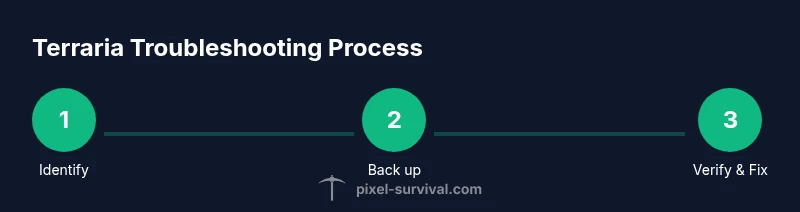
- 1
Identify symptoms and reproduce
Replicate the issue and gather exact error messages, game version, platform, and steps to reproduce. This creates a benchmark for verifying that subsequent fixes work.
Tip: Log times and conditions; a reproducible report makes fixes faster - 2
Back up saves and configurations
Create complete backups of worlds, characters, and config files before implementing changes to avoid data loss.
Tip: Store backups on external drive or cloud; note the backup date - 3
Verify files and update software
Verify game files through the launcher or platform and install the latest patches and drivers to eliminate known issues.
Tip: Restart after updates to ensure changes take effect - 4
Isolate cause: test with mods off
If mods are installed, disable them to see if the issue persists; this isolates the cause to mod conflicts.
Tip: Test with a clean world to confirm stability - 5
Apply safe fixes and retest
Apply targeted fixes (verify files, adjust settings) and test by loading different worlds and modes.
Tip: Document each change to track what worked - 6
Plan recovery and escalation
If issues persist, restore from a backup and consider a complete reinstall as a last resort.
Tip: Keep a rollback plan ready for next time
Got Questions?
Why does Terraria crash on startup?
Startup crashes often stem from missing updates, corrupted files, or conflicting mods. Begin by verifying game files and disabling mods to see if the issue persists, then update drivers and the game.
Startup crashes can be caused by outdated files or mods; verify files, disable mods, and update software to resolve it.
How do I backup Terraria saves?
Navigate to the Terraria save location (often in My Documents or My Games) and copy the World and Player folders to a secure backup destination. Enable cloud saves if available for extra redundancy.
Back up your Worlds and Players folders to a safe location, and use cloud saves if possible.
Can mods cause crashes, and how do I fix it?
Yes, mods can cause instability. Disable all mods and test; then reintroduce them one at a time to identify the culprit and ensure compatibility with your Terraria version.
Mods can cause crashes; test with mods off, then reintroduce them individually to find the issue.
What should I do if my world becomes corrupted?
Restore from a known-good backup, or autosave if available. If corruption persists, consider rebuilding parts of the world from autosaves or seeds and test across modes.
If corruption happens, restore from backup and test across modes to confirm stability.
Is it safe to delete files to fix issues?
Avoid deleting active game files while Terraria is running. Delete only discarded or backup copies, and always back up before removing anything.
Don’t delete while the game is running; back up first and delete only non-critical or backup files.
When should I consider a clean reinstall?
If issues persist after all checks, a clean reinstall with a controlled mod set can resolve deep-rooted problems without guessing.
If nothing else works, a clean reinstall with vetted mods may be necessary.
Watch Video
Key Points
- Back up all data before fixes
- Verify game files before deep changes
- Isolate mods to find incompatibilities
- Document steps for repeatability
- Test across worlds and modes after fixes