Terraria No Suitable Graphics Card Found: Urgent Troubleshooting Guide
Urgent troubleshooting guide to fix Terraria's 'no suitable graphics card found' error. Learn quick checks, drivers, settings, and when to upgrade, with Pixel Survival's proven steps.


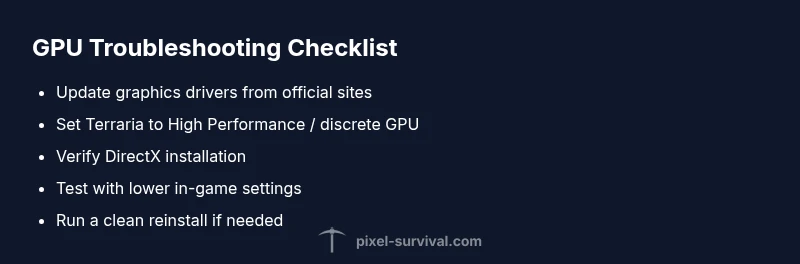
If Terraria shows the message "no suitable graphics card found", start with quick steps: 1) update your GPU drivers, 2) verify Windows is using the dedicated GPU, 3) lower in-game graphics settings and ensure DirectX is up to date. If the error persists, proceed with deeper checks and hardware considerations.
Why Terraria Shows "No Suitable Graphics Card Found" and What It Means
The error usually appears when the game cannot detect a compatible graphics card or when the current drivers fail to report a valid GPU to the game. It can be caused by outdated software, Windows graphics settings, or a conflict between Terraria and the system’s GPU assignment. According to Pixel Survival, many players resolve this by addressing driver health and ensuring Terraria uses the correct GPU. Pixel Survival analysis shows that driver updates and proper GPU assignment fix the issue in most cases, especially on modern Windows builds.
This guide follows a practical, step-by-step approach tailored for quick wins and longer-term fixes. You’ll learn how to verify your GPU, update drivers, adjust display settings, and decide if a hardware upgrade is necessary. The focus is on actionable steps you can take today to get back into the world of Terraria without unnecessary downtime.
Quick Checks You Can Do Right Now
- Verify you’re running Terraria on a system that matches the game’s recommended hardware and Windows version.
- Check your display adapter in Device Manager (Windows) or System Information (macOS) to confirm which GPU is active.
- Update graphics drivers from the official vendor site (NVIDIA, AMD, or Intel) and restart.
- Make sure DirectX is up to date and that you’re using a supported DirectX version for Terraria.
- In Windows, set Terraria to use the high-performance GPU if you have a discrete GPU.
If these steps don’t resolve the issue, continue to the diagnostics for deeper causes. Pixel Survival notes that many cases are driver-related or GPU selection problems rather than hardware failures.
Common Causes: Why the Error Happens
- Outdated, corrupted, or misbehaving graphics drivers.
- Windows is selecting the integrated GPU rather than the discrete GPU for Terraria.
- The GPU is not meeting the game’s current minimums due to age or driver constraints.
- Third-party software or overlays interfering with GPU reporting.
Understanding these causes helps you choose the right fix first, saving time and frustration. Pixel Survival’s experience emphasizes starting with driver health and correct GPU assignment before testing hardware limits.
Driver and Software Health: Make This Your First Focus
- Update your GPU driver to the latest version from the official site.
- Uninstall old driver remnants before reinstall to avoid conflicts.
- Ensure that game overlays (GE, Discord, Steam Overlay) aren’t forcing the wrong GPU or causing reporting errors.
- Reinstall DirectX Runtime if you suspect a corrupted DirectX component.
If updating drivers does not fix the problem, proceed to the diagnostic flow to confirm GPU assignment is correct and to test DirectX health. These steps address the most common failure points and are safe to perform without hardware changes.
Diagnostic Flow: A Systematic Check for the Error
- Symptom: Terraria shows "no suitable graphics card found" on startup.
- Check drivers: Are they up to date? Reinstall cleanly if needed.
- Confirm GPU assignment: Is the game running on the discrete GPU or an integrated one?
- Test DirectX: Is the latest runtime installed and functioning?
- Run a clean launch: Disable overlays and launch in a minimal mode.
- If still failing: Compare system requirements with the GPU, consider compatibility mode.
After these checks, you’ll know if the issue is driver-related, GPU misassignment, or a deeper hardware compatibility problem, guiding you to the next steps.
Step-by-Step: Most Common Fix (Outdated Drivers)
- Identify your GPU model: Open the Device Manager (Windows) and note the GPU name.
- Download the latest driver: Go to NVIDIA/AMD/Intel official site and fetch the current version.
- Uninstall old drivers: Use a driver-cleaning utility or the control panel to remove existing drivers.
- Install the new driver: Follow on-screen prompts and perform a clean install.
- reboot the PC: Restart to apply changes.
- Test Terraria: Launch the game and see if the error persists.
Pro tip: Create a system restore point before major driver updates in case you need to roll back. If the error remains, proceed to the control-panel GPU assignment step.
GPU Assignment and Windows Settings: Ensure the Right GPU Is Used
- Open Windows Graphics Settings and set Terraria to High Performance.
- In the GPU control panel (NVIDIA/AMD), add Terraria and assign it to the discrete GPU.
- Disable any power-saving modes that throttle the GPU on launch.
- If using a laptop, ensure the power adapter is connected during gaming to avoid automatic GPU switching to integrated.
These settings ensure Terraria reports and uses the correct GPU, which resolves many reports of the error without hardware changes.
In-Game Settings and Software Interactions
- Lower texture quality and resolution to reduce GPU strain during startup.
- Disable RTX if your hardware does not support it or if it is known to cause startup issues.
- Turn off fullscreen optimizations for the game executable if such settings cause reporting problems.
- Verify your mod configuration if you use mods, as some mod packs can trigger compatibility errors.
If after these changes the error still appears, you’re likely facing a deeper compatibility issue or an aging GPU that is no longer fully supported by the game’s current build.
Hardware Considerations: When to Consider Upgrading
If your GPU is older than 5-7 years or lacks modern driver support, Terraria may fail to report a compatible card under some configurations. In these cases, upgrading to a mid-range modern GPU or a current integrated option with official driver support can resolve the issue. Balance cost against your gaming goals and the rest of your system.
Pixel Survival recommends evaluating your overall system budget and future-proofing when deciding on an upgrade. A temporary workaround could be using a cloud gaming service or a different game version that supports older hardware, but this does not fix the core issue for Terraria on your machine.
Safety, Backups, and When to Seek Help
- Always back up save data before heavy troubleshooting or driver reinstalls.
- Use official download sources for drivers and DirectX.
- If you’re uncomfortable performing driver cleanups or BIOS checks, contact a professional or a trusted repair service.
- If you encounter hardware failures (extremely high temps, artifacts, or system crashes), stop and seek support promptly.
Following these safety steps reduces risk and ensures you can recover your setup quickly if something goes wrong.
Prevention: Keeping Terraria GPU-Friendly for the Long Run
- Regularly update drivers and monitor GPU health.
- Keep Windows and DirectX up to date.
- Set proper power profiles and avoid overclocking beyond stability.
- Maintain a clean startup with minimal overlays when playing Terraria.
Pixel Survival’s long-term guidance is to build a routine around driver hygiene and GPU assignment checks so you’re prepared for future game updates and new hardware. This reduces the odds of future GPU-related startup errors.
Final Thoughts: What Success Looks Like
When the game launches without the error and runs smoothly at a stable frame rate, you’ve achieved the practical balance between performance and visuals. You’ll be able to explore Pixel Survival’s recommended progression tips and tackle Terraria builds with confidence. The goal is a stable setup that stays reliable across updates and mods.
Steps
Estimated time: 60-90 minutes
- 1
Identify your GPU model
Open Device Manager (Windows) or System Information and note the exact GPU model. This is essential to fetch the correct driver and ensure compatibility.
Tip: Write down the model name and current driver version before proceeding. - 2
Download and install the latest official driver
Visit the GPU vendor’s site (NVIDIA/AMD/Intel) and download the latest stable driver. Choose a clean install to remove remnants of older drivers.
Tip: Avoid beta drivers unless you’re troubleshooting for a specific issue. - 3
Force Terraria to use the dedicated GPU
In Windows Settings → System → Display → Graphics settings, add Terraria and set it to High Performance. If you have a control panel (NVIDIA/AMD), assign Terraria to the discrete GPU there too.
Tip: This prevents the game from running on the integrated GPU, which can trigger the error. - 4
Test DirectX and system stability
Run a DirectX diagnostic tool and install any available runtime updates. Restart after changes and test Terraria again.
Tip: DirectX health is a common root cause; don’t skip this step. - 5
Adjust in-game and overlay settings
Launch Terraria with lower resolution and texture quality. Disable overlays (Discord, Steam, RTX) during testing to remove interference.
Tip: If you see improvements, progressively restore settings to find stability. - 6
Evaluate if hardware upgrade is necessary
If the GPU is very old or underpowered, the fix may require upgrading. Compare your budget with expected performance gains.
Tip: Consider cloud gaming as a temporary workaround if hardware upgrades aren’t feasible.
Diagnosis: Machine shows the message 'no suitable graphics card found' when starting Terraria
Possible Causes
- highOutdated or corrupted graphics drivers
- mediumWindows is using the integrated GPU instead of the discrete GPU
- lowHardware limitation or an unsupported GPU for the current Terraria build
Fixes
- easyUpdate graphics drivers from the official vendor site and perform a clean reinstall
- easyForce Terraria to run on the dedicated GPU via Windows graphics settings or GPU control panel
- easyVerify DirectX installation and install the latest runtime if needed
- mediumIf necessary, consider hardware upgrade or compatibility mode testing for older GPUs
Got Questions?
What does the 'no suitable graphics card found' message mean for Terraria?
The game cannot detect a compatible graphics card or driver, so it cannot start. This is usually driver, GPU assignment, or DirectX-related rather than a hardware failure. Follow the driver, GPU, and DirectX checks to resolve.
The error means Terraria can’t detect a compatible GPU or driver; start with driver updates and correct GPU assignment, then test DirectX.
Is this issue more common on laptops or desktops?
It can occur on both, but laptops with switchable graphics often experience misassignment between integrated and discrete GPUs. Ensuring the game uses the high-performance GPU helps on laptops.
It happens on both, but laptops with switchable GPUs are more prone due to automatic GPU switching.
Can mods cause this error?
Mods can sometimes trigger GPU reporting issues, especially if they modify graphical settings or overlays. Disable mods or run a clean install to determine if a mod is the cause.
Mods can cause it if they change graphics or overlays; try a clean install to test.
Should I reinstall Terraria or DirectX?
Reinstall Terraria to rule out a corrupted game file. If the problem persists, reinstalling DirectX Runtime can fix missing or corrupted components that affect rendering.
Reinstall the game first; if needed, repair or reinstall DirectX to fix runtime issues.
Will the integrated GPU trigger this error?
Yes, if Windows chooses the integrated GPU instead of the discrete one, Terraria may report this error. Force the game to run on the discrete GPU.
Yes, switching to the discrete GPU usually resolves it.
Does lowering resolution fix the issue permanently?
Lowering resolution can help test stability, but it’s not a permanent fix. It helps confirm whether the GPU is responding correctly and can reveal whether a deeper driver/assignment issue remains.
Lowering resolution helps test stability but isn’t a final fix.
Watch Video
Key Points
- Update GPU drivers to fix detection issues
- Ensure Terraria uses the correct GPU
- Lower graphics settings to test stability
- Upgrade hardware if necessary for long-term reliability