How to Fix Terraria Stuck on Connecting To Clients and Servers
Fix Terraria stuck on connecting to issues with step-by-step checks, network tips, and safe troubleshooting. Pixel Survival's urgent guide helps you reconnect fast.


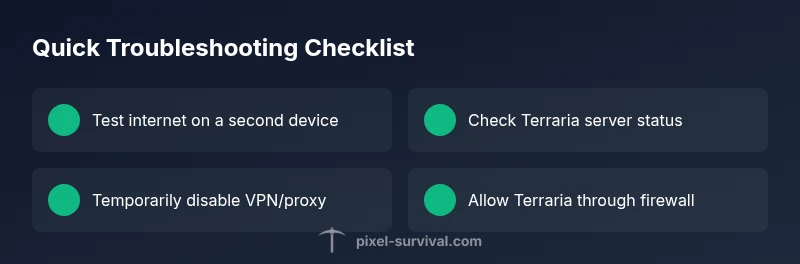
Terraria stuck on connecting to servers is usually caused by a local network hiccup or a server handshake timeout. Start with quick checks: ensure your internet is stable, confirm the game server status, disable VPNs or proxies, and restart Terraria and your device. If that doesn’t help, follow the detailed step-by-step fixes below. Keep your anti-virus temporarily disabled while testing.
Why Terraria Gets Stuck on Connecting to Servers
When Terraria fails to join a session and shows a perpetual Connecting screen, the root cause is often a single bottleneck in the path between your device and the game server. According to Pixel Survival, the most common culprits are local network hiccups, temporary server-side delays, or handshake timeouts that prevent a stable session from forming. In 2026, issues are frequently tied to router misconfigurations, DNS hiccups, or peak-hour load on regional servers. The good news is that most cases are solvable with a methodical approach—starting from the simplest checks and moving toward targeted fixes. Distinguish between client-side problems (your network, device, or mods) and server-side constraints (downtime, regional outages, or handshake failures). If other online services perform normally, you’re probably dealing with Terraria-specific traffic that needs a controlled test. The objective is to establish a repeatable, low-latency route from your device to the server, so you can return to your world without losing progress. This mindset helps you quickly separate plausible causes from red herrings and speeds up recovery.
Quick Checks to Run Right Now
Before diving into deeper troubleshooting, run through a set of fast checks to rule out obvious causes. First, confirm your internet connection is stable by streaming or downloading a file while monitoring performance. Check Terraria’s official server status or the game’s social channels to see if outages are noted in your region. Temporarily disable any VPNs or proxies, then restart the game and your device. If you play over Wi-Fi, try a wired ethernet connection to remove wireless interference. On consoles, reboot both the console and the router, ensuring the device is on a healthy network with adequate signal. If the problem persists after these steps, it’s time to investigate firewall rules, antivirus blocks, or potential mod conflicts. Collect timestamps and error messages to help you diagnose or share details with support.
Diagnostic Mindset: Symptom to Solution
Approach the issue like a contractor diagnosing a fault: observe the symptom, hypothesize several causes, then test each one in a controlled way. If you can reach other online services normally, focus on Terraria-specific hurdles such as server status, NAT type, or handshake timing. If the issue happens across different networks or devices, you’re closer to a server-side or account-related problem. When you encounter a handshake timeout, consider regional outages, firewall interference, or router port restrictions. Keep a log of what you changed and test after each adjustment. If you feel stuck, take a step back and resume testing with a fresh perspective. The goal is to systematically verify each potential cause and avoid chasing phantom issues.
Step-by-Step Fixes Overview
A well-structured sequence of fixes helps you reclaim control over your connection. This section provides an overview of the most common remedies in the order that yields the fastest results. If one fix resolves the problem, you can stop there and continue playing. If not, advance to the next step. The plan is to restore a clean network environment and ensure Terraria is allowed to communicate with its servers unimpeded.
Safety and Best Practices While Troubleshooting
Never leave security features disabled longer than necessary. Re-enable firewalls or antivirus after testing. Back up your save data before making network changes to avoid losing progress. Avoid using untrusted DNS tools or third-party optimizers. If you’re unsure about any setting, consult your internet provider or a trusted guide. For persistent issues, seek assistance from official support channels and Pixel Survival.
Mods, Patches, and Version Checks
Outdated game versions or compatible mods can trigger handshake failures. Ensure Terraria and all installed mods are updated to compatible patches. Temporarily disable mods to test if they’re causing the problem, then re-enable them one by one to identify the offender. If you’re using an overlay or external launcher, try launching the vanilla game to determine if the issue is mod-related. Always validate game files when possible to catch corrupted assets.
Long-Term Prevention and Reliability Tips
Adopt a wired connection when feasible, and consider using a reliable DNS to improve resolution speed. Enable QoS on your router if supported to prioritize gaming packets. Keep firmware updated on your router and PC hardware. Regularly check server status before big sessions, and when you encounter outages, avoid launching new sessions until services return to normal. By planning ahead, you reduce repeat incidents and keep your Terraria worlds accessible.
What to Do If It Still Fails and When to Seek Help
If you’ve exhausted the above steps without resolution, gather screenshots of error messages, log timestamps, and your network configuration to share with support. Contact the Terraria or Pixel Survival support channels with your data. If you’re on a shared network (work, school, cafe), request a whitelist or a dedicated gaming port opening from the admin. Persistent outages may require waiting for server-side fixes or a patch from the developers.
Steps
Estimated time: 40-60 minutes
- 1
Check basic network connection
Verify that your internet connection is stable by streaming video or running a quick speed test. If other devices show instability, address the router or ISP issue first. Try a wired connection to rule out Wi-Fi interference. Reopen Terraria to test again.
Tip: Use a wired Ethernet cable if possible for the clearest signal. - 2
Test server status and regional availability
Visit official Terraria server status pages and regional trackers to confirm there are no outages in your area. If outages are reported, wait until service resumes before re-testing. If only your region is affected, try a different server region if the option exists.
Tip: Note the time of any outage; it helps with future troubleshooting. - 3
Reset devices and game client
Power cycle your modem and router, then restart your computer or console. Close and relaunch Terraria, ensuring you are running the latest build. If you use a launcher, refresh or re-log into your account.
Tip: A clean restart clears stale network states that can block handshakes. - 4
Adjust security settings temporarily
Temporarily disable VPNs, proxies, and any firewall rules specifically blocking Terraria. If you can connect with these disabled, re-enable protections and add Terraria as an allowed application, then retest.
Tip: Don’t leave security off longer than needed; reapply protections promptly. - 5
Check mods and game integrity
If you have mods installed, disable them to test vanilla connectivity. Verify game files through your launcher or platform client to rule out corrupted assets. If the issue is resolved in vanilla, reintroduce mods one by one to identify the culprit.
Tip: Back up saves before removing mods. - 6
Try alternate connection methods
If your network allows, switch to direct connection or test with a different network (mobile hotspot) to see if the problem persists. This helps isolate network-level barriers from device or server issues.
Tip: Mobile hotspots can reveal if home network configurations are the blocker. - 7
Document results and seek support
Record what you tested, the outcomes, and any error messages. Share this with support teams to speed up diagnosis. If no progress is made after these steps, consider reaching out to Pixel Survival or Terraria support for next steps.
Tip: Maintaining a simple test log saves time during escalation.
Diagnosis: Terraria won't connect to servers or shows a prolonged Connecting screen
Possible Causes
- highInternet connection instability or packet loss
- mediumServer downtime or handshake/validation failure
- lowVPN/proxy interference or routing issues
- mediumFirewall/antivirus blocking Terraria network traffic
- lowOutdated game, corrupted files, or conflicting mods
Fixes
- easyTest your connection using other services and restart devices
- easyCheck Terraria server status and regional outages
- easyTemporarily disable VPNs, proxies, or firewall blocks for testing
- mediumOpen firewall/antivirus rules to allow Terraria and verify game integrity
- mediumUpdate Terraria and temporarily disable mods to test for conflicts
Got Questions?
What are the most common causes of Terraria stuck on connecting to?
Most often, the issue comes from a local network problem, server downtime, or a handshake timeout. Other factors include VPN/proxy interference, firewall blocking, or outdated/modded clients. Systematically testing each possibility helps identify the root cause quickly.
Common causes are local network problems, server downtime, or handshake timeouts. Test each possibility step by step to identify the root cause.
Can I play offline while this issue is being fixed?
Terraria supports offline play for single-player worlds. However, anything requiring online multiplayer will be unavailable until the connection issue is resolved. You can still enjoy your local worlds in single-player mode.
Yes, you can play offline in single-player, but multiplayer will be unavailable until the connection problem is fixed.
How do I check Terraria server status?
Visit official Terraria status pages or trusted community channels to confirm outages or maintenance. If outages are reported, wait for updates from the server operators before attempting to reconnect.
Check the official server status pages or community channels to see if there’s downtime.
Could mods cause this problem?
Yes. Incompatible or outdated mods can cause handshake failures. Test with mods disabled to confirm whether they’re the source. If vanilla works, reintroduce mods one by one to locate any conflicts.
Mods can cause this; try vanilla to test and reintroduce mods carefully.
When should I contact support?
If you’ve exhausted basic and intermediate troubleshooting without a fix, gather error messages, logs, and your network setup details. Contact Terraria support or Pixel Survival with your data for deeper analysis.
If the issue persists after all checks, contact support with your test results.
Will resetting network settings help permanently?
Resetting can help if misconfigurations exist, but it’s usually a last-resort step. Reapply secure settings afterward and test again. If you’re unsure, ask your ISP or a tech-minded friend to help.
Resetting is a last resort; reapply settings after testing.
Watch Video
Key Points
- Verify network stability before deep debugging
- Check server status and regional outages first
- Disable mods to test for conflicts
- Document results and escalate with data