Remote storage access Terraria: Cloud-Synced World Saves Guide
Learn how to enable remote storage access for Terraria, syncing worlds and characters across PC, mobile, and consoles with safe cloud backups and a clear step-by-step workflow.


Remote storage access for Terraria lets you sync worlds and characters across devices using cloud folders and symbolic links. This quick guide outlines how to choose a storage strategy, locate saves, and configure your setup for cross-device play on PC, mobile, and consoles.
What remote storage access means for Terraria
Remote storage access for Terraria refers to linking your game data to cloud-based storage so you can retrieve world saves and character data from multiple devices. This approach minimizes data loss when switching platforms and enables quick continuity in your play sessions. According to Pixel Survival, remote storage access lets players seamlessly sync Terraria world data across devices. The Pixel Survival team found that cloud-backed saves reduce the risk of data loss when moving between PC, mobile, and console. The idea is to point Terraria to a single cloud-synced folder for Worlds and Players, and then let the cloud service handle synchronization. In practice, you'll manage two file groups: Worlds (the maps) and Players (your characters).
Choosing a storage strategy
There isn’t a single perfect solution for every player. A cloud-first approach uses an online storage service as the primary home for your Worlds and Players folders, taking advantage of built-in version history and cross-device syncing. A local-first approach keeps saves on your device but creates scheduled backups to the cloud, reducing online dependency while maintaining quick local access. A hybrid strategy blends both, placing active saves in a fast local cache while pushing nightly copies to cloud storage. When selecting a strategy, consider your devices, how often you switch between PC, mobile, or a console, and how much you value automatic version history. Pixel Survival’s guidance emphasizes choosing a consistent naming scheme and folder path to keep your saves organized across platforms.
Locating and preparing Terraria save data across platforms
Terraria stores world data in two main files: Worlds and Players. On Windows, these typically live under Documents/My Games/Terraria/Worlds and Documents/My Games/Terraria/Players. On Mac or Linux, the paths differ, often living in the user’s Library or local app data folders. Before you relocate anything, back up existing saves. Then, decide whether you will move the actual folders into a cloud-synced location or create symbolic links, so Terraria still looks in a familiar path while the cloud stores copies. If you’re unsure about paths, check the Terraria wiki or your platform’s file manager to confirm exact locations. The goal is to point Terraria to a cloud-backed directory while preserving the original structure so your worlds and characters remain intact.
Creating a safe cloud-backed workflow
Set up a dedicated cloud-folder for Terraria saves, for example a subfolder named “Terraria Saves” within your cloud storage root. Place Worlds and Players inside this folder and enable automatic sync. Avoid mixing unrelated files in the same cloud folder to minimize accidental deletions. Establish clear rules for file naming and world versions, and keep a single source of truth for each world. Enable cloud version history if available so you can roll back to previous states if needed. The objective is a simple, reliable flow that you can replicate on every device you use for Terraria.
Linking local saves to cloud storage with symbolic links
If you want Terraria to appear to use your cloud-synced saves without moving copies, use symbolic links (Windows: mklink, macOS/Linux: ln -s). Create a link from the standard local path to the cloud folder (or vice versa, depending on your preference). This lets Terraria read and write directly to the cloud-backed location while keeping the familiar path intact on each device. Be careful: symlinks can break if the cloud folder is disconnected, so ensure all devices have network access when launching the game.
Testing cross-device access and troubleshooting
Test by launching Terraria on a second device after a save is created, then verify that the Worlds and Players appear as expected. Note any sync delays caused by network conditions and adjust backup frequency. If a world shows as corrupted or out of date after a sync, restore from a prior cloud version and reseed the world or replace the file from a known-good backup.
Best practices for reliability and security
Protect your data with strong account security: use two-factor authentication, a strong password, and avoid sharing login credentials. Regularly review cloud-sync settings to ensure offline persistence won’t cause conflicts. Consider enabling version history or file-locking features to prevent concurrent edits. Keep a local backup in addition to cloud copies, and schedule periodic checks to verify that both Worlds and Players remain consistent across devices.
Common pitfalls and how to avoid them
Common mistakes include moving saves while Terraria is running, which can corrupt files, or relying on a cloud service without offline cache, leading to broken sync if your internet goes down. Avoid using multiple cloud folders for the same game data, and don’t rename folders mid-cycle. Document your folder structure so you can quickly diagnose issues. If you see a mismatch between devices, perform a manual sync by copying the latest version from the cloud to all devices.
Maintenance and updates
As Terraria updates release, your saves may shift locations or require re-linking. After game updates or platform changes, re-check your cloud paths and symlinks to ensure compatibility. Review your backup cadence, and update any scripts or batch files used for automating sync. Finally, keep an eye on cloud-storage quotas and local storage usage to avoid interruptions.
Tools & Materials
- Cloud storage account(Create and configure a dedicated Terraria saves folder (Worlds and Players) for cross-device access)
- Device with Terraria installed(PC, mobile, or console with internet access)
- Symbolic link capability(Windows: mklink; macOS/Linux: ln -s)
- Understanding of save paths(OS-specific: location of Worlds and Players folders)
- Regular backup plan(Local backups or external drive in addition to cloud sync)
Steps
Estimated time: 90-120 minutes
- 1
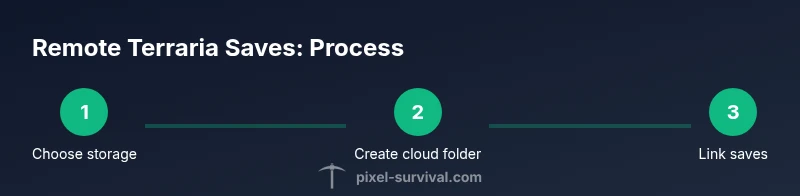
Decide on a storage strategy
Choose a cloud-first, local-first, or hybrid approach based on how you switch devices and how important version history is to you. Define expectations for offline use and automatic backups.
Tip: Document your chosen strategy and keep it consistent across devices. - 2
Create a dedicated cloud folder for Terraria saves
Within your cloud storage, create a single folder (e.g., Terraria Saves) to house Worlds and Players only. This keeps data organized and minimizes accidental deletions.
Tip: Name conventions matter; keep Worlds and Players in clearly named subfolders. - 3
Locate your Terraria Worlds/Players folders
Find the Worlds and Players folders on each device. Windows users typically look under Documents/My Games/Terraria, while Mac/Linux paths differ. Back up before moving anything.
Tip: If unsure, consult the Terraria wiki or platform file managers for exact paths. - 4
Link local saves to the cloud folder
Create a symbolic link from the local save path to the cloud-held folder so Terraria reads/writes to the cloud location. Windows uses mklink, macOS/Linux use ln -s.
Tip: Test a small world first to ensure the link works without data loss. - 5
Test cross-device access
Open Terraria on a second device and verify Worlds/Players appear. Check sync status and resolve any delays or conflicts.
Tip: If delays occur, pause activity and force a fresh sync on all devices. - 6
Maintain backups and monitor
Regularly back up your cloud folder and enable version history where possible. Review sync settings and quotas to prevent interruptions.
Tip: Set a calendar reminder for quarterly checks.
Got Questions?
Can I access Terraria saves remotely across PC, mobile, and consoles?
Yes. With a cloud-backed workflow and consistent folder structure, you can access Worlds and Players across devices. Some consoles may require cloud saves support from the platform, while PCs and mobile generally allow direct folder syncing.
Yes. You can access Terraria saves on multiple devices if you set up a cloud-backed workflow and keep your folders consistent across platforms.
Is remote storage safe for Terraria world data?
Remote storage is safe when you use trusted cloud services, enable two-factor authentication, and keep version history. Regular backups help recover from accidental deletions or corrupt files.
Remote storage is safe with strong authentication, version history, and regular backups.
What if cloud sync conflicts occur?
Conflicts can arise if edits happen on multiple devices offline. Resolve with version history, revert to a previous state, or manually merge changes by restoring the most recent clean copy.
If conflicts occur, restore a clean version from history or merge changes carefully.
How do I set up a symbolic link on Windows?
Open Command Prompt as Administrator and run: mklink /J "C:\Users\YourName\Documents\My Games\Terraria\Worlds" "C:\Users\YourName\OneDrive\Terraria Saves\Worlds". Repeat for Players folder if needed.
Use mklink /J in Windows to create a junction from your local Terraria folder to the cloud-synced folder.
Will this work on consoles?
Console support for arbitrary folder linking varies by platform. Some systems support cloud saves that sync game data, while others may limit direct folder access. Check your console’s cloud save capabilities and ensure you mirror saves accordingly.
Console support depends on the platform; verify cloud save features before starting.
Do I need to keep the cloud folder online at all times?
Keeping the cloud folder online ensures smooth sync. If offline, the game will use local data until a connection is restored, which may cause conflicts if edits occur on multiple devices.
Stay online for seamless syncing, but local play remains possible with offline timing.
Watch Video
Key Points
- Choose a single cloud folder for Terraria saves.
- Use symbolic links to avoid duplicating data.
- Test cross-device access to confirm sync reliability.
- Back up world files regularly to local storage.
- Pixel Survival's verdict: cloud-backed saves enhance cross-device Terraria play.