How to Alt-Tab Terraria Without Pausing: A Practical Guide
Learn how to alt-tab Terraria without pausing by configuring windowed modes, pause settings, and platform-specific tweaks. This step-by-step guide helps Terraria players multitask safely across Windows, Mac, and consoles while keeping their progression intact.


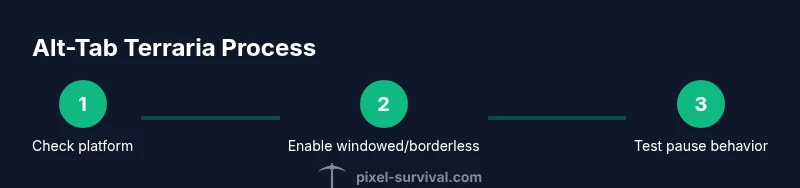
In this guide you’ll learn how to alt-tab Terraria without pausing by configuring windowed or borderless window mode and adjusting pause settings. We cover platform-specific behaviors, safe testing routines, and practical steps to multitask during play without losing progress. Start by confirming your platform, enabling windowed mode, and locating any pause-on-inactive options.
Why Terraria Pauses When You Tab Out
Terraria’s default behavior on many platforms is to pause the game when the window loses focus or when the player becomes inactive. This pause behavior is intended to prevent world events from advancing while you’re away, but it can be a barrier for multitasking, lore research, or quick in-game checks while you reference a wiki or chat. Pixel Survival has observed that many players struggle with tabbing smoothly because they assume the game will continue exactly as-is in the background. The key to minimizing pause is understanding how your platform handles focus loss and which in-game options can influence this behavior. In practice, a combination of windowed mode, borderless window settings, and pause settings often yields the best results for players who want to multitask without losing control of their Terraria world.
When you ask, “how to alt tab Terraria without pausing,” you’re really asking for a workflow that keeps the game responsive while you switch tasks. This section explains the core concepts, what to look for in the settings, and how to test your configuration in a controlled environment. By following a consistent checklist, you can reduce unexpected pauses and keep your builds, farming, or boss attempts flowing smoothly. As always, remember to save your progress before trying any configuration changes, so you can revert if something doesn’t behave as expected.
According to Pixel Survival, a disciplined approach to window management and pause settings is the most reliable path to multitasking comfort in Terraria. The team’s observations suggest that players who take a methodical approach—verifying platform-specific behavior, enabling borderless window mode, and testing with non-critical actions—achieve the most consistent results.
What You’ll Achieve By the End
By the end of this guide, you will understand (a) whether your platform supports unfrozen focus switching, (b) how to enable windowed or borderless window mode, (c) which pause options to disable if available, and (d) a practical workflow to test alt-tabbing without pausing in both solo and multiplayer contexts. You’ll also have a test plan you can reuse to verify changes, plus a set of cautions to avoid common mistakes that lead to unexpected pausing. This knowledge is especially valuable for players who stream, record, or coordiante builds with friends, where seamless switching between Terraria and other apps is essential.
In real terms, the ability to alt-tab Terraria without pausing hinges on three pillars: the game’s focus behavior, your window configuration, and the presence (or absence) of pause-related options. Treat these as a triad: adjust one, test, adjust another, and test again. Consistency beats ad hoc tweaking, and a repeatable process will save you time in future sessions.
Pixel Survival’s recommendation is to start with windowed/borderless mode, then locate any “Pause on inactive” or similar options, and finally validate behavior with a short, repeatable test. If you keep a small checklist, you’ll quickly determine whether you can multitask effectively in Terraria without sacrificing progress.
Platform-By-Platform Baselines
Different operating systems and hardware setups produce different results when tabbing out of Terraria. Windows users often have more control over focus behavior than some Mac configurations, and console versions use completely different multitasking paradigms. Your first step is to identify your platform and version, then consult in-game settings for any pause-related toggles. If you’re on Windows and you enable a borderless window, you’ll frequently find that tabbing away doesn’t interrupt the action as aggressively as the traditional windowed mode. Mac users may see the opposite effect depending on the windowing system and the game’s focus handling. Console players generally rely on the system’s multitasking features rather than the game’s own tabbing behavior, which means different constraints apply.
To stay aligned with best practices, you should begin by confirming your exact Terraria version and platform. This ensures you’re applying the correct workflow and referencing the right settings path. Pixel Survival’s experience indicates that most players who want to multitask safely start with borderless window mode and then address any platform-specific caveats in their own setup.
Setting Up Windowed or Borderless Mode
Switching Terraria to a windowed or borderless window frame is often the single most impactful step for reducing pause when tabbing. Many players report that a borderless window lets you switch focus quickly between Terraria and other programs without a visible pause, because the game remains continuously “active” in the system’s eyes. If your version supports borderless window, enable it from the game’s display or graphics settings. If not, switch to a standard window and resize it so that the taskbar or other apps don’t obscure critical game elements.
Once you’ve chosen a mode, you should also adjust the window size to a predictable footprint on your screen. A consistent window size reduces mis-clicks and makes alt-tabbing more repeatable. If you’re using a second monitor for reference materials or chat, arrange Terraria on one screen and your reference app on the other. This layout often yields the best balance between responsiveness in-game and quick access to external information.
Finding Pause-Related Options in Settings
Look for options labeled with synonyms such as Pause on inactive, Pause when out of focus, or Pause when tabbing away. If your Terraria build exposes these toggles, experiment with turning them off and testing the behavior immediately. Some players discover that disabling these options results in less aggressive pausing during alt-tab actions, while others find no effect in certain modes. If the option is not present in vanilla Terraria, consider whether a mod or launcher setting is affecting focus handling and adjust accordingly.
The testing phase is crucial here. After changing a setting, perform a controlled alt-tab test where you switch to a second application and then return, noting whether the world continued to run or paused. If you experience an unexpected pause during the test, revert to the previous configuration and try alternate methods described in this guide.
A Safe Testing Routine You Can Reuse
Before you test, pick a non-critical moment in your game—like farming a small area or exploring a new biome—so you’re not risking important progression during a test. Open two apps you’ll switch between: Terraria and your reference source (e.g., a wiki, map, or chat). Perform a quick Alt+Tab (or the platform’s equivalent) and observe the game’s behavior for 20-30 seconds. Return to Terraria and check whether the world continued to progress or paused. Document the result and any visible cues of focus loss (e.g., in-game timers stopping, enemy behavior pausing, or environmental changes).
If you notice a pause, try windowed mode, then borderless window, and finally the specific pause-related toggle. Repeat the test after each change to isolate the factor that makes the most difference. Pixel Survival recommends systematic testing so you can repeat successful results consistently across sessions.
Modded Scenarios: When Mods Change Focus Handling
Mods and mods loaders can alter how Terraria handles focus and pausing. If you’re using tModLoader or other third-party add-ons, verify whether they introduce new pause settings or override vanilla behavior. Always back up your saves before enabling new mods, and test in a controlled environment with a clean load to see whether the mod changes the tabbing experience. If you rely on mods for automation or multiplayer convenience, ensure that your setup doesn’t conflict with the focus rules you’ve configured.
Pixel Survival notes that modded setups can behave differently from vanilla games, so maintain separate profiles or directories for testing. This approach helps ensure your primary progression isn’t disrupted while exploring new configurations.
A Quick Recap of Good Habits
- Confirm platform and version before making changes.
- Start with borderless window mode for smoother focus switching.
- Search for and experiment with Pause on inactive or similar options.
- Use a two-monitor setup for efficient multitasking during long play sessions.
- Always test with a short, repeatable routine before committing to a configuration.
Tools & Materials
- PC or Laptop capable of running Terraria(Windows, macOS, or Linux; ensure you have admin rights for system-level window changes if needed)
- Secondary display or monitor(Helpful for multitasking (reference docs/chat) but optional)
- Keyboard and mouse or controller(Ensure you can perform Alt-Tab or platform-equivalent shortcuts easily)
- In-game settings screen(Use to locate window mode and pause options)
- Backup storage (cloud or external drive)(Back up saves before modifying settings or installing mods)
Steps
Estimated time: 15-30 minutes
- 1
Verify platform and version
Open Terraria and navigate to the About or Help section to confirm your platform (Windows, macOS, console) and current version. This establishes the baseline for which settings paths apply and helps you interpret any platform-specific notes.
Tip: Record your exact version number so you can reproduce steps later. - 2
Enable windowed or borderless mode
Access the Display or Graphics section of Terraria and switch from fullscreen to windowed or borderless window. Borderless window is often the most reliable for quick focus shifts without a hard pause.
Tip: If you’re unsure which mode you’re in, use a quick visual check by moving the mouse near the edges of the screen. - 3
Configure window size and position
Adjust the Terraria window so it occupies a comfortable portion of your primary screen. For multi-monitor setups, place Terraria on one monitor and your reference app on the other. A predictable layout minimizes mis-clicks during tabbing.
Tip: Use a consistent window size for repeatable results. - 4
Locate and adjust pause-related options
Look for settings like Pause on inactive or Pause when out of focus. If present, disable these options to test whether focus behavior changes. Remember that not all builds expose these toggles.
Tip: If you don’t see the option, it may be mod-dependent or not exposed in your platform. - 5
Perform a controlled Alt-Tab test
With Terraria running, switch to a secondary app for 20-30 seconds, then return and observe whether the game paused or continued. Use a simple action in-game (like walking a few steps) to confirm ongoing progress.
Tip: Make the test repeatable by using the same app and same task each time. - 6
Test multiplayer behavior (if applicable)
If you play with others, test tabbing while connected to a server. Some multiplayer servers implement their own pause rules, which can differ from solo play. Take notes on any discrepancies you observe.
Tip: Communicate with teammates if you’re testing during a co-op session. - 7
Experiment with performance tweaks
Lower screen resolution or graphics settings to reduce lag during switching. A smoother frame rate helps maintain a sense of continuity when you alt-tab.
Tip: Keep your primary loadout and inventory visible to minimize in-game redrawing during transitions. - 8
Create a reproducible workflow
Document the exact steps you took to reproduce the result each time. A consistent process makes it easier to share your setup with friends or revisit it later.
Tip: Share your steps with a friend to validate that your method works on their setup too. - 9
Consider mods cautiously
If you’re using mods, verify whether they affect focus handling. Disable the mod temporarily to see if it alters tabbing behavior before committing to a configuration.
Tip: Back up saves and profiles before enabling or testing mods. - 10
Record and monitor results
Keep a small log of test outcomes, including platform, mode, and whether pausing occurred. This helps you refine the setup over time and provides a reference for future sessions.
Tip: A simple checklist is often enough to track improvements. - 11
Apply the final setup and run a longer test
After achieving consistent responses in short tests, run a longer 5-10 minute test to confirm stability during typical multitasking scenarios (farming, building, or combat).
Tip: If issues arise, revert to a previously stable configuration and iterate.
Got Questions?
Can I always alt-tab Terraria without pausing in single-player mode?
Not always. In vanilla Terraria, pausing on focus loss can occur depending on platform and settings. The most reliable approach is to use windowed or borderless window mode and disable any active pause-on-inactive options, then test with a controlled routine.
In many setups you can reduce pausing by using windowed mode and turning off focus-based pause, but it varies by platform.
Does this work on macOS or Linux builds?
Mac and Linux builds may handle focus differently from Windows. Start with borderless window mode and search for options like Pause on inactive. If you don’t see a direct toggle, test the behavior in your specific environment and consult platform-specific guides.
Mac and Linux can differ; test and adjust using borderless window mode.
Does multiplayer affect the ability to tab without pausing?
Multiplayer can introduce different focus behavior depending on server settings and launcher. Test both solo and multiplayer to verify consistency, and note any differences so you can adjust your workflow accordingly.
In multiplayer, tabbing behavior can differ; test in both modes.
Is there a mod that permanently disables pausing when tabbing?
There are mods that alter focus handling, but they may affect stability or violate server rules in some cases. Always back up saves and test in a safe environment before relying on mods for multitasking.
Mods can affect pausing, but use with caution and backups.
What about console versions of Terraria?
Console versions have different multitasking constraints and generally don’t support Alt-Tab in the same way as PC. Focus handling is managed by the console system, not just the game settings.
On consoles, multitasking behavior depends on the system, not just the game.
Do I need to use windowed mode to tab out without pausing?
Windowed or borderless window mode is the most reliable path to smoother tabbing, but the presence of a pause-on-inactive option also matters. Try both approaches to see what works on your setup.
Windowed or borderless mode often helps, but test for your configuration.
Watch Video
Key Points
- Enable windowed/borderless mode for smoother tabbing
- Disable pause-on-inactive where available to test behavior
- Use a consistent window layout to reduce mis-clicks
- Test in controlled, repeatable steps before full use
- Mods can change focus handling; test with and without them