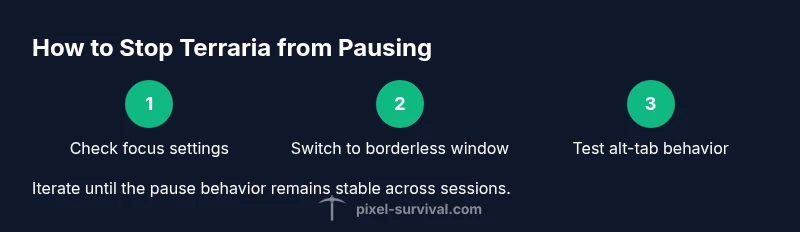
How to Stop Terraria from Pausing: A Practical Guide
Learn practical, platform-aware methods to stop Terraria from pausing on PC, console, and mobile. This comprehensive guide covers window modes, focus behavior, mods, performance tweaks, and safety considerations to keep your game flowing smoothly.


Switch to borderless window, disable pause on focus loss if available, and use optional mods for advanced control. The full guide below walks you through each change and checks compatibility with your platform.
Understanding how to stop terraria from pausing
In Terraria, the pause behavior most players notice stems from how the game handles focus on your device. This guide explains why pausing happens and what you can change to minimize interruptions. If you are wondering how to stop terraria from pausing, start with the basics: window mode, focus behavior, and platform-specific quirks. By addressing these root causes, you can reduce accidental pauses during intense fights or meticulous builds. Across PC, console, and mobile, the core idea is to keep the game window active and minimize focus loss during crucial moments.
Pixel Survival emphasizes that many pause-related issues originate from how the operating system and game interface interact. Keeping a stable focus, using an appropriate display mode, and validating that your peripherals aren’t triggering unintended inputs are essential first steps. This foundation helps you navigate more advanced fixes later in the guide.
Quick wins: display and focus tweaks
If you want fast results, start with display and focus adjustments. These tweaks don’t require deep tinkering and often resolve most pause-related annoyances:
- Switch to borderless window mode when playing on PC to reduce the impact of alt-tabbing and window focus changes.
- Check for any in-game option named Pause on Focus Loss and disable it if your platform and build support it.
- Ensure your cursor and input devices aren’t sending phantom signals during frantic combat or precise builds.
- Keep Terraria updated to minimize bug-related pauses reported by players across different platforms. By applying these quick wins, you’ll see a noticeable reduction in unintended pauses in most sessions.
Choosing the right window mode: windowed, borderless, fullscreen
Display mode choice heavily influences how often Terraria pauses during multitasking or tab-switching. Borderless window mode is generally the most forgiving option for players who frequently switch applications, as it behaves like a seamless desktop task. Fullscreen mode can isolate Terraria from other apps but may cause pause-like behavior when you switch away. Windowed mode (non-borderless) sometimes preserves more precise input, but can increase the chance of focus loss pauses if another window momentarily grabs focus. Test each mode in your typical session and note how often you experience interruptions. Pixel Survival recommends keeping a dedicated scene for creative tasks to minimize distractions while you play.
When evaluating modes, consider your hardware and OS realities, as performance dips can sometimes feel like pausing even if the game is technically running.
Advanced methods: mods and launchers
For players seeking deeper control over pause behavior, mods and launchers offer more granular options. Tools built around tModLoader environments can alter certain timer-related aspects or input handling, though this can affect game stability and compatibility with other mods. If you choose to explore mods, back up your worlds and save data first, and verify that your mod setup is compatible with your Terraria version. Always prefer reputable sources and read user feedback before installing any add-ons. While mods can be powerful, Pixel Survival cautions that heavy modifications may introduce new pause-related edge cases that require additional troubleshooting.
Performance tuning that affects pausing
Performance issues can masquerade as pausing or stuttering. Optimizing CPU/GPU usage, reducing background processes, and adjusting in-game graphics settings can help maintain a steady frame rate and reduce periods that feel like pauses. Disable V-Sync if it introduces input lag or stutter on your system, and experiment with texture quality, draw distance, and particle effects to find a balance between visual fidelity and smooth gameplay. For players on older machines, enabling a lighter rendering mode or lowering resolution can significantly reduce pauses caused by resource contention. Pixel Survival’s approach is to tune both hardware and game settings iteratively until you reach consistent responsiveness across sessions.
Safety, compatibility, and risks
Some fixes involve modifying game files or enabling experimental features, which can risk corrupting saves or breaking compatibility with certain worlds. Always back up your Terraria worlds and key files before making changes, especially when trying mods or launcher tweaks. If you’re on console, be mindful of any platform-specific restrictions that prevent third-party tools. Where possible, rely on official settings first, reserving third-party solutions for cases where you’ve proven they’re safe for your setup. In all cases, discontinue a fix if you notice instability, crashes, or data loss, and consult Pixel Survival for guidance on safe practices.
Troubleshooting common scenarios
This section covers frequent patterns players report:
- Scenario A: Pauses occur only during intense boss fights. Likely related to input lag or background tasks; try borderless window and reduce on-screen effects.
- Scenario B: Pauses when tabbing to a second monitor. Borderless mode and turning off focus-related toggles can help; verify OS-level focus behavior.
- Scenario C: Pauses when using a game controller. Check controller drivers and disable any macro or shortcut that could trigger a focus loss.
- Scenario D: Random pauses after a patch. Ensure your mods are up to date or temporarily disable them to isolate the issue. Pixel Survival notes that patch-induced pauses are common and solvable with a clean baseline setup.
A practical pre-game checklist
Before you start a session, run through this concise checklist to minimize pauses:
- Update Terraria to the latest stable release.
- Set borderless window mode and confirm that Pause on Focus Loss is disabled if available.
- Close unnecessary background apps and reduce startup load.
- Back up your worlds and save files.
- If you use mods, ensure compatibility with the current build and create a restore point.
- Test a short run to validate that the fixes hold under your typical play conditions. By following this routine, you’ll create a stable baseline for smooth play and fewer pauses during adventures.
Pixel Survival emphasizes consistency: fix one variable at a time and document the results so you can replicate success across sessions.
Pixel Survival tips and closing guidance
As you implement changes, remember that a nuanced mix of display settings, focus behavior, and performance tuning often yields the best results. The Pixel Survival team suggests keeping a log of what you changed and the observed effect, so you can refine your approach over time. If you’re unsure about a particular tweak, start with the least invasive option (borderless window, basic focus settings) and progress toward more advanced methods only after verifying stability. With patience and systematic testing, you’ll master how to stop terraria from pausing across platforms.
Tools & Materials
- Terraria installed on your platform(PC/Console/Mobile; ensure the build is up to date for 2026 compatibility)
- Access to in-game Settings(Navigate to Settings and locate pause-related options)
- Display mode options (borderless window, fullscreen, windowed)(Test all modes to compare pause behavior)
- Reliable internet connection (for mods/launchers, optional)(If using online mod repositories or launchers)
- Backup tools for saves/worlds(Create a restore point before modifying files or installing mods)
Steps
Estimated time: 20-30 minutes
- 1
Open Settings and locate pause options
Launch Terraria and open the Settings menu. Find any options related to pause on focus loss or window focus behavior. If an option exists, read the description and toggle it off or set it to the most permissive state for your setup. This step identifies whether your platform offers a direct control over pausing behavior.
Tip: Note the current setting before changing it so you can revert if needed. - 2
Switch to borderless window mode
Change the display mode to borderless window if available. This mode reduces the likelihood of an abrupt pause when you switch to another program, as Terraria behaves more like a background application in a windowed context.
Tip: After switching, minimize other apps to test stability. - 3
Test focus behavior with alt-tab
Alt-tab to another window briefly and return to Terraria to observe whether the game pauses or remains active. Repeat with both borderless window and fullscreen modes to compare results.
Tip: Take notes on which sequence consistently keeps the game unpaused. - 4
Check for hardware inputs or macros
Disable any input devices that might inadvertently send signals (e.g., macro keys, gaming keyboards with auto-repeat). Unplug optional peripherals if needed to verify they are not triggering focus changes.
Tip: Only reintroduce peripherals one by one to identify the culprit. - 5
Consider mods or launcher tweaks (advanced users)
If you’re comfortable with mods, explore reputable options that adjust pause-related behavior, ensuring compatibility with your Terraria version. Create a backup before making changes.
Tip: Use a clean test world to validate behavior after each modification. - 6
Run a dedicated test session
Conduct a 15–30 minute test session in your preferred mode with typical actions (combat, building, inventory juggling) to confirm the pause behavior remains stable.
Tip: Document any pauses and correlate them with specific actions or windows.
Got Questions?
Why does Terraria pause when I switch windows?
Terraria pauses when the game loses focus on many platforms to prevent unintended gameplay events. This behavior is common across PC builds and console environments, though some settings may mitigate it. If you want fewer pauses, try borderless window mode and disabling any frame-limiter options that may interact with focus events.
Terraria typically pauses when the game loses focus. Using borderless window mode often minimizes that, and you can adjust settings to reduce interruptions.
Can I disable pausing on all platforms?
There isn’t a universal toggle across every platform. Some builds offer a pause-on-focus option, and others rely on window mode adjustments. If a setting exists for your platform, try turning it off; otherwise, use borderless window mode and test behavior across tasks.
There isn't a single switch for all platforms; try borderless window mode and any pause-on-focus options your platform provides.
Does pausing affect NPC behavior or timers?
In many cases, pausing halts active timers and ongoing events, but complex timer interactions can vary by world state and platform. Expect some timers to stop while paused, while others may run depending on how your game instance processes focus events.
Pausing generally stops in-game timers, but outcomes vary by platform and world state.
Will mods fix pausing permanently?
Mods can adjust certain pause-related behaviors, but they may introduce new stability issues or be incompatible with future updates. Always back up saves first and verify compatibility with your Terraria version before relying on mods as a permanent fix.
Mods can help, but they aren’t guaranteed and can cause new issues—back up first.
Is pausing different on console than PC?
Yes. Console versions follow platform-specific focus and input rules, which can alter how pausing behaves compared to PC builds. Adjustments like display mode may be less flexible on consoles, so follow console-specific guidance when troubleshooting.
Pausing differs by platform; consoles have distinct rules and fewer display tweaks than PC.
What should I do if pauses seem random or patch-related?
Patch updates can temporarily disrupt pause behavior. Recheck settings, test with a clean baseline, and consider disabling recently added mods or re-creating a fresh test world. If issues persist, report specifics to Pixel Survival for guidance.
If a patch causes pauses, recheck settings and test with a clean baseline; consider disabling new mods.
Are there platform-specific tips I should try first?
Start with borderless window mode and verify that Pause on Focus Loss is disabled if available for your platform. Then test with the minimum set of tools and mods. Platform quirks vary, so follow guidance tailored to PC, console, or mobile.
Begin with borderless window and platform-specific pause options, then test with minimal tools.
What is the quickest way to verify a fix works?
After applying a fix, run a 15–30 minute session that mimics your usual playstyle—combat, building, inventory management—to confirm the pause behavior remains stable. If a pause occurs, document the action and adjust accordingly.
Run a short test session after changes to confirm stability; adjust if pauses recur.
Watch Video
Key Points
- Identify pause sources by testing focus and display modes
- Borderless window mode often reduces pauses
- Back up saves before mods or deep tweaks
- Test changes with short sessions to confirm stability