Terraria Lost Connection on Steam: Fix Guide (2026)
Urgent troubleshooting guide to resolve terraria lost connection steam. Step-by-step checks for network, Steam settings, and router NAT to restore stable Terraria gameplay on Steam.


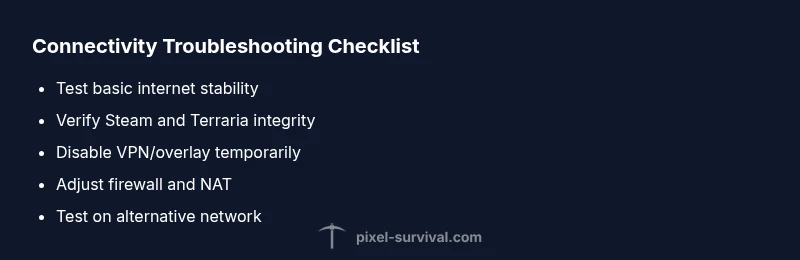
If Terraria keeps saying lost connection on Steam, start with quick checks: confirm your internet is stable, restart Steam and the game, then verify game files and the Steam client. If the problem persists, inspect firewall settings and router NAT, and test a different network. This fast flow fixes many common cases.
Understanding why terraria lost connection steam
In practical terms, a lost connection message during Terraria on Steam usually means the game cannot communicate reliably with Steam servers, the Terraria servers, or your own network path. According to Pixel Survival, the most effective first move is to verify that your own internet connection is stable and that Steam services are reachable from your location. This block lays the groundwork by outlining how Steam, Terraria, and your router cooperate to maintain a live multiplayer session. You’ll learn which link in the chain tends to fail and why small issues can cascade into a game disconnect. Expect a routine you can repeat whenever you see the message again, rather than a one-off fix that only works once.
Quick checks you can perform right now
Before you dive deeper, run through a fast triage list:
- Ping test: Run a basic ping to a reliable server and note the consistency of the response times.
- Steam status: Check Steam’s official status page for outages in your region.
- Other devices: See if other devices on the same network experience similar disconnects.
- In-game indicators: Note if the disconnect happens at a specific moment (e.g., during a boss fight or while joining a server).
- Reproduce the issue: Try a different Terraria world or a local LAN game to see if it’s a global connectivity problem or only for online multiplayer.
These quick checks help determine whether the problem is local, network-wide, or Steam-related, and guide your next steps.
Network fundamentals: Steam, Terraria, and how they connect
Terraria on Steam relies on two core communication channels: Steam services for matchmaking and authentication, and Terraria’s own multiplayer servers or direct host connections. A stable network path means your PC can reach Steam servers, Terraria servers, and any third-party networks involved (DNS, proxy, VPN, or firewall routes). If any hop in this path becomes unstable—temporary DNS hiccups, router resets, or firewall blocks—the game reports a lost connection. In many cases, players simply need a brief window to reestablish the path; in others, a more deliberate sequence of steps is required, especially when NAT or firewall rules interfere with traffic.
Common culprits behind disconnects and how to identify them
Disconnection events commonly fall into a handful of categories. First, consumer internet can vary in stability, and a temporary blip can trigger a reconnect loop in Terraria. Second, Steam or Terraria servers may experience outages or high load, especially during peak times. Third, router settings, NAT type, and firewall rules often block the game’s necessary ports or traffic. Fourth, local software like antivirus or VPNs can interfere with network routes. Finally, corrupted game files or outdated clients can produce unexpected disconnects. By systematically testing each category, you can isolate the most likely culprit with confidence and minimize wasted time.
Step-by-step tests you can run without specialized tools
To keep the process approachable, use a repeatable test flow:
- Reproduce the issue with only Steam and Terraria running; close other bandwidth-heavy apps.
- Run a speed test and compare results across devices on the same network.
- Temporarily disable VPNs or proxies and retry the game.
- Verify integrity of Terraria and Steam client files.
- Check for recent Windows or router firmware updates and apply if needed.
- Switch to a different DNS (e.g., a public DNS) and see if connectivity improves.
If the disconnect persists after these steps, you’ll have narrowed the causes to network path or server-side issues that require targeted fixes.
Router, firewall, and NAT settings explained
Many lost-connection cases hinge on how traffic is allowed through the router and firewall. A strict NAT type can complicate peer-to-peer connections or server hopping, while improper firewall rules can block Terraria or Steam executables from communicating. Enabling UPnP on the router often restores the required port mappings automatically. If UPnP isn’t available, consider manual port forwarding for Steam ports and Terraria ports per your router’s manual. Also check Windows Defender Firewall: ensure Terraria.exe and Steam.exe have both inbound and outbound permissions. Remember, completely disabling a firewall is dangerous; instead, create precise allow rules and re-test.
Steam-specific issues: overlay, updates, and servers
Steam overlays and in-game overlays can occasionally cause conflicts with multiplayer sessions, especially when combined with third-party overlays or performance-trotting software. Temporarily disabling the Steam overlay can confirm if it’s contributing to the problem. Steam client updates can also reset or reconfigure network paths; running a verify- integrity check after an update helps ensure the client isn’t reporting stale data. If you’re using Steam In-Home Streaming or Remote Play, disable those features to rule them out. Finally, track Steam server status and consider trying a different region if the issue appears tied to a specific Steam server cluster.
Advanced fixes and escalation paths
If you’ve exhausted the above steps without relief, escalate thoughtfully. Consider testing with a different network (mobile hotspot or a friend’s network) to prove whether the issue is network-path or ISP-related. Review Terraria’s and Steam’s official outage notices and any recent game patches that could affect connectivity. Collect logs and timestamps of disconnect events to share with Steam support or your ISP. In persistent cases, a clean reinstall of Steam or Terraria may be warranted, but back up save data first to avoid progress loss. If all else fails, professional help from your ISP or a network specialist can identify subtle path problems like tunnel congestion or micro-outages that aren’t visible to the user.
Steps
Estimated time: 60-90 minutes
- 1
Verify fundamental connectivity
Reset all basic network paths. Check your internet by running a speed test and playing a non-Terraria online game to see if it experiences similar drops.
Tip: Document the baseline speeds before changing anything. - 2
Check Steam and Terraria updates
Ensure Steam is fully updated and verify the integrity of both Steam and Terraria game files to rule out corrupted data.
Tip: Use the Steam verification tool after updates. - 3
Test with VPN/proxy disabled
If you use a VPN or proxy, disable it temporarily to determine if it’s introducing routing instability.
Tip: Only disable temporary; don’t leave exposure routes open. - 4
Adjust firewall and antivirus rules
Create explicit allow rules for Terraria.exe and Steam.exe; temporarily disable protection to test, then re-enable with exceptions.
Tip: Avoid turning off security; use precise allowances. - 5
Configure router NAT and UPnP
Enable UPnP. If possible, add manual port forwards for Steam and Terraria ports per your router’s guide.
Tip: Keep router firmware up to date for best compatibility. - 6
Test on alternate network
Connect to a different network (mobile hotspot or another router) to see if the issue persists. If it remains, it’s likely Steam or Terraria server-side.
Tip: If alternate network works, your home path is the issue.
Diagnosis: Terraria loses connection to Steam during gameplay on Steam (terraria lost connection steam).
Possible Causes
- highUnstable internet connection or router instability
- mediumSteam service outage or heavy server load
- mediumNAT blocking or firewall interference with Terraria/Steam traffic
- mediumOutdated Terraria or Steam client, or corrupted game cache
- lowVPN or proxy routing that interferes with Steam traffic
- lowIn-game server issues or crossplay restrictions
Fixes
- easyTest other devices on the same network and run a speed test to confirm consistent bandwidth
- easyRestart Steam, Terraria, and reboot the router; re-launch game
- easyUpdate Steam client and Terraria to the latest versions; verify integrity of game files
- easyOpen Windows Firewall/ antivirus and allow Terraria.exe and Steam.exe; temporarily disable VPNs if in use
- mediumCheck NAT type and enable UPnP on the router; port forwarding for Terraria/Steam as needed
- hardIf issues persist, contact ISP or Steam support for outage reports and logs
Got Questions?
Why do I keep getting a 'lost connection' message in Terraria on Steam?
The message usually means Terraria cannot reliably reach Steam servers, Terraria servers, or your network path. Start with basic connectivity checks, then progress to firewall and NAT troubleshooting before escalating to Steam or your ISP.
Terraria can’t connect reliably to Steam or its servers. Start with simple checks, then review firewall and router settings.
Is the Steam overlay responsible for connection issues?
Yes, overlays can sometimes interfere with multiplayer traffic. Disable the Steam overlay temporarily to test if the disconnects stop, then re-enable or adjust settings as needed.
Steam overlay can cause problems sometimes. Try turning it off to test.
Can using a VPN make terraria lose its connection on Steam worse?
VPNs and proxies can route traffic poorly and introduce latency spikes. If you’re using one, disconnect it while testing the game’s connectivity.
VPNs can complicate routing. Disable them to test stability.
How do I check if Steam servers are down in my region?
Visit the Steam status page or trusted outage trackers for regional reports. If Steam services are affected, wait for official updates or try off-peak times.
Check Steam’s status page for outages in your area.
When should I contact my ISP about Terraria disconnects?
If multiple devices show similar disconnects across different services, and network checks point to your home path, reach out to your ISP with times and symptoms for further diagnostics.
If your whole network shows issues across apps, contact your ISP.
Watch Video
Key Points
- Identify whether the issue is network-path, Steam, or game-side.
- Use a repeatable flow to diagnose, not a one-off fix.
- UPnP and precise firewall rules reduce disconnects significantly.
- Test with an alternate network to isolate your home path.
- If all else fails, escalate with logs to Steam or your ISP.