Terraria Not Launching Steam: Quick Fix Guide
Terraria not launching Steam? This urgent troubleshooting guide covers quick checks, file repair, overlays, drivers, and reinstall options to get Terraria back to gameplay fast. Pixel Survival’s methodical steps help you diagnose and fix launcher issues safely.


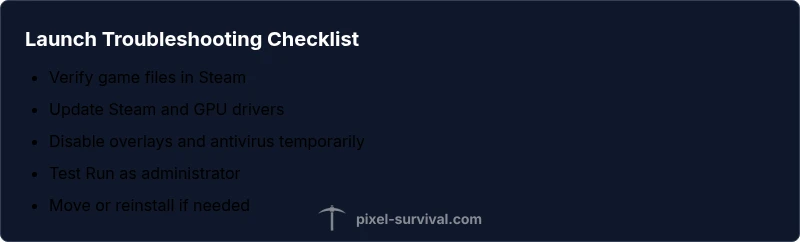
Terraria not launching Steam? Start with the basics: verify integrity of game files, update Steam, run Steam as administrator, and ensure Windows is up to date. Temporarily disable overlays (Steam Overlay, Nvidia Share), antivirus, and Steam Cloud syncing. If the problem persists, try repairing the game files, moving the game to another drive, or reinstalling Terraria. Also check for driver updates and test with a fresh user profile.
Why Terraria Not Launching on Steam Happens
Terraria not launching Steam can be caused by a variety of factors, from software conflicts to corrupted files. According to Pixel Survival, a quick wins approach often resolves many issues within minutes. Pixel Survival Analysis, 2026, notes that launcher problems are frequently tied to overlays and security software.
In practice, most launch problems fall into a few patterns: Steam overlays blocking the game, antivirus or firewall interference, corrupted game files, or insufficient permissions. Users who recently updated Steam or Windows may see compatibility or path-related errors. In addition, hardware drivers, such as graphics cards, can crash the launcher if they’re out of date. The goal of this guide is to guide you through a safe, repeatable process to identify the root cause and apply a remedy without risking data loss. By following these steps, you’ll often restore Terraria to a working state without a complete reinstall.
Check Steam and System Readiness
Before diving into file repairs, make sure Steam itself isn’t the bottleneck. Check Steam’s server status on the Steam client or official channels. Ensure Windows is up to date and that your system clock matches your region; time desynchronization can cause authentication issues. Disable any active Steam overlays temporarily to test whether the overlay is the culprit. If you use third-party launchers or performance overlays, try disabling them as well. Finally, verify your internet connection stability, since a flaky connection can make Steam report launch failures or timeouts. This block helps rule out external causes so you can focus on the game files and settings.
Verify and Repair Game Files
Open Steam, go to Library, right-click Terraria, choose Properties > Local Files > Verify Integrity of Game Files. The client will compare the installed files with Steam’s master copy and repair any discrepancies. After the scan, restart Steam and try launching Terraria again. If the repair completes with errors, consider temporarily renaming the Terraria folder in SteamApps to force Steam to redownload just the game files. If you’re on a slower drive, give the process extra time and avoid interrupting it.
Manage Overlays and Security Software
Overlays can conflict with Terraria’s launcher, so disable Steam Overlay and any third-party in-game overlays. In Windows, disable real-time protection temporarily in Windows Defender or your antivirus. If you use firewall rules, make sure Terraria is allowed to access the internet. Remember to re-enable protective software after testing. If the issue persists, try launching with antivirus fully disabled for a short test, but only if you understand the risks.
Update Drivers and Runtime Components
Graphics drivers should be current before launching Terraria. Check your GPU maker’s site for the latest version and install any recommended updates. Also ensure DirectX, Visual C++ Redistributable packages, and the .NET framework on your system are up to date. Reboot after updates, then attempt to start Terraria again. Outdated runtimes can cause crashes or launcher failures even when the game files are intact.
Launch Settings and Compatibility Tips
Right-click Terraria in Steam and select Run as administrator to grant required permissions. If you still experience issues, try setting compatibility mode for Windows versions that match your hardware. Clear Steam’s download cache via Steam > Settings > Downloads > Clear Download Cache, then relaunch Steam. Some users see success by choosing a different Steam Library folder on a different drive.
When All Else Fails: Reinstall, Move Install, and Preventive Measures
If nothing has worked, reinstall Terraria to a fresh location and avoid mixed drive setups that might confuse Windows path references. You can also move the existing Terraria installation to another drive using Steam’s Move Install option to test a different performance profile. As a last resort, a clean Windows user profile can remove lingering settings that interfere with launches. Back up save files before major changes. To prevent future issues, keep software updated, verify game files after major system changes, and limit overlays to the essentials.
Preventive Measures for Future Launches
Keep software up to date, enable a conservative set of in-game overlays, and set Steam to a trusted launcher. Regularly verify game files after major system updates, and consider using a dedicated drive for gaming to reduce fragmentation. If you rely on mods, verify compatibility and disable them during troubleshooting. This practice reduces recurring issues and speeds up future recoveries.
Steps
Estimated time: 60-90 minutes
- 1
Verify Game Files in Steam
Open Steam, navigate to Library, right-click Terraria, select Properties > Local Files > Verify Integrity of Game Files. Let Steam scan and repair any corrupted files. This addresses common launcher failures caused by missing or altered assets.
Tip: Run Steam as administrator if you encounter permission prompts during the scan. - 2
Update System and Drivers
Check for Windows updates and install them. Update your GPU drivers from the manufacturer’s site and install any recommended DirectX/Visual C++ runtime updates. Reboot before trying again.
Tip: Driver updates can resolve stability issues not tied to the game itself. - 3
Disable Overlays and Security Software
Turn off Steam Overlay and any third-party overlays. Temporarily disable real-time protection in your antivirus. If possible, test with antivirus/firewall disabled for a short window to compare results.
Tip: Only disable security software briefly and safely; re-enable after testing. - 4
Check Launch Permissions
Right-click Terraria in Steam, choose Run as administrator. Ensure Steam itself isn’t blocked by firewall rules and that the game has permission to access the internet.
Tip: Administrative access can resolve permission-related launch failures. - 5
Clear Cache and Reattempt Launch
Clear Steam’s download cache, then restart Steam and attempt to launch Terraria again. This can resolve issues caused by stale data in Steam’s cache.
Tip: Clearing cache is quick and often fixes stubborn startup problems. - 6
Consider Reinstall or Move Install
If nothing else works, reinstall Terraria or use Steam’s Move Install to relocate the game to another drive. This can fix path or fragmentation issues.
Tip: Back up saves before moving or reinstalling to avoid data loss.
Diagnosis: Terraria won’t launch from Steam
Possible Causes
- highSteam overlay or third-party overlays blocking the game
- highCorrupted game files or outdated GPU drivers
- mediumSecurity software or firewall blocking the launcher
Fixes
- easyDisable Steam Overlay and any third-party overlays, then test launching again
- easyVerify integrity of game files and update GPU drivers
- easyRun Steam as administrator and adjust firewall/AV rules
Got Questions?
Why isn’t Terraria launching after a Steam update?
Steam updates can reset permissions or overwrite launcher files, causing Terraria to fail on start. Verifying game files and updating drivers often resolves the issue. If problems persist, check overlays and security software.
Steam updates can affect launch permissions; verify files and update drivers to fix it.
How do I verify the integrity of Terraria files in Steam?
In Steam, go to Library, right-click Terraria, choose Properties > Local Files > Verify Integrity of Game Files. Steam will scan and repair damaged or missing files automatically.
Use Steam’s Verify Integrity option to repair the game files.
Can antivirus software block Terraria from launching on Steam?
Yes. Antivirus or firewall rules can block the game’s executable from launching. Temporarily disable protection during testing, then add Terraria as an exception and re-enable protection.
Security software can block Terraria; test with protections temporarily off, then whitelist the game.
What if Terraria still won’t launch after reinstalling?
If reinstalling doesn’t help, consider moving the installation to a different drive, checking system permissions, and testing with a fresh Windows user profile. Sometimes deeper system settings cause persistent launch failures.
Reinstalling may not fix everything; try moving the install and testing with a new user profile.
Is there a known Steam outage affecting Terraria launches?
Occasional Steam outages can prevent games from launching. Check official Steam status pages or social channels for current incidents before deeper troubleshooting.
Steam outages can block launches; check status pages for outages.
Watch Video
Key Points
- Verify game files first
- Update drivers and runtimes
- Disable overlays during testing
- Run as administrator when needed
- Reinstall or move install if issues persist